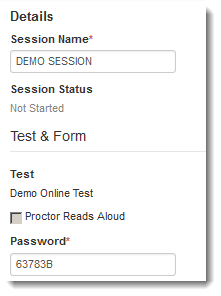
Designated users create a session to set up a virtual student group that will test at the same time.
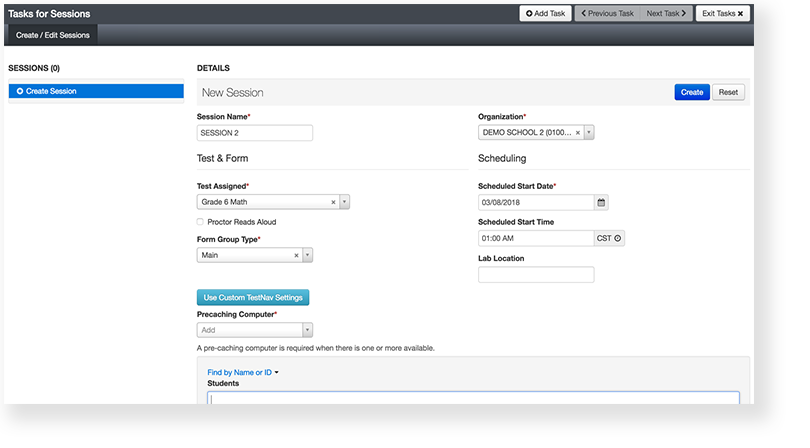
Sessions require specific details. Some vary by customer. To read more, refer to Session Details.
Some programs provide an option to create a session via Student Registrationimport. Refer to your administrator to check whether you have this option.
Step-by-Step
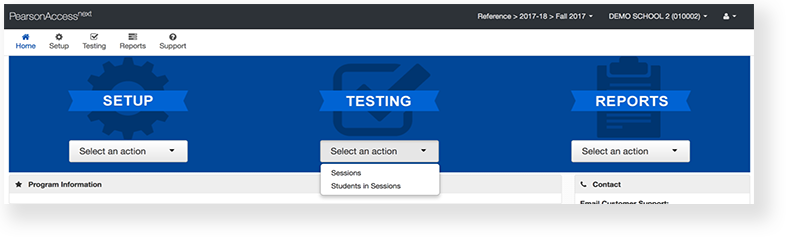
From Testing, select Sessions.
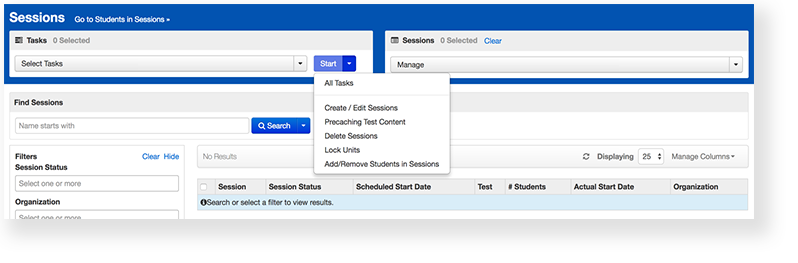
Click Start and select Create / Edit Test Sessions.
Type/select the required details. See below for information about the remote testing options.
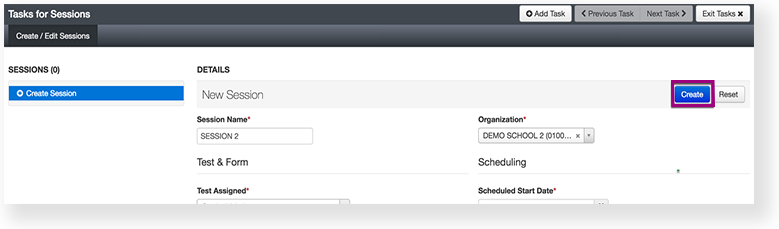
Select Create.
Set Up Remote Testing
If available for your project, you can select Remote Test Proctoring to remotely administer. Designated users may have an additional option to require a group call before students enter their test.
And includes it in test tickets for students to use to sign in to the test (with unique user IDs). This password ensures that students can access only the test assigned to them in the session.
What's Next? (Optional)
Download test tickets and seal codes to distribute before test sessions begin. Test tickets contain student sign-in credentials for TestNav. Seal codes control student access to each test section.