Client Settings: Design
Logo, color and style sheets are typically set up by the Pearson Delivery team with customer feedback. Users with the appropriate role permissions can modify the ADAM header logo and branding cascading style sheet (CSS). The design applies to the entire ADAM site and cannot be changed at the school level. It may be necessary to clear your cache for the changes to appear.
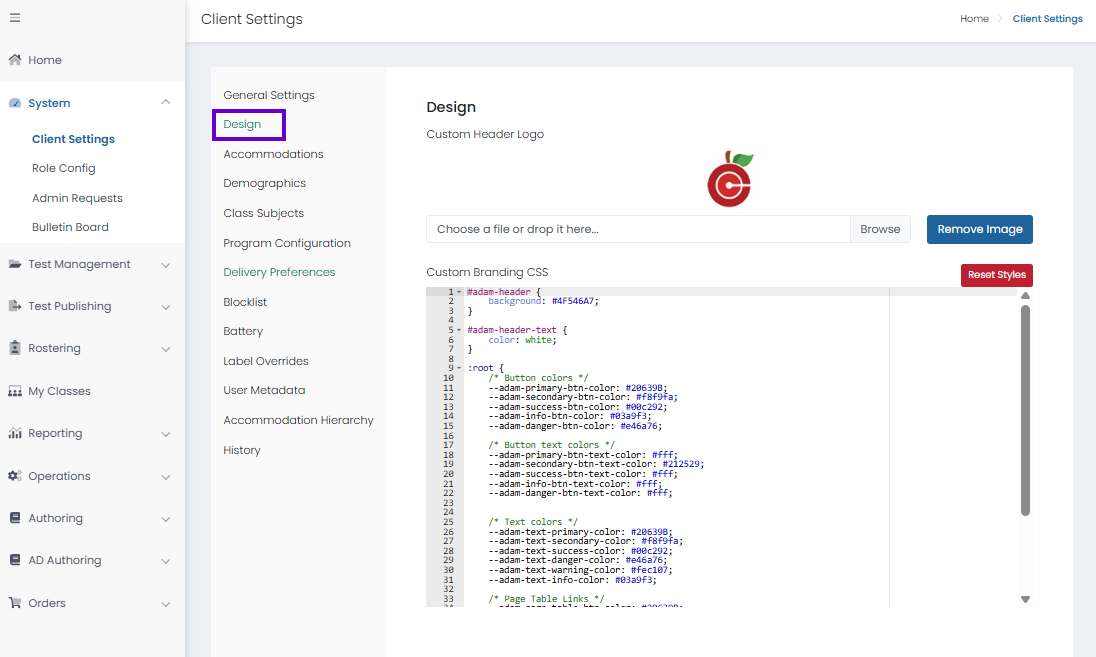
- Go to System > Client Settings.
- Select the Design tab.
Classic User Interface:
Updated User Interface:
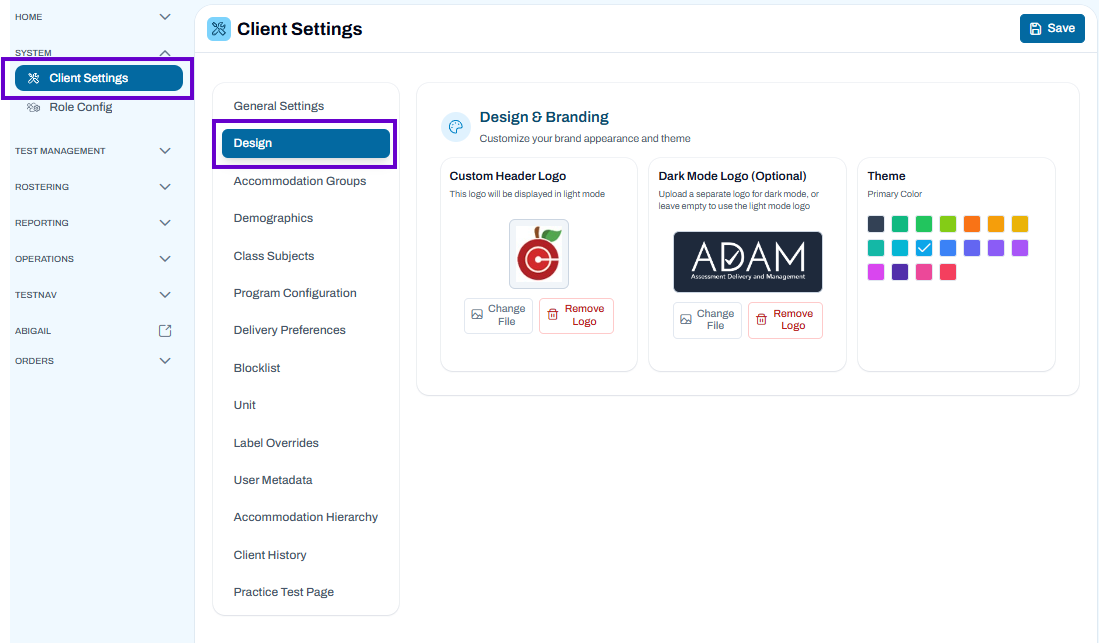
Design & Branding
Classic User Interface Processes
Custom Header Logo
As a best practice, use a transparent gif file, so you don't need to worry about the background colors. A non-transparent image will work if you match the logo background to the background color of the header row.
- Select the Choose a file or drop it here field or Browse, and then search for the image file you want to use. You can also drag and drop and image file into the field.
- Select Submit.
The header logo appears in the top left of the ADAM header. If the logo is wider than the Navigation (navbar), the logo spans across two different background setting styles that are set in the Custom Branding CSS section.
- This style controls the background color in the header row above the navigation panel:
.topbar .top-navbar .navbar-header {
background: #c0c3c7;
} - This style controls the background color in the header row above the main page area:
#adam-header {
background: #c0c3c7;
}

Update the Custom Branding CSS
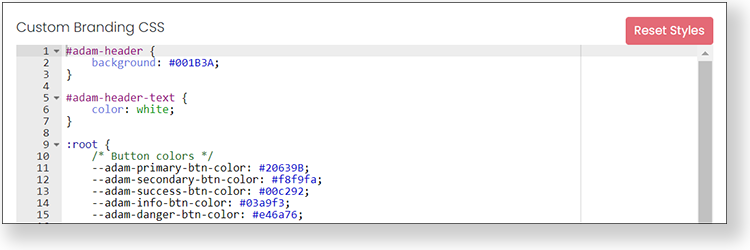
Styles are set by default with a new tenant. If you need to revert back to the default styles, click Reset Styles, but be aware there is not a function to re-apply your custom styles after you reset the styles.
- Go to System > Client Settings.
- Select the Design tab.
- Edit the Custom Branding CSS as needed. A common style sheet is used throughout ADAM. Changes to the CSS are only applied to your tenant.
- Select Submit.
Updated User Interface Processes
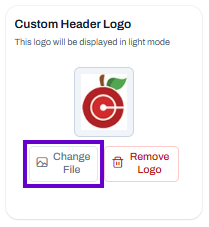
Custom Header Logo
As a best practice, use a transparent gif file, so you don't need to worry about the background colors. A non-transparent image will work if you match the logo background to the background color of the header row.
- Select the Change File, and then search for the image file you want to use.
- Select Open.
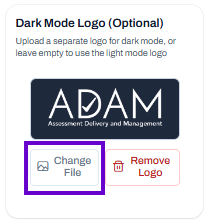
Dark Mode Logo (Optional)
The Dark Mode Logo setting allows you to upload a separate logo that will be displayed when users enable Dark Mode. This helps ensure your logo remains clear and visible against darker backgrounds.
- Change File – Upload or replace the logo used in Dark Mode.
- Remove Logo – Delete the Dark Mode logo and revert to using the standard logo instead.
- Optional – If no Dark Mode logo is uploaded, ADAM will use the standard logo for both light and dark themes.
Tip: For best visibility, use a logo that contrasts well with dark backgrounds.
Theme
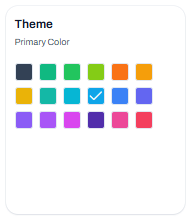
The Theme setting allows administrators to customize the primary color used throughout the ADAM interface. Selecting a theme color updates buttons, icons, links, and other interface elements to match your organization's preferred branding.
- Primary Color Options – Choose from the available color swatches to set the application's primary accent color.
- Selected Color – The color marked with a checkmark is the currently active theme color.
- Instant Preview – Changes are applied throughout the interface to provide a consistent user experience.
Tip: Select a color that aligns with your organization's branding while maintaining good visibility and accessibility for users.