Some customers have item statistics calculated based on student test results and then have that data uploaded via a CSV file into the applicable ADAM item bank by a member of the Pearson Delivery Team.
View Item Statistics
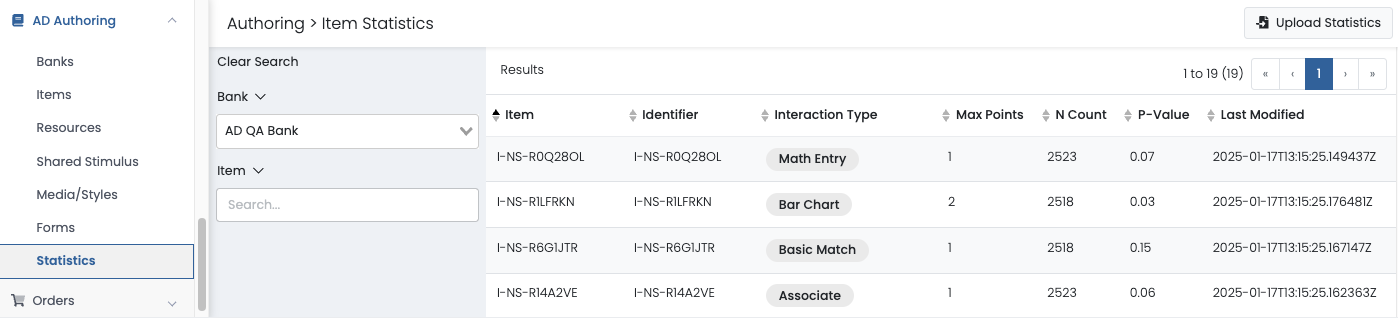
- Navigate to AD Authoring > Item Statistics.
- Optionally filter on any combination of Bank, Item, Form the item appears on, Item Type or Metadata. You can also sort on any column.
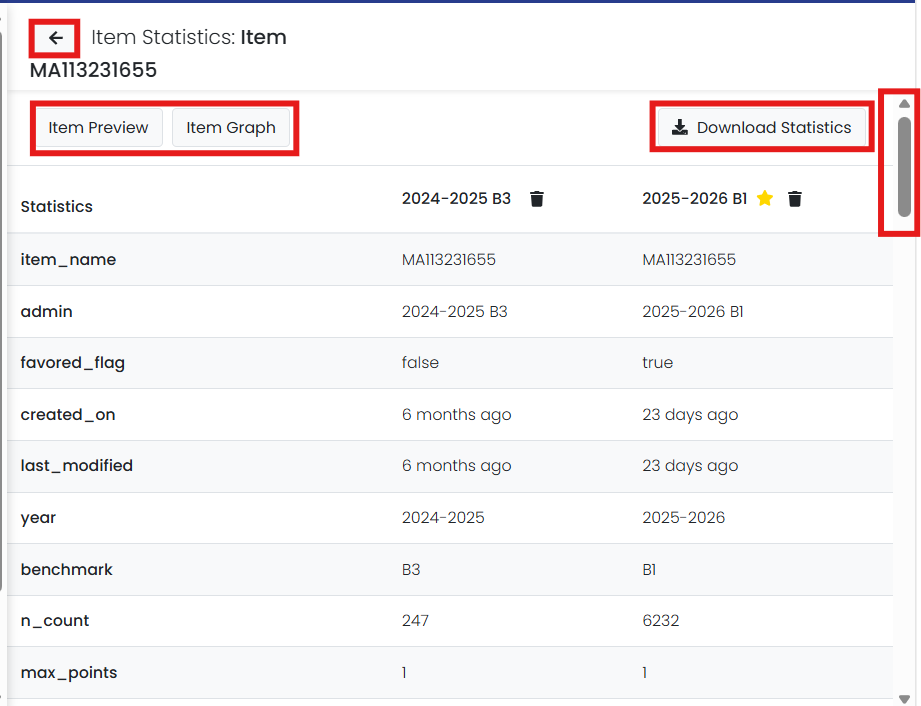
- Each item row is clickable and once open, displays individual item statistics across various administrations. Click the Identifier. (If the page refreshes without going to the item detail, try holding down the SHIFT key and clicking the refresh button up by your browser URL.)
Track Who Updated Statistics
You can track which users uploaded statistics as well as provide a status of the upload using the Upload History button. Once users click the button an Upload History menu will appear that shows the file name, status, created by, and created date. You can download statistics.


Delete Statistics
You can delete previously uploaded statistics from an individual item. A trash can icon appears next to the header of each file that has been uploaded. NOTE: If the flagged column (indicated by the yellow star) is deleted from this view, the item will no longer appear on the main dashboard.

Download Template
From the upload screen you can download a statistics template from the UI that can be modified for upload.

Item Graphing
Users can generate basic graphs and tables using uploaded data attached to items. In the Item Detail, click the Item Graph to produce a graph with the statistics for 'P-Value', 'N-Count', 'Max Score' and, ‘Option Distribution’. Graph/table and percentages/numbers toggles are also available.

