This article applies to only users who sign in to ADAM directly, not users who log in through a portal or LaunchPad.
If a user is having difficulties resetting their password on the ADAM login page, an ADAM administrator can:
- Send a reset password email, or
- Manually set a user's password in ADAM.
Send a Reset Password Email
- Go to Rostering > Users.
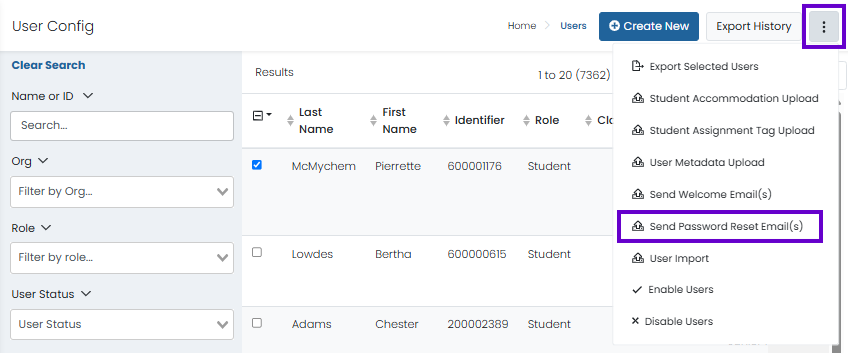
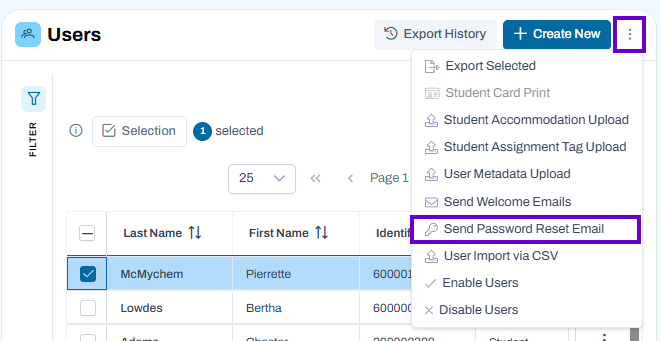
- Search for the user and select the checkbox in front of their name.
- In the Actions menu on the top right, select Send Password Reset Email(s).
Classic User Interface:
Updated User Interface:
- In the password reset popup, click Send. An email will be sent to the user.
- Instruct the user to follow the instructions in the email to reset their password. The email from ADAM is active for 24 hours.
Set an ADAM User Password
If a user cannot use the Forgot Password? button on the ADAM login page or if they have not received a password reset email, an ADAM administrator can manually reset the user's password.
- Go to Rostering > Users.
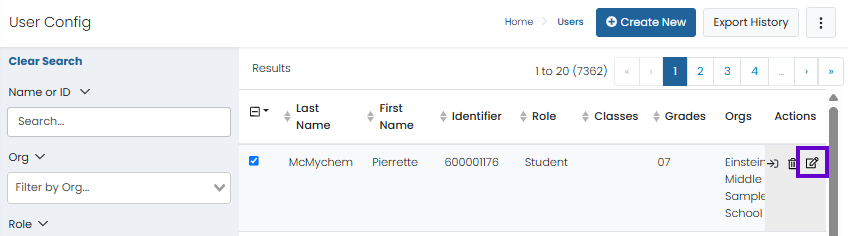
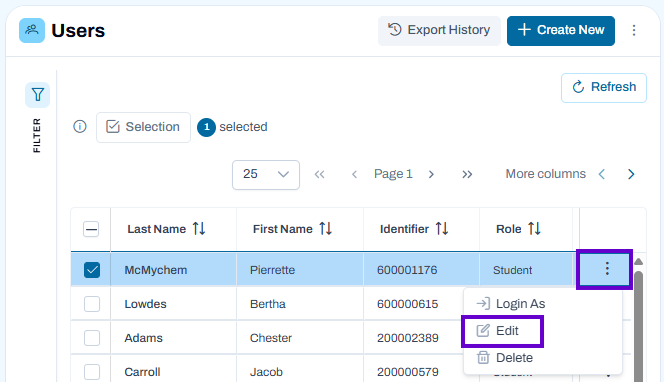
- Search for the user that needs a password reset, and then click Edit on the right side of the row.
Classic User Interface:
Updated User Interface:
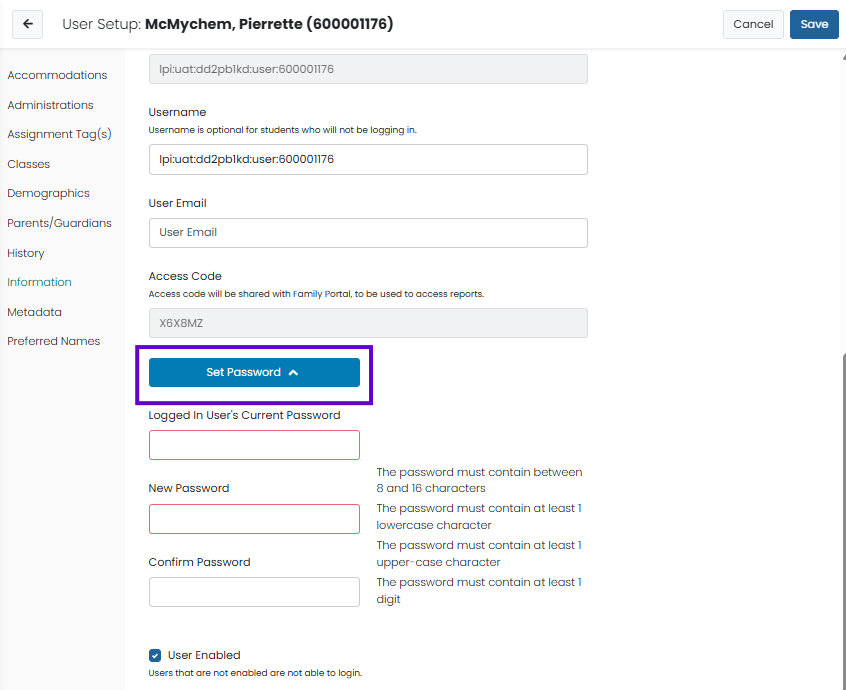
- At the bottom of the page, click Change Password.
Classic User Interface:
Updated User Interface:
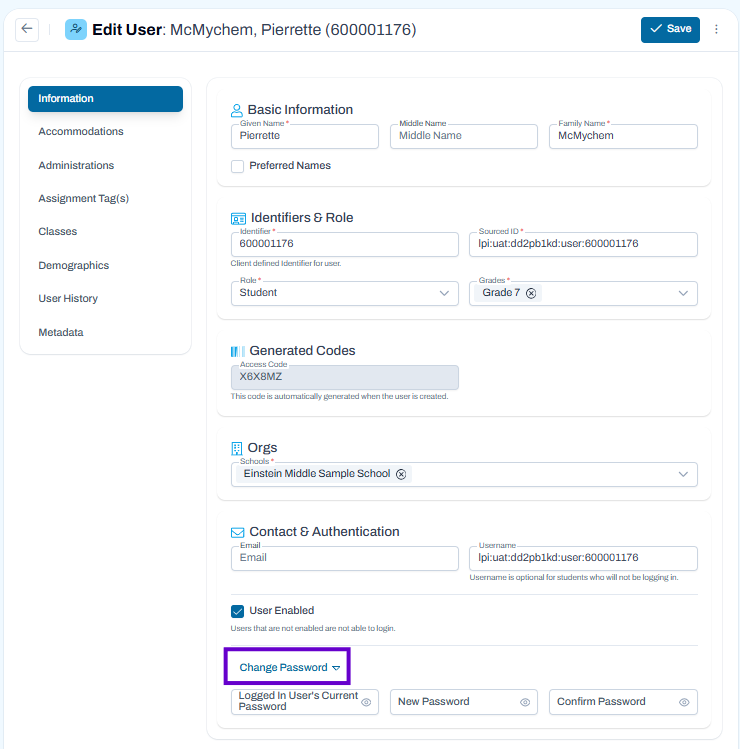
- You must re-enter your login credentials before you can set the other user's password.
- Click Save.
- Inform the user of the new password and confirm that they can sign in to ADAM with the new password.
Tiny link: https://support.assessment.pearson.com/x/fgDVBw