Navigation: User Management> Users> Add New User (button)
To create a new OSCAR user:
- Log in as a user who has USER Setup permissions enabled.
- In the left navigation bar select the Users menu option.
- Select +New User.

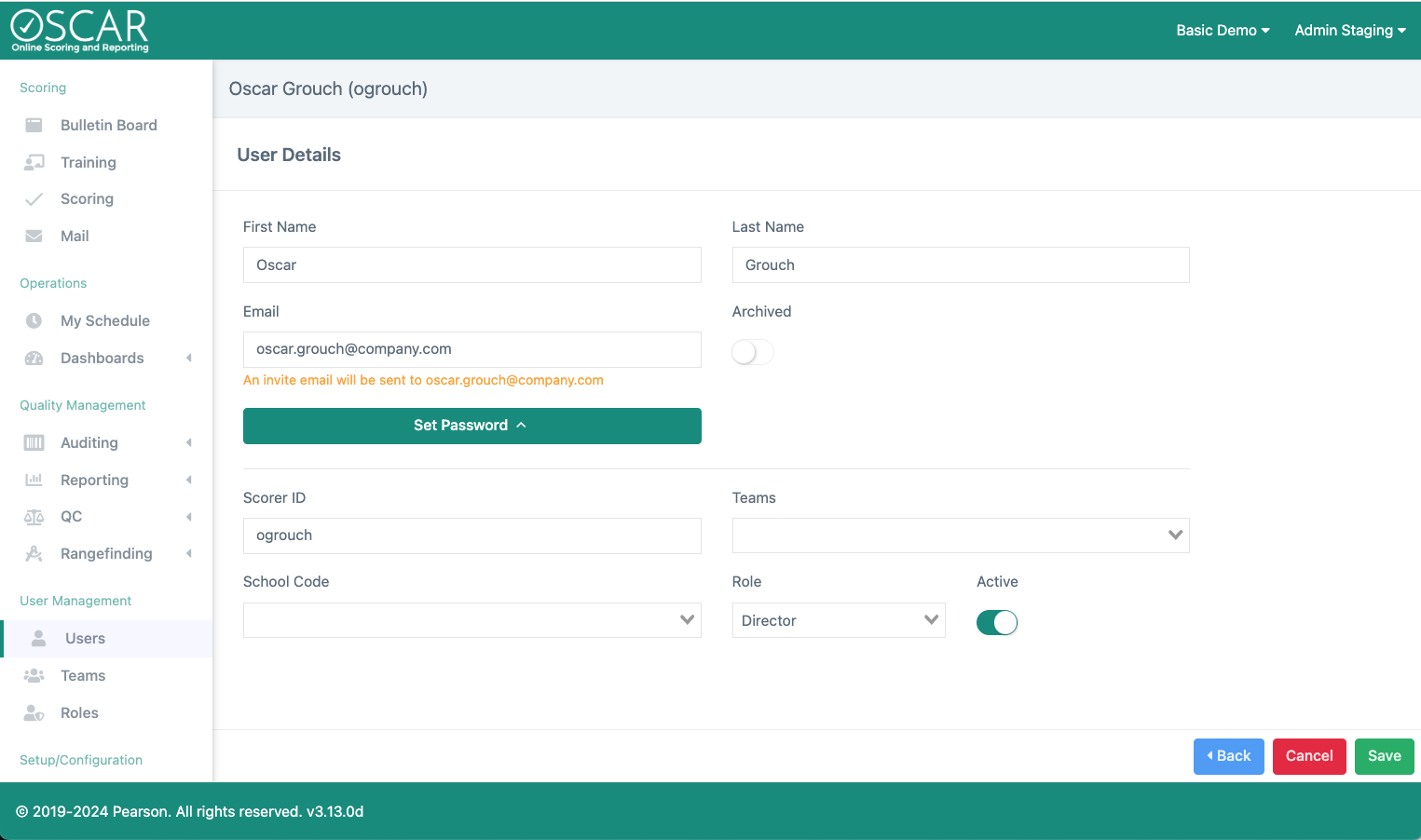
- Enter the information for the new user:
- First Name and Last Name: The most likely places these fields will be noticed is in reporting and in assigning users to Teams.
- Scorer ID: This is the label displayed on OSCAR screens and in most reports. Setting the ID to something unrelated to the user's first and last name lets your report exports display the scorer anonymously; e.g., B_Wolff versus 5241.
- Email: This is used as the username to log in to OSCAR and also to communicate directly with the user for things like password reset.
- If you want OSCAR to send an email to the user welcoming them to OSCAR and prompting them to create their password, save the user without setting password.
- To manually assign the user's password and by-pass the automated setup, select Set Password and complete the setup.
- Role: These define the actions/features of OSCAR users have access to use. Roles allow you to control user access without having to build security authority for each user.
- School Code: Assign the code on the user to validate against the code on the response and the School Code Behavior (inclusive or exclusive). Defined in Item - Scoring Setup.
- Inclusive: The user will be assigned items to score where the response and the user have the same code.
- Exclusive: The user will be assigned items to score only where the response and the user have different codes.
- Teams: Set the team(s) this user is assigned. Users can be added to additional teams at a late time. Teams are assigned to Sections.
- Active: Must be set to active before this user has the ability to score responses in OSCAR.
After saving the User, use the Back button to return to the main User Setup screen to add another user.

There is an additional option to import users. This is a useful tool if you are mass loading users.
Tiny Link: https://support.assessment.pearson.com/x/QIC4D