Import Users
Navigation: User Management> Users> Import Users (button)
To create several users at one time, use the OSCAR Import Users feature. This feature will also allow users to be imported from other tenants on your OSCAR account. When importing users, it is also possible to create new teams that the users are assigned. The user import feature can also be used make mass changes to user accounts like changing the password, changing the role assigned, adding/removing teams, or any other user details. Once created, only a user's email address cannot be changed.
To import users:
- Log in as a user who has USER Setup permissions enabled.
- Select the Users menu option on the left navigation bar.
- Select Import Users.

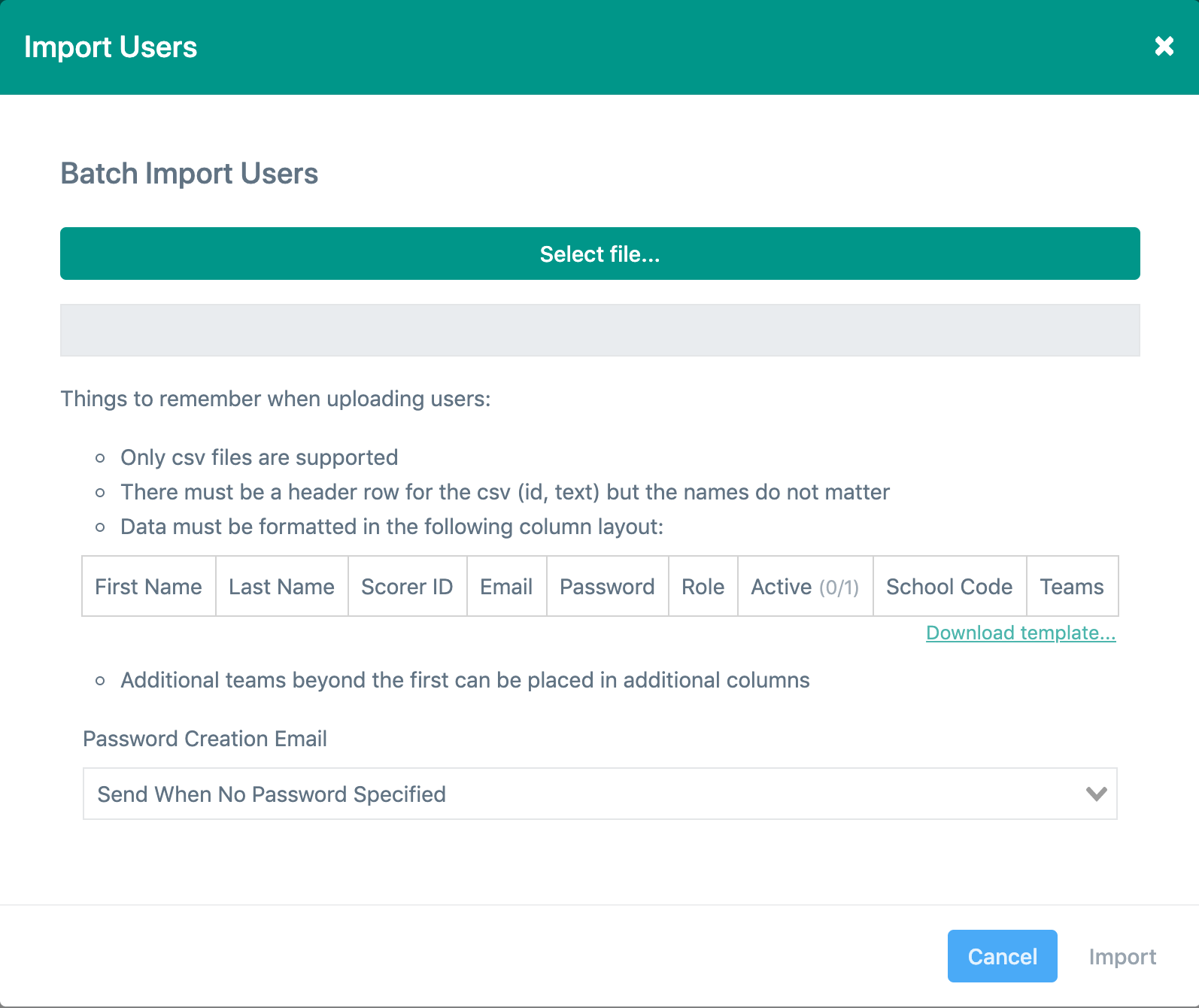
- Download the Users csv template to ensure all the required columns of information are included in the import file.
- Complete and save the .csv file, then click on Select file... to search for the file and upload it.
- Password Creation Email - there are three settings to determine if the OSCAR automated welcome email is sent to your new users:
- Send When No Password Specified: If you use this option, if the password is left empty...the user will receive the setup email.
- Send to All: All imported users will receive the setup email.
- Don't Send: No imported users will receive the setup email.
- Select Import to complete the process.
User Details
When creating users or editing users, all text is case sensitive. Newly created users must have an email address that will become their unique login ID. This will also be the email used when a password must be reset or an email notification is setup under the user's Role permissions. When making edits to user details, the email must match exactly or a new user could be created. Below are definitions for how each user detail can be modified.
- First Name, Last Name and Scorer ID: Any text can be used for these values and modified using the import feature. Note, users can also change their own name details under their profile.
- Email: This value must be in a valid email structure and cannot be modified once created.
- Password: Passwords must be at least 8 characters long and contain at least one uppercase character, one lowercase character, and one number.
- Role: Use the role name or the role ID to assign or modify a user role. A user may only have one role at any given time.
- Active: A "0" indicates the user will be inactive and able to login but unable to score, while a "1" will make the user active.
- School Code: Any text can be used to create a School Code. A user can have multiple School Codes. Use the pipe symbol "|" to separate school code values when creating/modifying a user with more than one.
- Teams: A user can be added to any number of Teams. Every column after School Code in the import file can be used to add users to Teams. The Team name should be used and match the case exactly. New Teams can be created in the import by simply including the text of a Team that does not already exist. Note, if no value is input for a user's Team when modifying a user, the user will be removed from a Team if they are already assigned to one.
Handling Errors
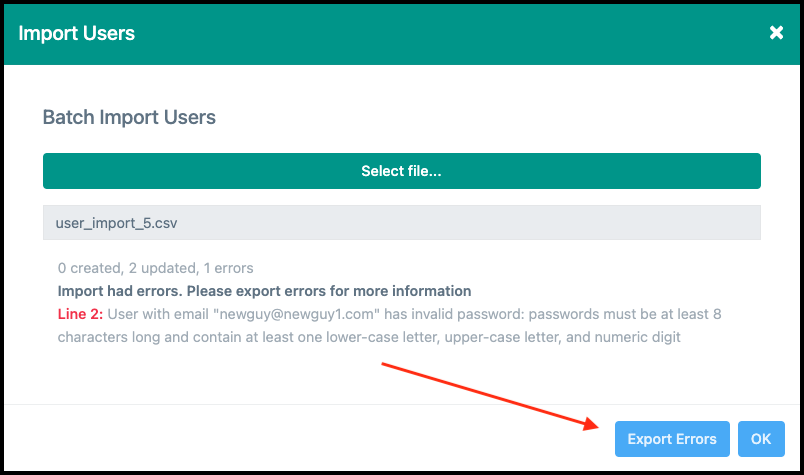
Before the import process is run, your import file will be checked for possible errors and warnings will be displayed. Warnings in red represent errors that will prevent a user row from being processed, while warnings in yellow show modifications to existing users that will still be processed.
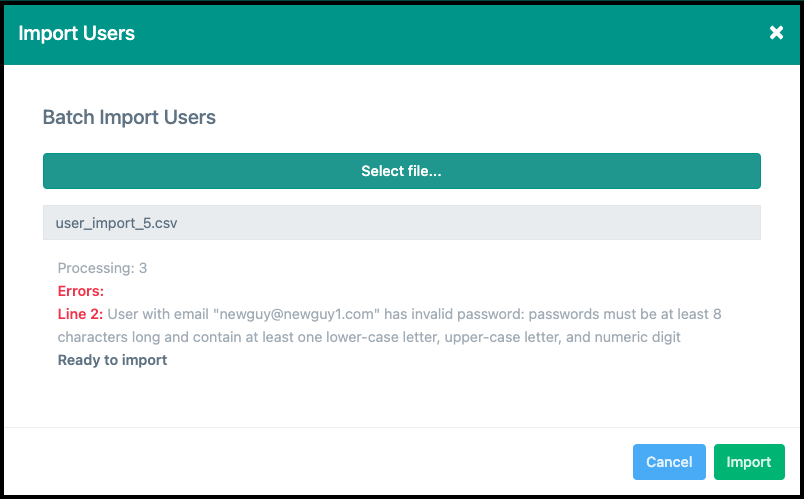
An import file can still be processed with errors, though any row with an error will be ignored. Use the Export Errors button to generate a .csv file that details the errors for any user rows that will not be processed.