Navigation: Quality Management> QC> Setup
Quality Control (QC) Setup is made up of five different QC types. Below is a brief description of each QC type.
- Exemplar: Ability to make sets of "example" responses available to scorers also known as Anchor Sets. Exemplars are made available through the OSCAR resources tab and can be accessed during practice, qualification, and operational scoring. Each response can have a true score and annotation to provide scoring guidance.
- Practice: Creation of practice sets that allow scorers to apply scores to responses and receive a report/feedback based on the scores they applied vs. the predetermined true score. True scores are required to set up Practice sets.
- Qualification: Creation of a set of responses with a "passing" requirement that can be used to qualify raters for scoring an item. When Qualification is enabled on the item, the active qualification sets will be used to determine if raters are qualified and can enter Scoring on the item.
- Validity: During operational scoring, scoring supervisors can configure validity papers into a scorers’ workflow. Validity papers are papers for which the “true score” is already known. The paper is embedded into the workflow of each scorer on the item, depending on the Validity Settings.
- Calibration: Often in conjunction with validity papers, calibration sets are created and delivered to individual scorers when validity thresholds are missed or to deliver to an entire scoring team when drift begins to occur. When setting up a calibration set, users have the ability to deliver the calibration as “Blind” and determine if the specific set should be auto-delivered or not. Calibration sets can be ‘auto-delivered’ which means it’s used as a part of validity corrective action. If auto-deliver is turned off, the administrator can manually deliver the calibration set to an individual or scoring team from the QC Reporting page.
How to Add a New Set
Choose the Set Type tab, then click the  icon
icon
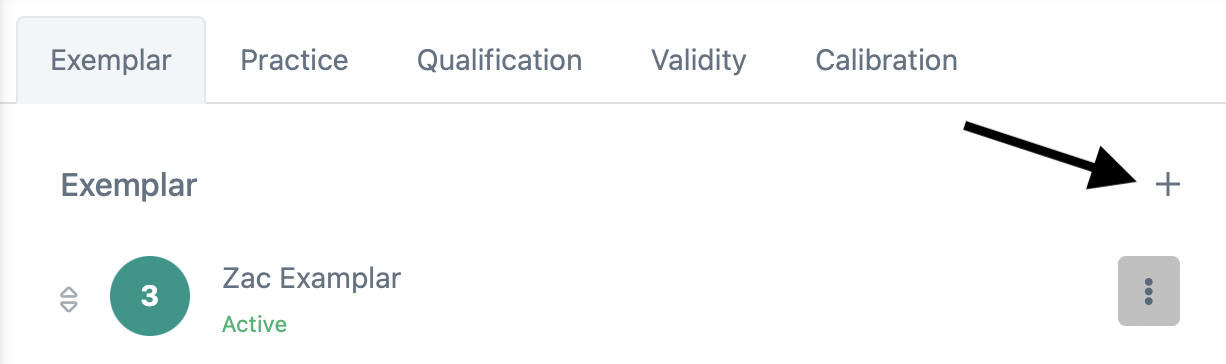
Available options for each Set Type will vary, but may include:
How to Work with an Existing Set
Choose the Set Type tab, then click the Actions icon.
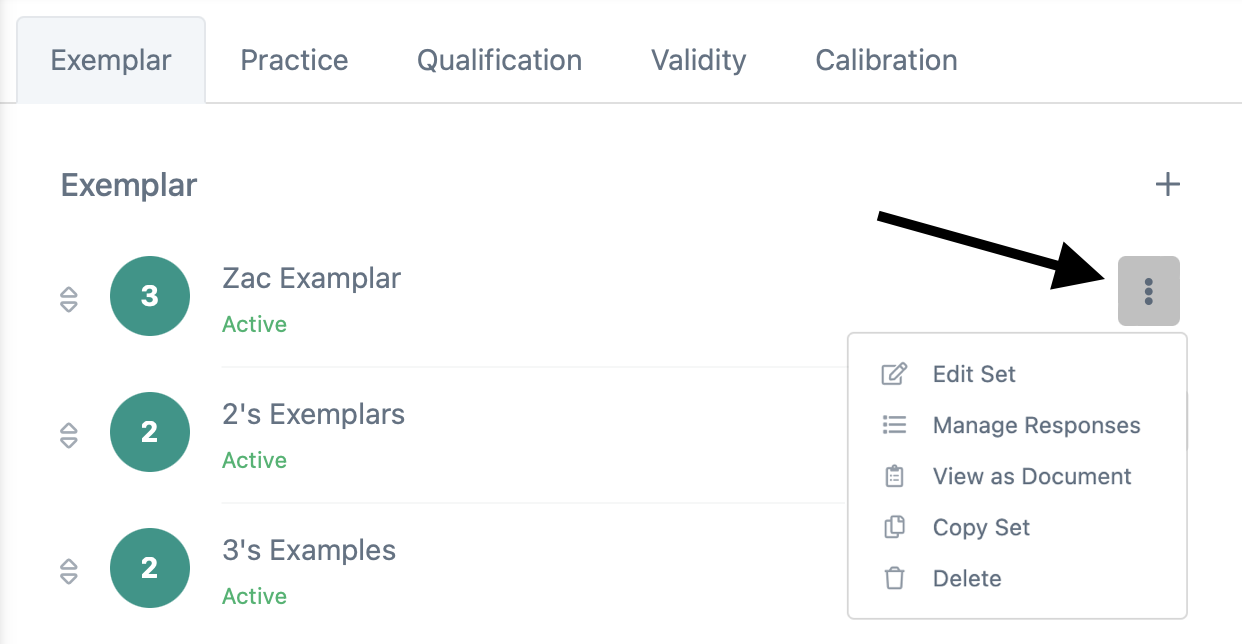
Choose from the modify options:
- Edit Set: Reverts to the same options available in the Add Set (see document links above).
- Manage Responses: Lets you choose which responses, either escalated or uploaded, for the Item are available in each Set.
- View as Document: Lets you view the responses, annotations, and true scores in a single page that can be shared externally.
- Copy Set: Lets you use an existing Set, rename and apply it to a any Set Type and any Section and Item that has a matching rubric.
- Delete: Removes the Set and any associated records so it cannot be used.
Tiny Link: https://support.assessment.pearson.com/x/zYC4D