
...
- Sign in to the Google Admin console for your domain, using your administrator account (does not end in @gmail.com).
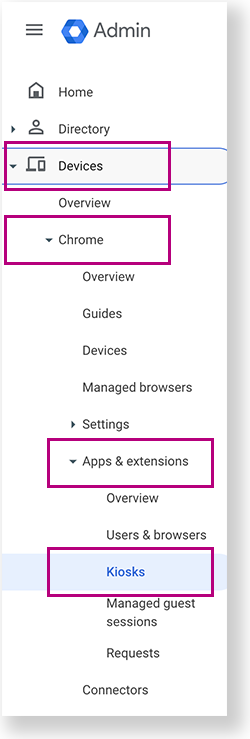
From the Google Admin console home page, go to Devices > Chrome >Apps & extensions >Kiosks.
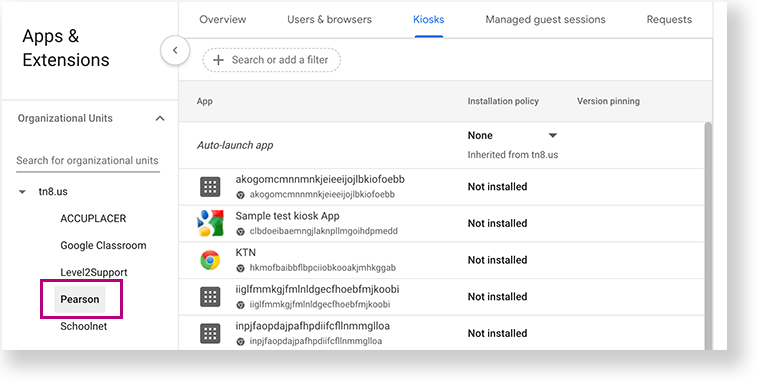
- Under Organizational Units, select the top-level organization that you want to apply these settings to. Then, select a child organization, if necessary. In the example below, Pearson is selected to give all Chromebooks within the Pearson organization access to TestNav.
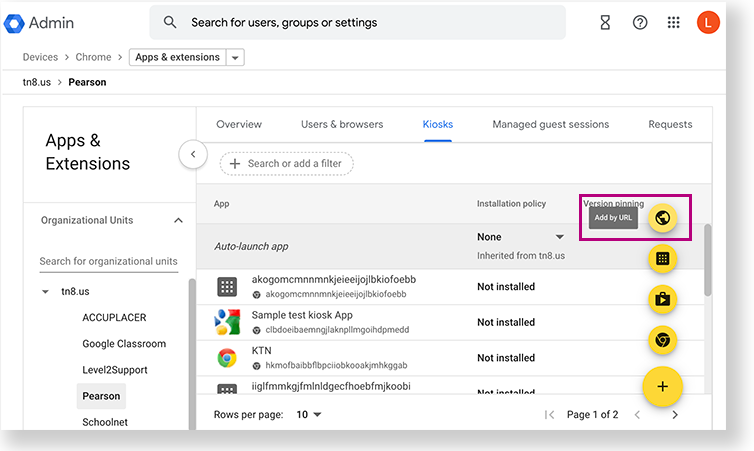
- Click the Add by URL icon.
- Add the following URL:home.testnav.com#:standalone:
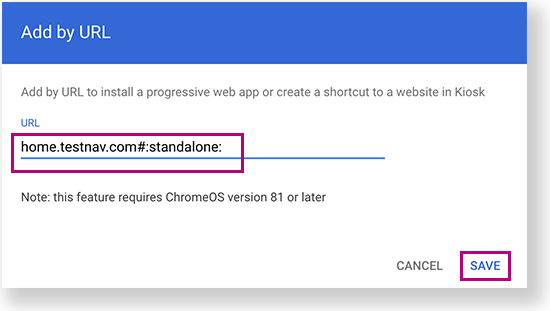
- Click Save.
...
Chrome displays the message, Note: Adding Web Apps in Kiosk. Select Agree.
- Click Save again.
...
Anchor launch launch
Sign in to TestNav
| launch | |
| launch |
- Power on the device, but do not log in.
- In the lower left of the screen, select Apps >
 Home - TestNav to launch the TestNav PWA.
 If you have not already done so, choose the appropriate icon for your test on the home page. If your test was selected before the test session, you see the Sign In page, rather than the home page.
If you need to select a different test, click the user dropdown menu at the upper-right of the page, and click Choose a different customer.
Include Page IR:_TN_graphic_chooseCustomer IR:_TN_graphic_chooseCustomer Click the appropriate icon for your test.
Include Page IR:_TN_graphic_installHome IR:_TN_graphic_installHome
- Start a test to ensure that you can do so without error.
- If you see a Practice Tests link on the Sign In page, click Practice Tests and start a test.
- If you do not see a Practice Tests link, use ADAM test card credentials to start a test.
Excerpt Include Set Up TestNav on macOS Set Up TestNav on macOS nopanel true
- To shut down and exit kiosk mode after the app launches, hold down the button.
Anchor systmcheck systmcheck
Run App Check
| systmcheck | |
| systmcheck |
Include Page IR:_TN_AppCheck_Install_iosAndChrome IR:_TN_AppCheck_Install_iosAndChrome
| Anchor | ||||
|---|---|---|---|---|
|
...