
...
This page pertains to ONLY Vermont and pilot programs using ADAM for their assessment management system AND web extensions on ChromeOS testing devices.
ADAM Users not using web extensions, can use either this page
...
- All other ChromeOS users, see Set Up TestNav on ChromeOS.
After you download TestNav, complete the setup using the sections below.
...
| Info | ||
|---|---|---|
| ||
If your content filters are activated when a student signs in to the Chrome device, contact Pearson Support for additional URLs to add to your kiosk settings for URL blocking. TestNav does not require that the student sign in to the Chrome device. As a result, these content filters do not filter as intended during a TestNav test. |
Step-by-Step
...
Go to the TN Engineering App installation page and follow the instructions provided.
...
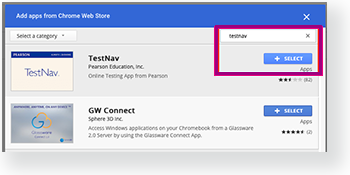
Search for TestNav and click Select.
...
In the panel on the right, set the app and extension policies.
...
Click Save.
| Anchor | ||||
|---|---|---|---|---|
|
...
- Power on the device, but do not log in.
- In the lower left of the screen, select to launch TestNav.
A message appears, informing you that you can use <ctrl><alt>s to exit Chrome OS when you first launch TestNav. This works only while the message displays. If you have not already done so, choose the appropriate icon for your test on the home page. If your test was selected before the test session, you see the Sign In page, rather than the home page.
If you need to select a different test, click the user drop-down menu at the upper-right of the page, and click Choose a different customer.
Include Page IR:_TN_graphic_chooseCustomer IR:_TN_graphic_chooseCustomer Click the appropriate icon for your test.
Include Page IR:_TN_graphic_installHome IR:_TN_graphic_installHome
- Start a test to ensure that you can do so without error.
- If you see a Practice Tests link on the Sign in page, click Practice Tests and start a test. If you do not see a Practice Tests link, use an authorization ticket from your student management system and start a test.
- To shut down and exit kiosk mode after the app launches, hold down the button.
...