
...
| Tip | ||
|---|---|---|
| ||
Note which specific device each student uses during each test. TestNav saves SRFs to only one designated place on the testing device. If an error occurs, you can locate files only on that specific device. |
Install TN App
To install TN app, first ensure each device's settings are set to keep local data to avoid accidentally deleting the SRF and log files. Then, you add TestNav as a kiosk app.
| Info | ||
|---|---|---|
| ||
If your content filters are activated when a student signs in to the Chrome device, contact Pearson Support for additional URLs to add to your kiosk settings for URL blocking. TestNav does not require that the student sign in to the Chrome device. As a result, these content filters do not filter as intended during a TestNav test. |
Step-by-Step
- Sign in to the Google Admin console for your domain, using your administrator account (does not end in @gmail.com).
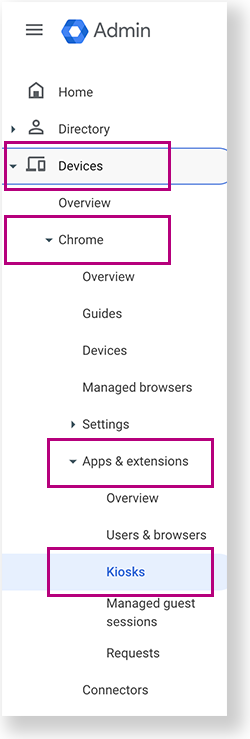
From the Google Admin console home page, go to Devices > Chrome >Apps & extensions >Kiosks.
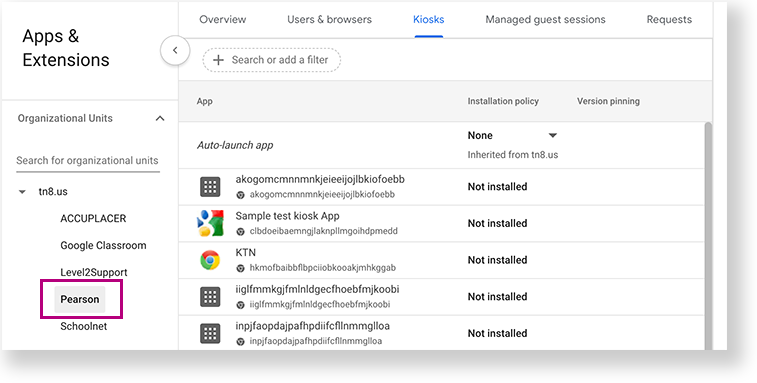
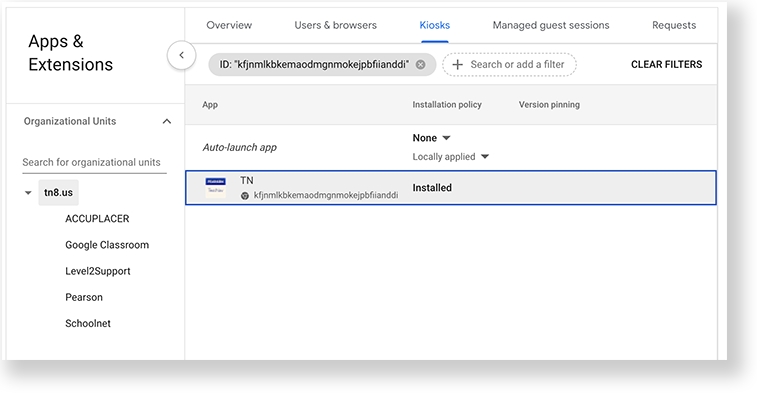
- Under Organizational Units, select the top-level organization that you want to apply these settings to. Then, select a child organization, if necessary. In the example below, Pearson is selected to give all Chromebooks within the Pearson organization access to TestNav.
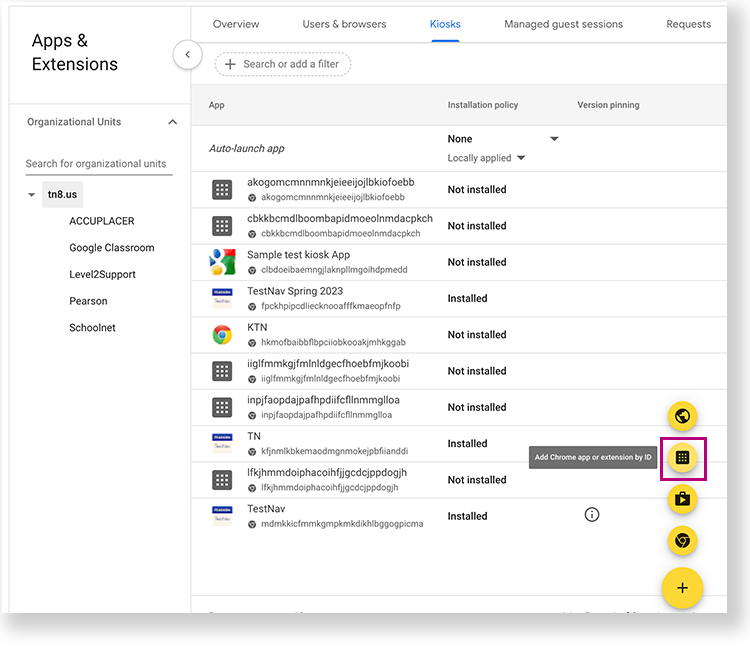
- Click the Add Chrome app or extension by ID icon.
- Copy and add the following ID: kfjnmlkbkemaodmgnmokejpbfiianddi
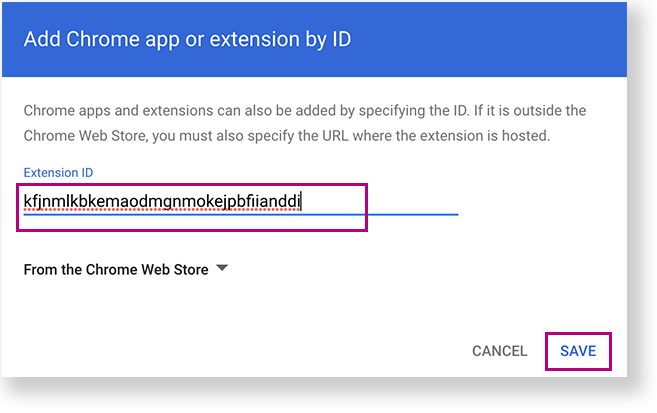
- Click Save. The TN app appears as Installed.
Anchor launch launch
Sign in to TestNav
| launch | |
| launch |
- Power on the device, but do not log in.
- In the lower left of the screen, select Apps >
 TN to launch TestNav.
A message appears, informing you that you can use <ctrl><alt>s to exit Chrome OS when you first launch TestNav. This works only while the message displays. If you have not already done so, choose the appropriate icon for your test on the home page. If your test was selected before the test session, you see the Sign In page, rather than the home page.
If you need to select a different test, click the user drop-down menu at the upper-right of the page, and click Choose a different customer.
Include Page IR:_TN_graphic_chooseCustomer IR:_TN_graphic_chooseCustomer Click the appropriate icon for your test.
Include Page IR:_TN_graphic_installHome IR:_TN_graphic_installHome
- Start a test to ensure that you can do so without error, using ADAM test card credentials.
- To shut down and exit kiosk mode after the app launches, hold down the button.
| Anchor | ||||
|---|---|---|---|---|
|
Include Page IR:_TN_DefaultSFTPrecommendInstallable IR:_TN_DefaultSFTPrecommendInstallable Include Page IR:_TN_SRFandLogs_Mobile IR:_TN_SRFandLogs_Mobile
| Anchor | ||||
|---|---|---|---|---|
|
On ChromeOS, the SRF default primary save location is not customizable.
...
Include Page IR:_TN_SRFandLogsRelatedInfoInstall IR:_TN_SRFandLogsRelatedInfoInstall
...