
...
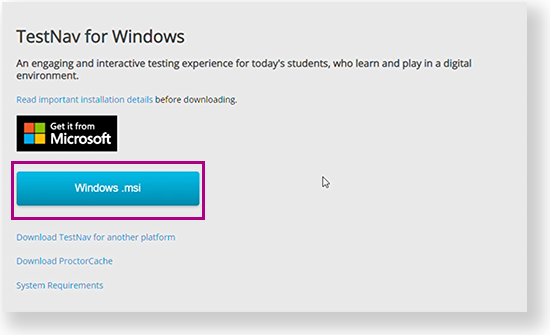
Go to the TestNav download page and click Windows.msi. You can also click the Microsoft Store button to download it from the store. See instructions below.
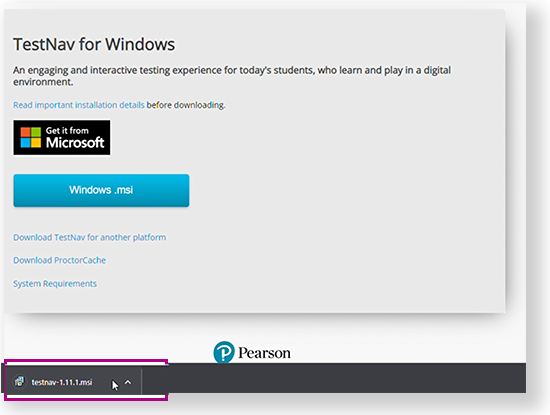
The file download appears at the bottom of the window as it downloads.
- Installation might complete without step 3, depending on your device.
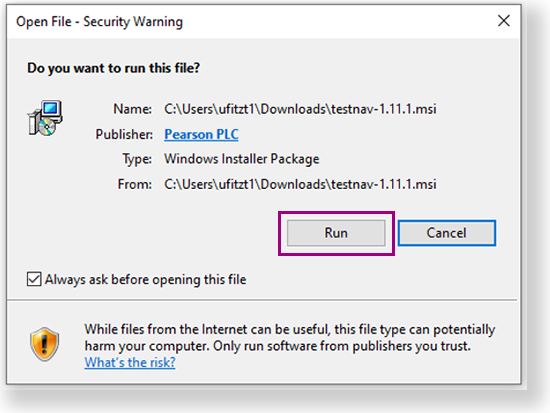
- If an Open File - Security Warning appears, click Run.
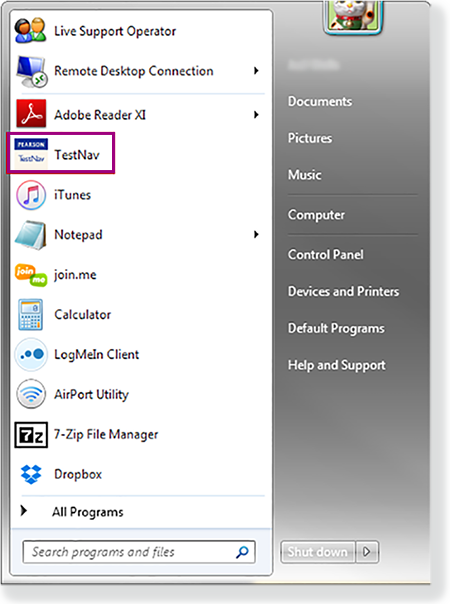
Depending on your organization, a prompt for higher-level access might appear. After TestNav is configured for your device, you can type TestNav in the search field to find it. A TestNav shortcut might also appear on your desktop or in the Start menu, as shown in the example below.
| UI Text Boxnote | ||||
|---|---|---|---|---|
| ||||
|
...
- If you have not already done so, choose the appropriate icon for your test on the home page. If your test was selected before the test session, you see the Sign In page, rather than the home page.
If you need to select a different test, click the user dropdown at the upper-right of the page, and click Choose a different customer.
Include Page IR:_TN_graphic_chooseCustomer IR:_TN_graphic_chooseCustomer Click the appropriate icon for your test.
Include Page IR:_TN_graphic_installHome IR:_TN_graphic_installHome Note ADAM users, select ADAM, but do not continue on this page. See Log In to an ADAM Test.
- Start a test to ensure that you can do so without error.
- If you see a Practice Tests link on the Sign in page, click Practice Tests and start a test.
- If you do not see a Practice Tests link, use an authorization ticket from your assessment management system and start a test.
Excerpt Include Set Up TestNav on macOS Set Up TestNav on macOS nopanel true
...