Search TestNav 8 Online Support:
...
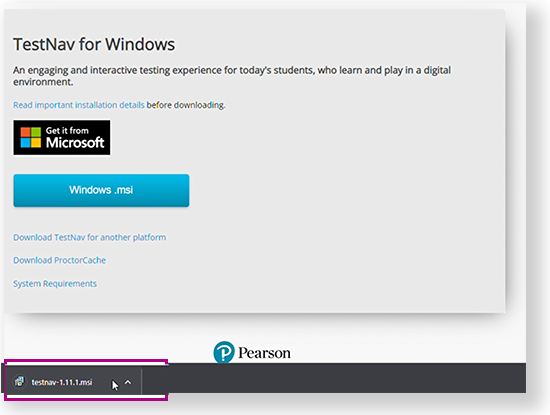
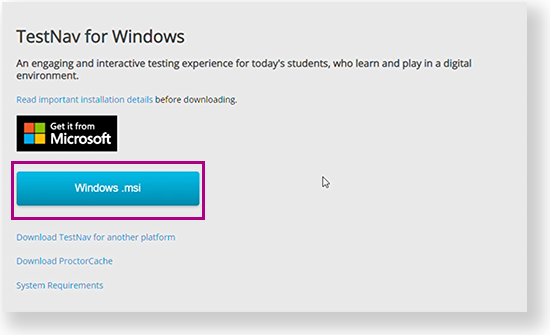
Go to the TestNav download page and click Windows.msi. To download it from the Microsoft Store, see Install TestNav from the Microsoft Store.
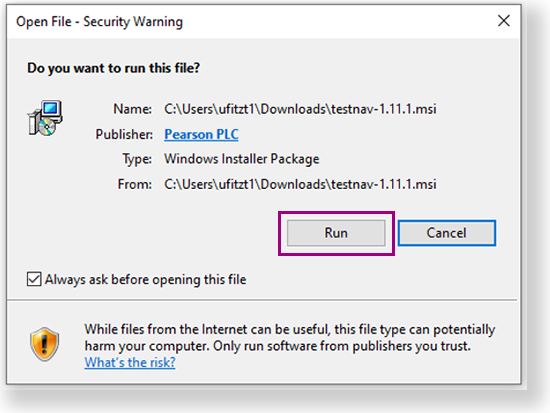
- If an Open File - Security Warning appears, click Run.
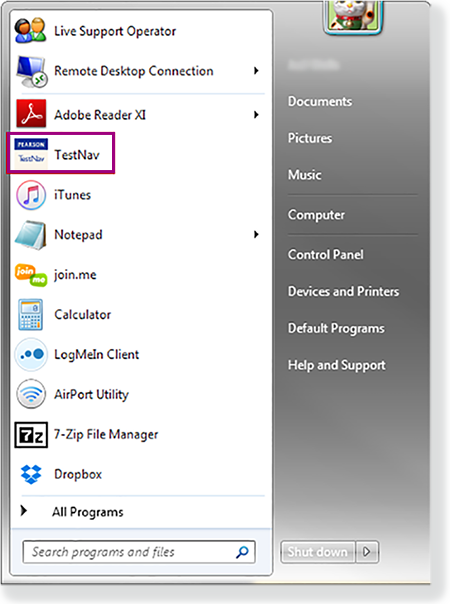
Depending on your organization, a prompt for higher-level access might appear. After TestNav is configured for your device, you can type TestNav in the search field to find it. A TestNav shortcut might also appear on your desktop or in the Start menu, as shown in the example below.
| Note |
|---|
|
- Disable Cortana, XBox Game Bar, and clipboard history.
- If you use computer restoration or imaging software (for example, Deep Freeze), exclude the Pearson directory and the logs directory, as these contain student backup files and logs for troubleshooting.
|
- Jump to the Set Up Response File Backups and continue setup.
Install TestNav from the Microsoft Store
...
- If you downloaded TestNav from the TestNav Download page, program files for minor updates save in {user_home}\AppData\Local\Pearson.
- You must give students write access to the update directory.
- You must download major updates from the TestNav Download page.
- If you downloaded TestNav from the Windows Store, all major and minor updates occur automatically.
Set Up Response File Backups
| Include Page |
|---|
| IR:_TN_DefaultSFTPrecommendInstallable |
|---|
| IR:_TN_DefaultSFTPrecommendInstallable |
|---|
|
...
...