
This page pertains to ONLY ADAM tests being delivered through TestNav. If your test is delivered through ADAM, see see Log in to a Test using ADAM
| Excerpt | ||
|---|---|---|
| Tip | ||
| ||
Note which specific device each student uses during each test. TestNav saves SRFs to only one designated place on the testing device. If an error occurs, you can locate files only on that specific device. Each installation page contains information on SRF storage locations. |
Step-by-Step
Prior to testing, a proctor, test coordinator, or technology personnel should install TestNav on each testing device (installation varies by operating system). Then, run App Check on each device prior to testing to ensure that they pass requirement and system checks.
...
- Open TestNav on the testing device.
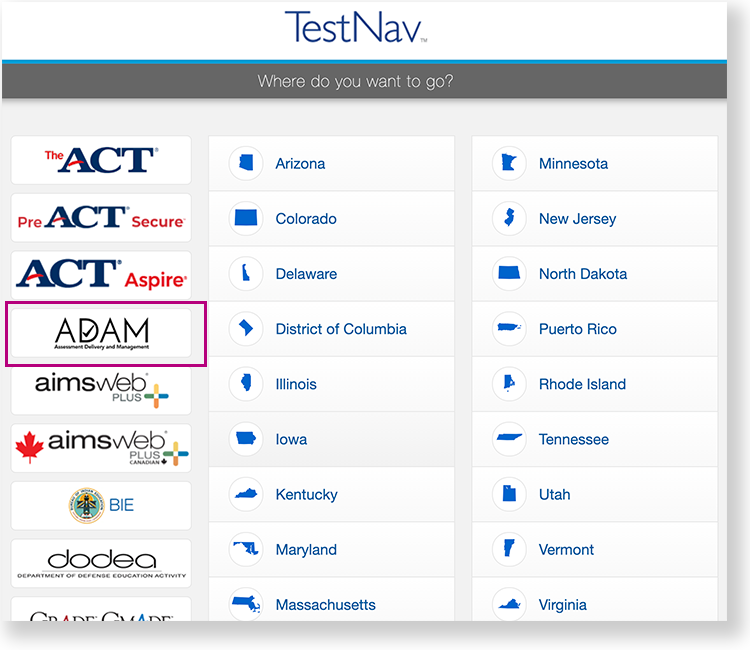
- Select ADAM on the TestNav home page. If previously selected, the next image appears without displaying the TestNav home page.
...
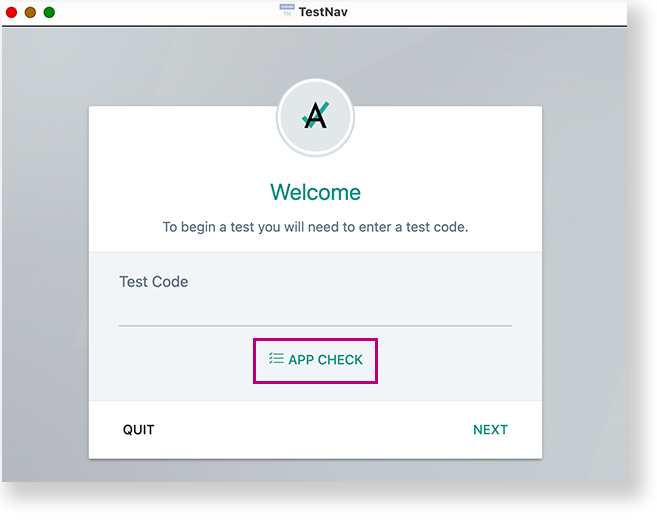
- Below the Test Code field, select App Check.
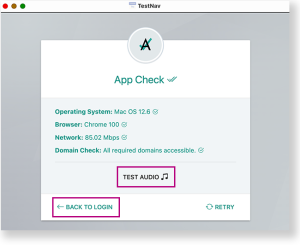
- If the device passes all checks, green messaging appears, as shown in the example below.
- You can select the Test Audio button to ensure you can hear audio from the device.
- Then, you can select Back to Login to log in.
If a device does not pass App Check, follow instructions App Check provides to fix the issue or use a different device.
A test proctor should give each student a test card with details to enter into TestNav.
- Select ADAM (or your specific program - for example, North Dakota)on the TestNav home page. If ADAM or your program was selected before the test session, you see Welcome the page, rather than the home page.
- Select ADAM (or your specific program - for example, North Dakota)on the TestNav home page. If ADAM or your program was selected before the test session, you see Welcome the page, rather than the home page.
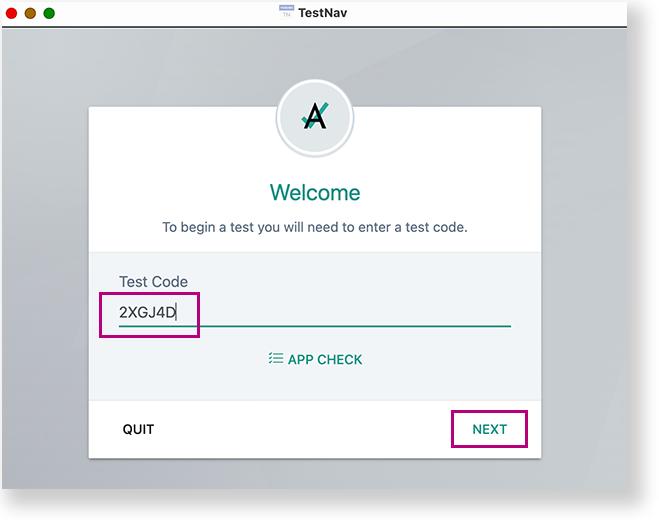
- Enter the Test Code, and then select Next.
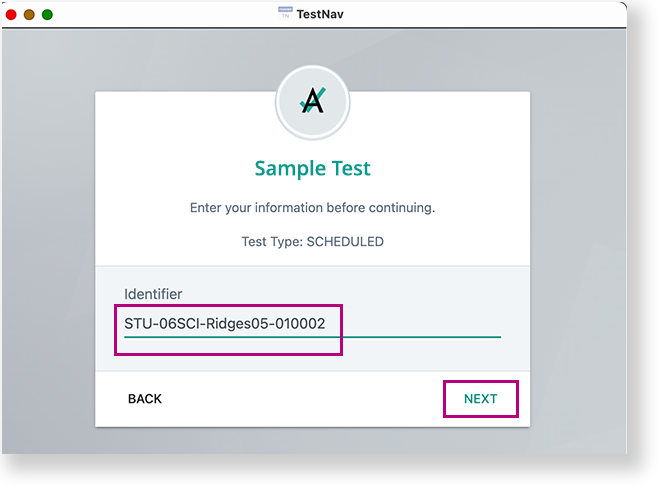
- Enter the student ID in the Identifier field, and select Next.
- Confirm the Test and your name, and select Next.
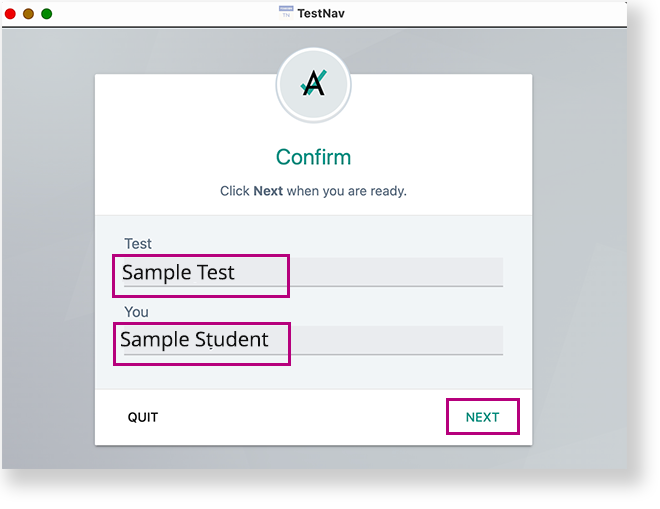
TestNav opens and the student can begin testing.
...