| Excerpt |
|---|
Administrator roles with the appropriate permissions can add or edit the accommodation profiles in Client Settings. A student's accommodations for each profile can then be selected in their student record. | Note |
|---|
|
|
All profiles will be available in the student record, where you can select the appropriate accommodations for that student from each profile. After an accommodation has been assigned to students or tests, its checkbox will be disabled in Client Settings to prevent data errors.
Important: When creating a test, you MUST select the appropriate accommodation profile in
Test Config
and the and the appropriate accommodations for that profile in the student record.
- Go to System > Client Settings > Accommodations.
- In the left column, select all accommodations that can be assigned.
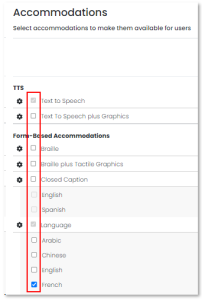 Image Removed
Once an accommodation is assigned to a student, it will appear in gray and cannot be removed. Accommodations not yet assigned to any student appear in blue and may be removed. - To change the label for an accommodation, click its gear icon, select Display Name, enter a new name and then click Confirm.
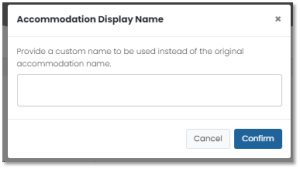 Image Removed
 - For users who will edit manage accommodations per studentfor students, you can add informational text: click click the gear icon, select select Instructions, enter text following the onscreen instructions and then click Confirm.
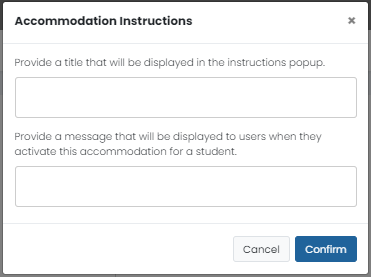 Image Removed
Note: These instructions only appear when editing individual students, not when bulk uploading accommodations.
- In the Limited Editing column, select the accommodations that users will not be able to change if Limited Accommodations Editing is selected for their role in Role Configuration.
- In the Require Approval column, select any accommodations that require approval
 Image Removed.
 - Edit an existing accommodation profile or click the Add Profile button to add a new profile that can be used for a type of test, such as ELA or Math.
- The Default profile contains accommodations as they were defined prior to implementing accommodation profiles.
- Select the Edit icon on an existing accommodation profile to make changes.
Select Add Profile to add a new profile that can be used for a type of test, such as ELA or math.
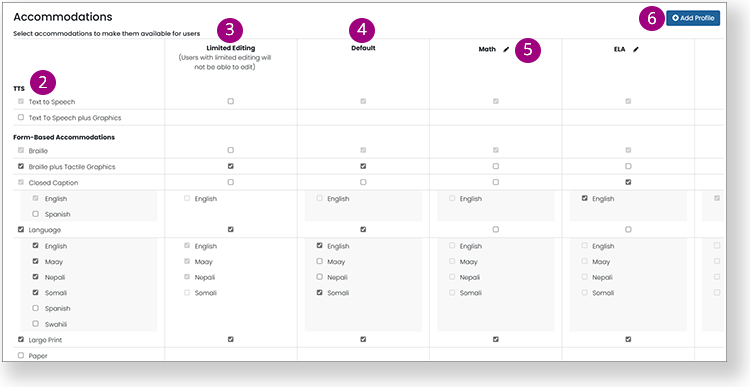 Image Removed
- You can rename the Default profile as well.
- Any accommodation can be made the default profile by dragging it into the first column position. (Click the drag icon at the top of the profile to move it left or right.)
- After making changes to an accommodation profile, Submit at the bottom of the page.
| Info |
|---|
All profiles will be available in the student record, where you can select the appropriate accommodations for that student from each profile. After an accommodation has been assigned to students or tests, its checkbox will be disabled to prevent data errors.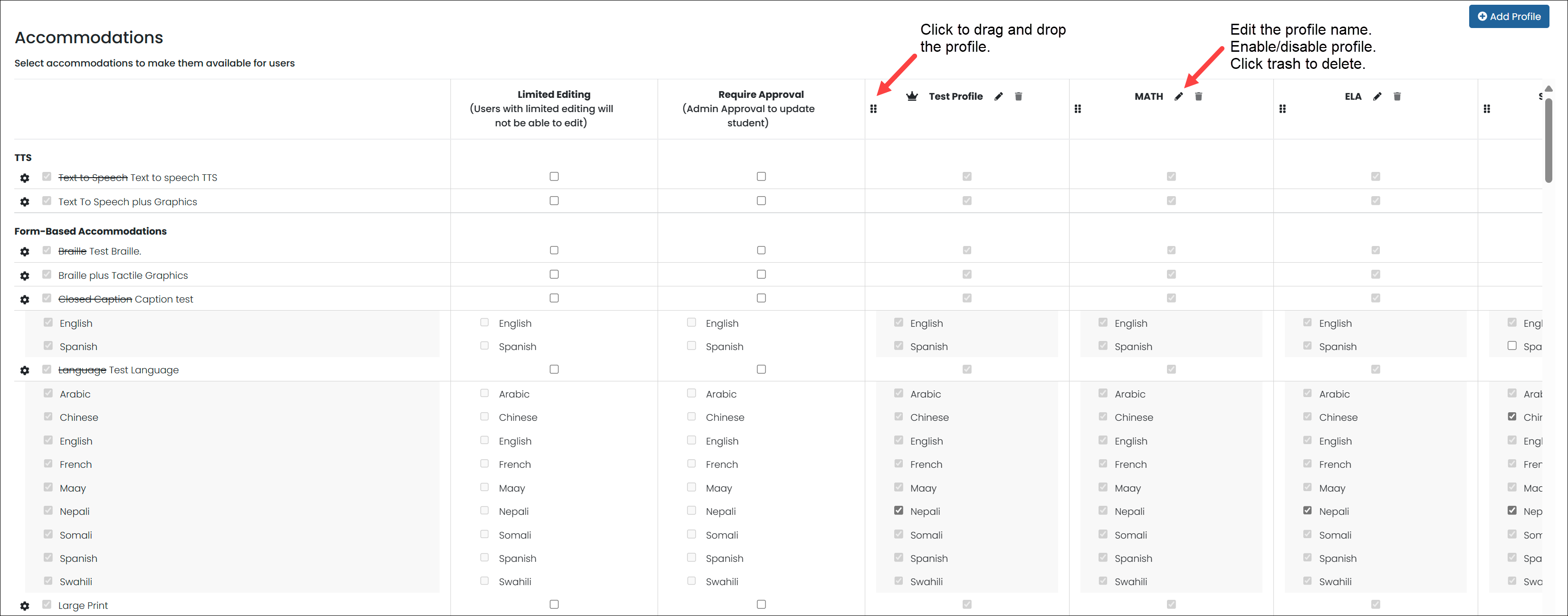 Image Added
...
Tiny link: https://support.assessment.pearson.com/x/BgHVBw
