
...
From Reports > Operational Reports, select Students & Registrations AND Online Testing.
Expand title Click here to view a screenshot... Include Page _PAsup_operational_reports_categories _PAsup_operational_reports_categories You will be shown a list of available reports. Click the title of the report you want to view. This list is different for each testing program, based on the testing contract details.
Expand title Click here to view a screenshot... 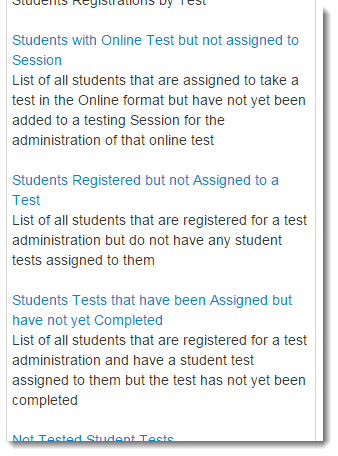
If a report is not yet available or if you desire a new one to be created, click Request Report Refresh and, if desired, change the parameters to be used when the report is created, such as to only display the results for a specific organization. Click Refresh Report.
Expand title Click here to view a screenshot... 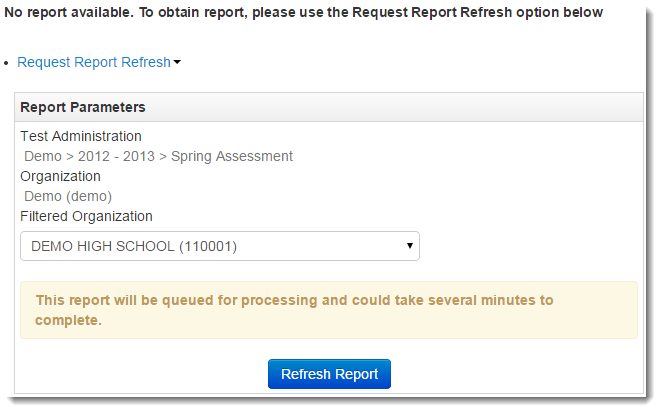
When a report is available, it will be listed on the page. Click Download Report to download a file with the requested information.
Expand title Click here to view a screenshot... 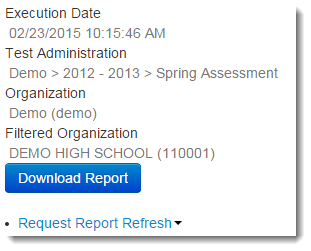
...