
...
| Expand | ||
|---|---|---|
| ||
|
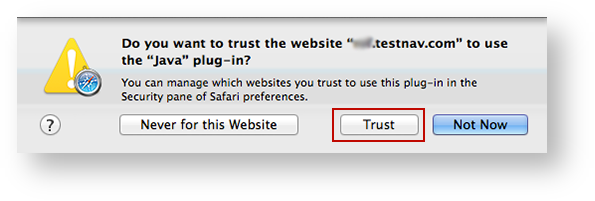
You may also see one of the following notifications depending on which Safari version you use.
If you see the Security Warning notification:
- Select the Do not show this again for this app and web site check box.
This ensures that the warning screen will not appear again. Click Allow to continue to TestNav and TestNav SystemCheck.
Expand title Click here to view a screenshot... 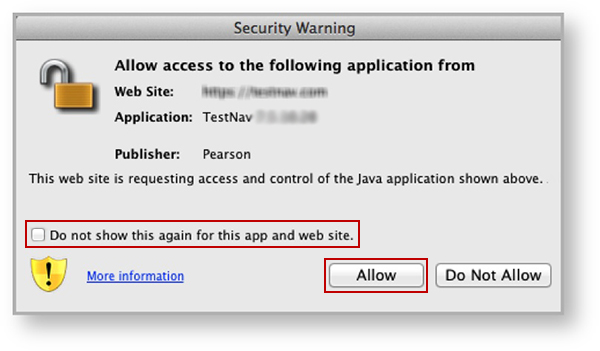
If you see the Do you want to run this application? notification:
- Select the Do not show this again for apps from the publisher and location above check box.
This ensures that the warning screen will not appear again. Click Run to continue to TestNav and TestNav SystemCheck.
Expand title Click here to view a screenshot... 
| Note | ||||||||||
|---|---|---|---|---|---|---|---|---|---|---|
| ||||||||||
TestNav must run in unsafe mode in Safari. To run TestNav in unsafe mode:
|


...
You may also see one of the following notifications depending on which Safari version you use.
If you see the Security Warning notification:
- Select the Do not show this again for this app and web site check box.
This ensures that the warning screen will not appear again. Click Allow to continue to TestNav and TestNav SystemCheck.
Expand title Click here to view a screenshot...
If you see the Do you want to run this application? notification:
- Select the Do not show this again for apps from the publisher and location above check box.
This ensures that the warning screen will not appear again. Click Run to continue to TestNav and TestNav SystemCheck.
Expand title Click here to view a screenshot...
| Include Page | ||||
|---|---|---|---|---|
|
...