
...
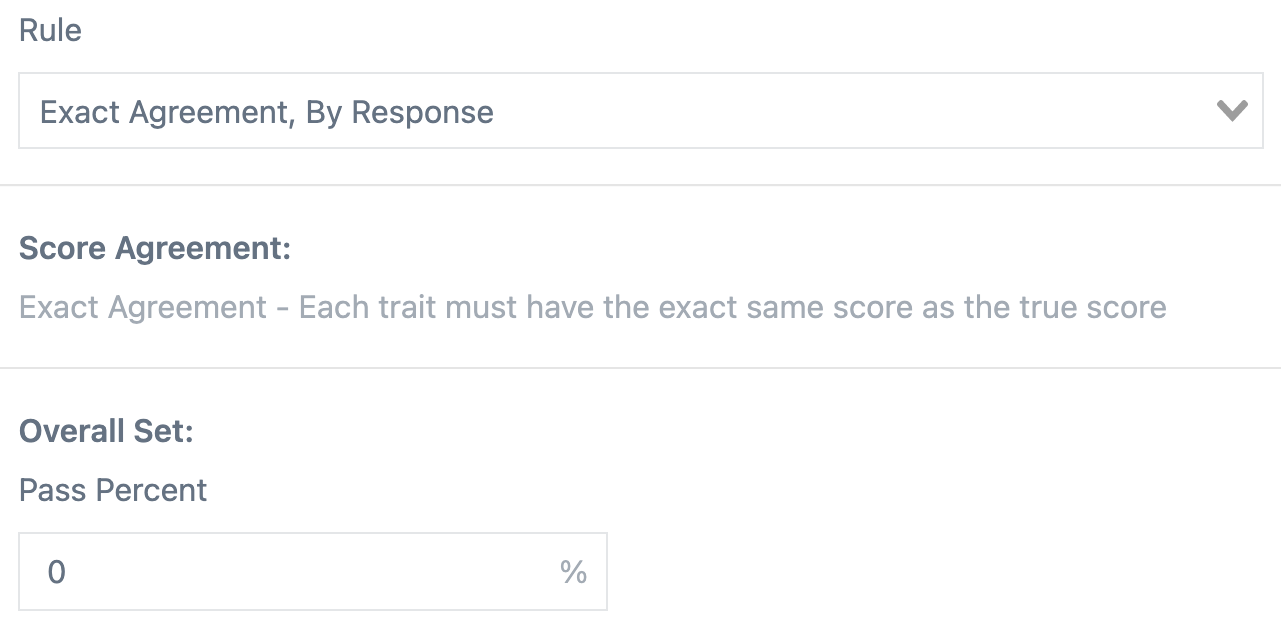
The set rule will determine how results are calculated for meeting the Pass Percent. There are five rule settings available in the Qualification set:
Exact Agreement, By Response
...
: The rater's score on each response must have the exact same overall score as the true score for the response to be counted as correct.
Exact Agreement, By Trait
...
: The rater's score on each trait must have the exact same scores as the true score to be counted as correct.
Exact/Adjacent, By Response
...
: The rater's overall score on each response must be within 1 point of the overall true score for the response to be counted as correct.
Exact/Adjacent, By Trait
...
: The rater's score on each trait must be within 1 point of the true score to be counted as correct.
Omaha
...
: Customize the maximum overall difference in score allowed (Max Score Diff) and the number of non/adjacent trait scores (Max Non-adjacent) to determine if the response is counted as correct.
Overall Set Percentages
For each set, determine what percentage (correct/total) of responses must be correct for a rater to pass. Pass Percent can be set when Exact Agreement, By Response and Exact/Adjacent, By Response rules are selected.
When trait rules are selected, the passing percentage will be determined at the trait level rather than by the response (correct trait scores/total trait scores). Along with a pass threshold, a minimum threshold can also be set. Both settings will apply to all traits on the rubric. Percentage of Scores Overall and Minimum for each Trait can only be set when Exact Agreement, By Trait and Exact/Adjacent, By Trait rules are selected.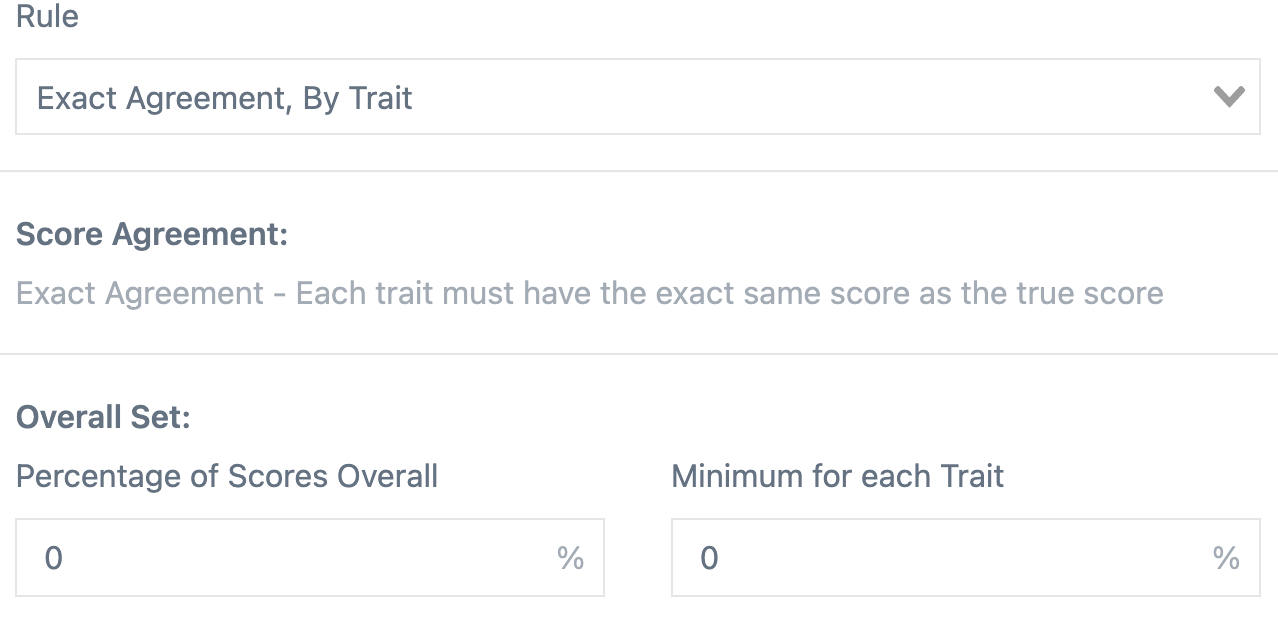
...
- Qualification sets are accessed by raters from the scoring page by using the Scoring button. When a Qualification set is active, the rater will receive a notification that they are about to begin a Qualification set when they use the Score button.
- While scoring a Qualification set, the rater will be able to navigate backwards and forwards through the set, with the ability to adjust any score until they submit the last score in the set. Then, all of their scores will be submitted and calculated for pass/fail requirements. They will also be provided a link to review their performance on the responses IF the set has been made Reviewable.
- When more than one set is active, each set will always be completed by raters in the vertical order (top to bottom) the sets appear on the QC Setup page.
- To complete Qualification, raters will need to score the number of sets configured as "Must See" under the item's Qualification Settings.
- If a rater fails Qualification, they will automatically receive the next active Qualification set when hitting the score button again. In this way, raters can attempt to qualify multiple times should the project business rules allow it. Note, raters will not be able to subsequently attempt to qualify if there are no additional sets active or the user is inactive.
- For supervisors, qualification set results can be viewed from the QC Reporting page or the User Portfolio page. Use the QC Reporting page to also manage user results (reset, delete, unlock raters). Raters can view their own results directly after scoring or from their Personal Dashboard using the Qualification tab (if enabled for their Role).
- After a Qualification set has been used, changes to the set settings can still be made. However, these changes will only affect the qualification status and set behavior on future results.
...
Tiny Link: