
Navigation: User Management> Roles
Roles Overview
Most features in OSCAR can be enabled or disabled for an account using the User Role Permissions. Role permissions can either enable access or limit access to pages and features. This article will detail how to use the Roles page and how to create new Roles. Many combinations of OSCAR features are possible to create a myriad of custom roles suitable for a specific project. By default, the following roles will be created in a tenant:
- Director
- Admin
- Supervisor
- Team Lead
- Scorer
- Basic Scorer
Click this link to view a video that provides an overview of how Roles can be designed for specific scoring project needs.
...
Use the Copy Role button to copy an existing role and all of it's settings, or use the Add Role button to create a new role without any permissions enabled.
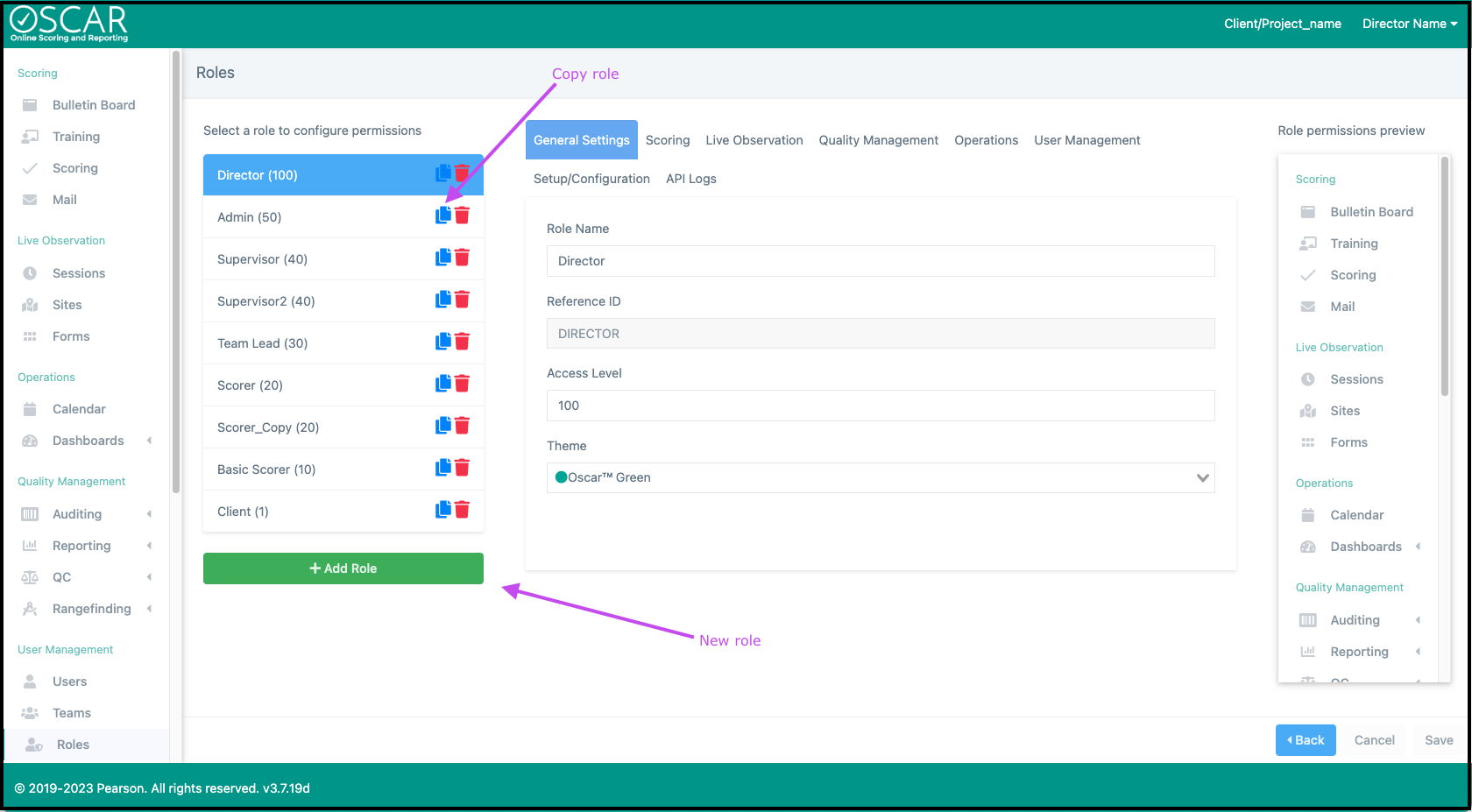
General Settings
- Role Name
...
- : How the role will be displayed in OSCAR.
- Reference ID
...
- : This id can be automatically generated or manually created but must be unique within the tenant.
- Access Level
...
- : The role access level can be any whole number from 0-100. The access level allows for creating a user who has the ability to create/edit roles but with limited scope.
...
- For example, if a user is created with an access level of 80 they will not be able to edit or create a role with an access level above 80, therefore not allowing them to edit a role with the access level of 90.
- Theme
...
- : This is the displayed theme color of OSCAR for any user assigned the role.
Roles can easily be modified or created by clicking User Management > Roles from the main menu.
...
This tab includes all permissions related to Scoring, the Bulletin Board, and the Mail feature.
Scoring – : Allow access to the Scoring page. There are a large range of optional permissions for enabling access to special scoring queues like Backreading and Resolution or allowing a user to print during scoring and escalate responses into QC. Scoring limitations can also be set like Beginner or Require Lockdown Browser.
- Score Rangefinding- access : access to the Rangefinding Scoring queue on the Scoring page
- Backreading- access : access to the Backreading Scoring queue on the Scoring page
- Auto-populate Backread Score- : scores and comment codes will be pre-selected based on the score that is being Backread. Backread rater can still submit a different score if desired.
- Show Agreement Stats- : display backread agreement stats on the Backread home page
- Backreading to Own Teams- : limits Backreading to only responses scored by users on the Backreaders' teams
- Has Resolution Access- access : access to the Resolution Scoring queue on the Scoring page
- Has Adjudication Access- access : access to the Adjudication Scoring queue on the Scoring page
- Has Appeals Access- : access to the Appeals Scoring queue on the Scoring page
- Flag Queue Scoring- access : access to the Flag Scoring queue on the Scoring page
- Delete Flags - : allows users to delete flags
- Can Send Flag to Supervisor - : allows users to send a mail message to a user with a higher role permission (e.g., Supervisor) that includes the current response being reviewed
- Is Flag Supervisor - : allows users to review and be able to resolve the responses sent via email but the user with the Can Send Flag to Supervisor permission.
- Not Required to View all - : allows users to skip and score audio and video media without having to view the whole response (despite item configuration). This is designed for scoring leadership.
- Allow Response Printing- : allows users to Print from the browser while Scoring
- Show Help Link- : enables the Help link to Zendesk support and articles from the User Profile drop down menu
- Prevent Auto-Enter- : limits the user from using the Auto-enter feature on the Scoring page to automatically enter the Scoring queue of the first item with available responses in a Section
- Can Escalate- : enables the Escalate button during Scoring to escalate responses into QC pools
- Apply Admin Flags- : user can apply Flags and Condition Codes with an Admin type
- Review Restricted Flags - : user can access responses with flags that have the Restricted Review setting.
- View Hidden Response ID - : user will see the response ID as normal when the item is configured to "Hide Response ID"
- View Admin Metadata- : metadata keys saved in Tenant Setup will be viewable while Scoring
- View Copyleaks Reports- : view Copyleaks reports while Scoring, IF Copyleaks integration is on
- Skip Validity- : user will not score Validity responses while in Scoring
- Show Count While Scoring- : displays a count of all scores, including validity and calibration, in Scoring
- Show Score & Time Per Item- : displays scores and time spent on each item on the Scoring page
- Show 1st Scorer's Annotations- : while Scoring a Reliability response, the user can view any highlighting/annotations saved by the first rater
- Reset Own Scores- : user can reset their own scores IF they also have access to Auditing
- Is Beginner- : in the Scoring queue, user will only be able to score Unscored responses and responses with a first read by a non-beginner
- First Read Only- : in the Scoring queue, user will only be able to score Unscored responses
- Prevent Downloading Resources- : disables the download button when viewing a Resource
- Require Lockdown Browser- : prevents access to OSCAR unless the user has installed the Lockdown Browser
- Prevent Multiple Scores of Same ID- : prevents users from Scoring a response with the same ref id as a previously scored response
- Skip Training- : Users are not required to complete training in order to begin scoring. Users will still be able to view the training content.
- Exempt from Rate Exception- : Users assigned this permission can access scoring anytime overriding the Project > Setup > Project Availability settings.
Bulletin Board– : Enable access to view the Bulletin Board page where static messages can be created for all users or for specific Roles.
- Post Bulletins-: allows creating and editing Bulletins
Mail – : Allow basic Mail access to view messages. Options allow access to contact a supervisor or enable advanced permissions for sending raters feedback messages or receiving email notifications when new responses are loaded.
- Send Mail to Anyone-: users can create mail messages to any other user
- Send Mail to Supervisors-: users can only create mail messages to a user with an access level of 40 or higher
- Only Mail to Team (limits access)- : users may only send mail to their team members and not all users associated with the tenant.
- Reply to Mail from Anyone-: users can reply after receiving a mail message
- Send to External Emails-: users can send Mail messages to the email address associated with user accounts
- Mark Mail as Important-: allows users to require a Mail message to be read before the Scoring queue can be accessed
- Receive Emails on New Responses-: automated messages will be sent to the users email address when new responses are loaded in Sections the user is assigned
- Even from Unassigned Sections-: automated messages will contain response loading counts from all items in the tenant
- Receive User Lockout Emails-: automated messages will be sent to the user's email address when any user on their team is locked out
- Receive Alert Emails-: receive emails when a flag that is an Alert type is used by any rater
- Receive Daily Email - : receive email with a cumulative list of appeals for all tenants
- Receive Appeal Email on Request - receive : Receive emails when a response is flagged for an appeal score
...