
...
- Allow roster user access: The account will be listed in the client lookup on the LaunchPad home page.
- Auto-launch of licensed app: - If enabled, rostered users with access to a single licensed app will bypass the LaunchPad page and be routed directly to the app.
- Session Timeout (Minutes): - After this duration of inactivity, users will be logged out automatically. Recommended default?
- Sign In Screen Message: - This text will be displayed for rostered users on the Sign In screen. Limit of 1,000 characters. Examples?
- Custom Sign In Page Path: Rostered users can access the account page using a custom path:https://launchpad.pearson.com/signin/demopcda
- Welcome Email Subject Customization: - - Email subject will read as "Account information for [subject line system name]"
- Welcome Email Custom Text:- This text will appear in the Welcome Email as the first paragraph.
- Selected users must acknowledge a configurable user agreement upon initial login.
...
- Enable Contact and Shipping Address Fields:
- Enable District Shipping Override Fields:
- Ship reports to schools
...
- : Reports will be shipped to schools in district
- Ship materials to schools
...
- : Materials will be shipped to schools in district
- Order optional reports
...
- : Optional reports can be ordered in this district
Org Metadata
allowing configuration of custom metadata related to organizations.
...
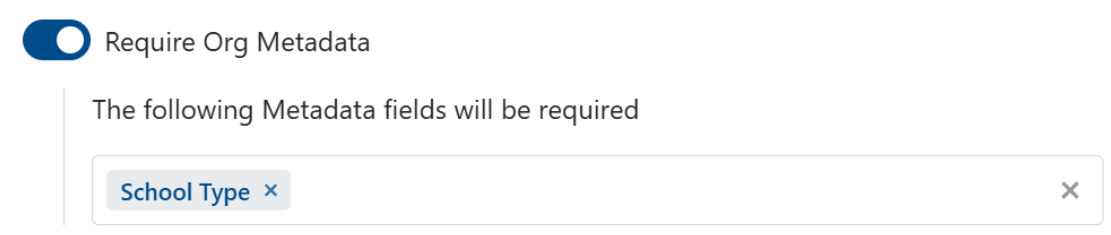
- Require Org Identifier: option to require specific org metadata, operating similarly to required demographics and user metadata. LaunchPad will check if an org metadata field is marked as required and reject records that do not provide a value.
- Enforce Org Identifier Uniqueness
- Require Student Identifier
- Enforce Student Identifier Uniqueness:
- Enforce Student Identifier pattern:
- Enforce binary gender values: If enabled, "Other" will not be an available gender option. Incoming roster integration data will auto-convert "Other" to "Unspecified".
- Require Student Demographics: Allows different demographic data fields to be set as required for students. Only demographic fields that have been defined will be available to mark as required. To use this feature, enable the toggle and select the demographic fields that should be mandatory.
...
Account Settings have been added that allow client-specific customized instructions to appear on-screen when performing Single File Uploads of Student, Non-Students and Orgs. Customized text can be uniquely configured for each file type (Student, Non-Students and Orgs) and will show as Step 2 in the on-screen import instructions.
- File Display Label
- Upload Specification File (PDF Format) - how to find the spec
- File Display Label
- Upload Specification File (PDF Format)
- File Display Label
- Upload Specification File (PDF Format)
- Text to display for Orgs
- Text to display for Students
- Text to display for Non-Students
...
- Limit Grade Level Selection: If enabled, select grades that may be used.
- Show Student 'Preferred Name' Fields:
- Automatically prepend the sourcedId of the district org to all incoming records: This setting is designed for accounts where data are populated from multiple unique sources to guarantee uniqueness.
- Show Student Layout File Specification:
- Show Org Layout File SpecificationSpecification:
- Show Non-Student Layout File Specification:
- Validate Org Shipping Addresses:
- Enable Student Transfer Requests: This setting is designed for State accounts where district data is managed independently within LaunchPad.
- Customize "Identifier" Field Label and Helper Text:
...