Search TestNav 8 Online Support:
| Excerpt |
|---|
Prior to testing, Pearson recommends confirming that each student testing device is configured properly. This page does not pertain to tests managed in ADAM. Ask your Assessment Coordinator or Pearson Delivery Team if you are unsure what content on this page applies to your setup. App Check (without optional Configuration Identifier)On the App Check page: Launch TestNav. Select App Check.
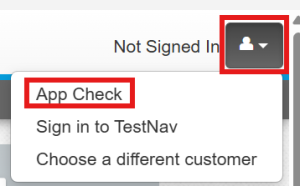
Click Run App Check. 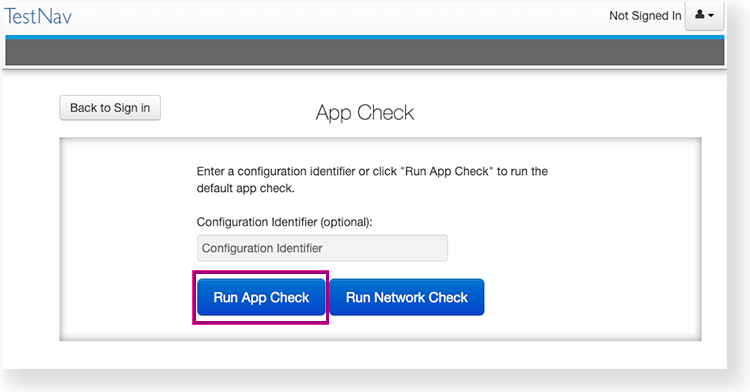
You see green Green checkboxes for Kiosk Mode readiness and connectivity to TestNav , display if the system passes. If one of these fails, you will see a Fail message and indicates you must check your connection and settings before running App Check again.
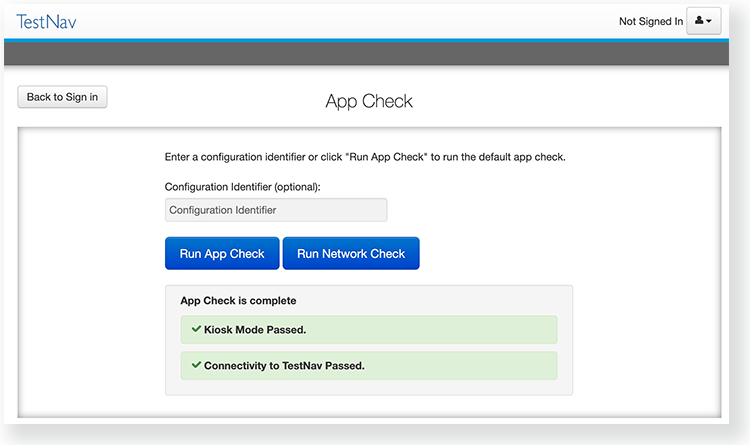 Image Modified Image Modified
App Check (with optional Configuration Identifier)If you have obtained a Configuration Identifier from your assessment management system: Enter it in the Configuration Identifier field on the App Check page. The configuration identifier allows TestNav to also check connection to ProctorCache computers. If your assessment management system allows, this configuration ID may also check for blocklist compliance. See your assessment management system documentation for additional information. Click Run App Check. If ProctorCache connectivity (or blocklist compliance) fail, TestNav provides information for possible resolutions. Use this information to troubleshoot, and run App Check again.
Run Network CheckOn the App Check page: Click Run Network Check. 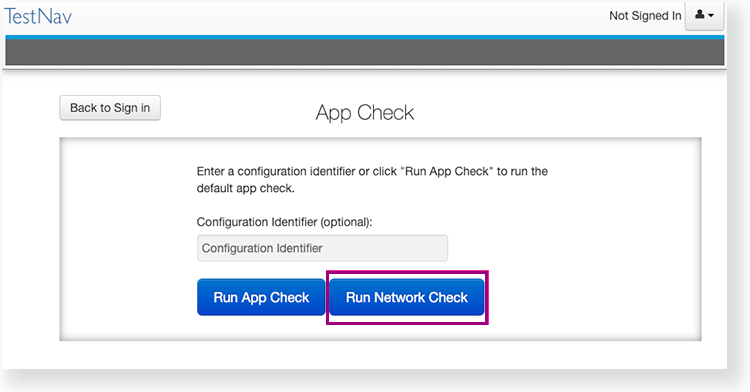
Estimate the number of devices that will connect to your network during testing, and enter it into the Number of devices field.
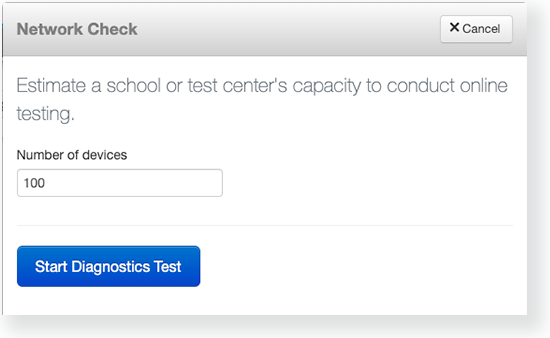
- Click Start Diagnostics Test.
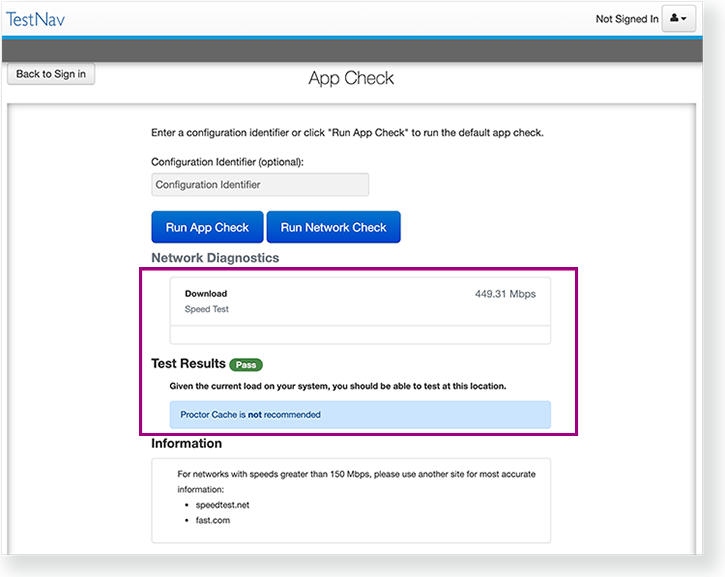
See your Test Results under Network Diagnostics to determine whether your network has sufficient bandwidth to test without ProctorCache.
|
...
