...
Install TestNav Desktop using the instructions below.
- Start TestNav Desktop to ensure that it installed properly.
- Set up ProctorCache on your proctor caching computer(s).
Run SystemCheckApp Check to verify system readiness and capacity.
Set Up Response File Backups, and set up a Secondary Save Location.
Run an infrastructure trial.
...
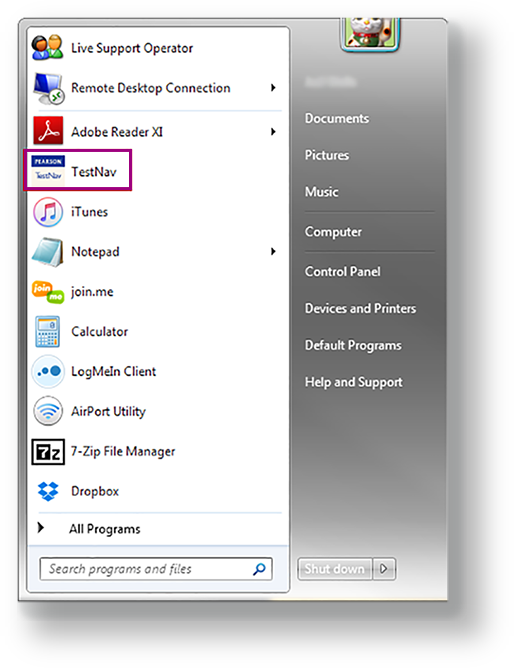
TestNav automatically creates a shortcut on the Desktop. You can open TestNav using the shortcut, or from the Start menu, click TestNav.
TestNav should appear in the Start menu. If you do not see TestNav, type TestNav in the search box.
| Expand |
|---|
| title | Click here to view a screenshot... |
|---|
|
|
- If you have not already done so, select your test from the Select Your Test drop-down menu. If your test was selected before the test session, you see the Sign In page, rather than the drop-down menu.
- If you need to select a different test, click the user drop-down menu at the upper right of the page, and click Choose a different customer.
- Select your test, and click Go.
- Input your username and password on the Sign In page to begin your test.
| Anchor |
|---|
| runsystmcheck |
|---|
| runsystmcheck |
|---|
|
...
...
| Install | | IR:_TN_SystemCheck_Install |
|---|
|
BB
Set Up Response File Backups
| Include Page |
|---|
| IR:_TN_DefaultSFTPrecommendInstallable |
|---|
| IR:_TN_DefaultSFTPrecommendInstallable |
|---|
|
| Include Page |
|---|
| IR:_TN_SRFandLogs_MacWinLin |
|---|
| IR:_TN_SRFandLogs_MacWinLin |
|---|
|
...
