This documentation is not intended to be read independently of the main documentation.
Please refer to the site home page for a list of our documentation instead of the documentation in this space.
| Expand |
|---|
| title | Click here to learn how to precache using different browsers... |
|---|
|
Click Precache.
The following step varies by browser. Precache with browsers using the Java Applet | Expand |
|---|
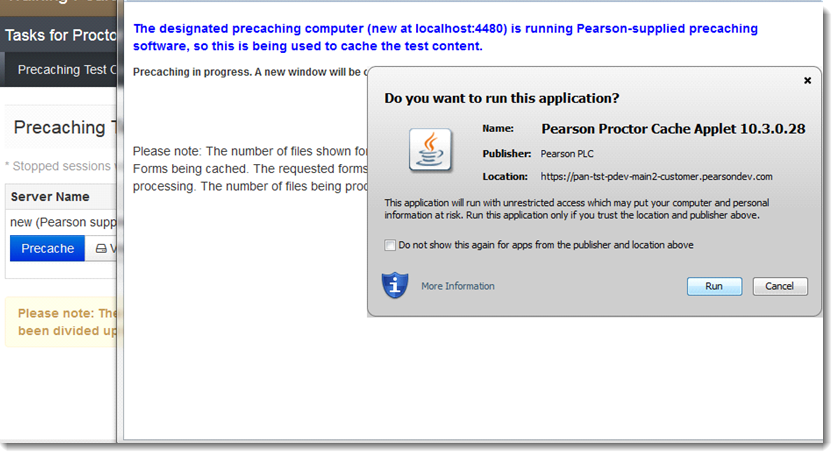
| The Pearson Proctor Cache Applet requests permission to run. Click Run. | Expand |
|---|
| title | Click here to view a screenshot |
|---|
|  |
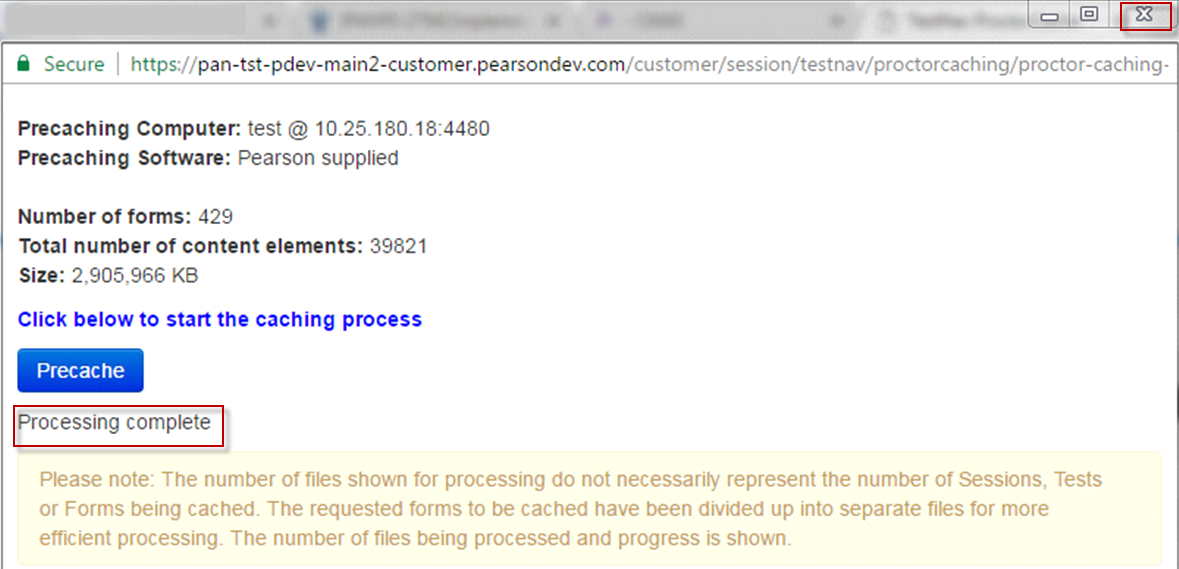
The TestNav status window reflects the precaching status. After processing is complete, close the pop-up window. | Expand |
|---|
| title | Click here to view a screenshot |
|---|
| 
|
|
| Expand |
|---|
| The Pearson Proctor Cache Applet requests permission to run. Click Run. | Expand |
|---|
| title | Click here to view a screenshot |
|---|
|
|
The TestNav status window reflects the precaching status. After processing is complete, close the pop-up window. | Expand |
|---|
| title | Click here to view a screenshot |
|---|
|
|
|
Precache with browsers without using the Java Applet | Expand |
|---|
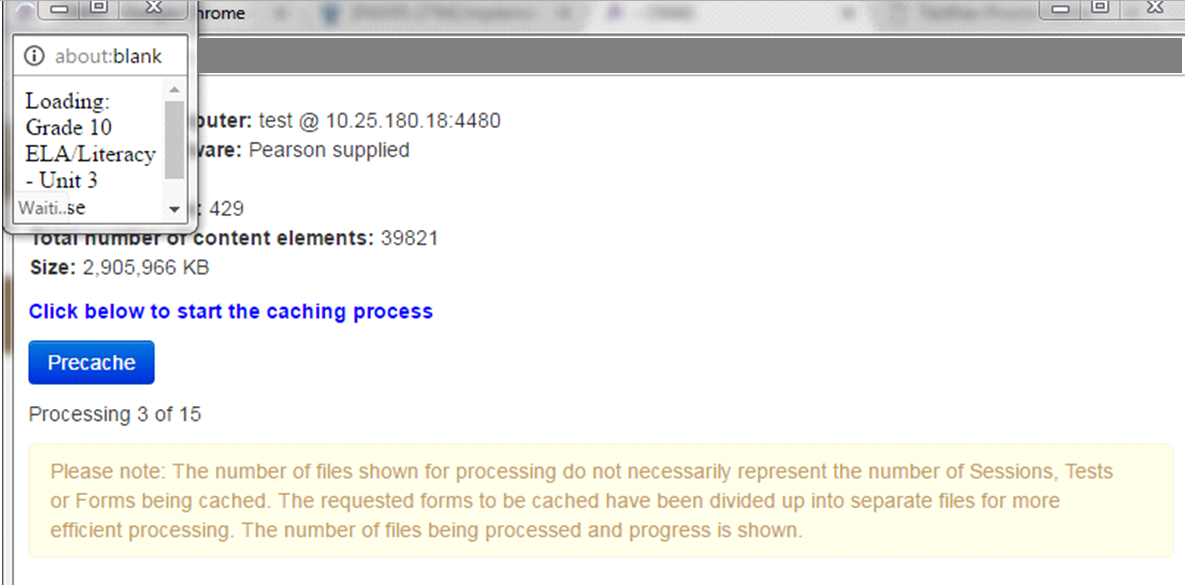
| Preaching starts. | Expand |
|---|
| title | Click here to view a screenshot |
|---|
| 
|
The TestNav status window reflects the precaching status. After processing is complete, close the pop-up window. | Expand |
|---|
| title | Click here to view a screenshot |
|---|
| |
|
| Expand |
|---|
| Precaching starts. | Expand |
|---|
| title | Click here to view a screenshot |
|---|
| |
The TestNav status window reflects the precaching status. After processing is complete, close the pop-up window. | Expand |
|---|
| title | Click here to view a screenshot |
|---|
| |
|
|
