
| Excerpt |
|---|
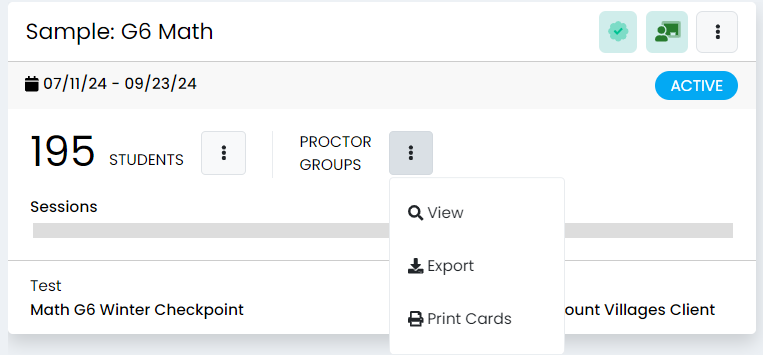
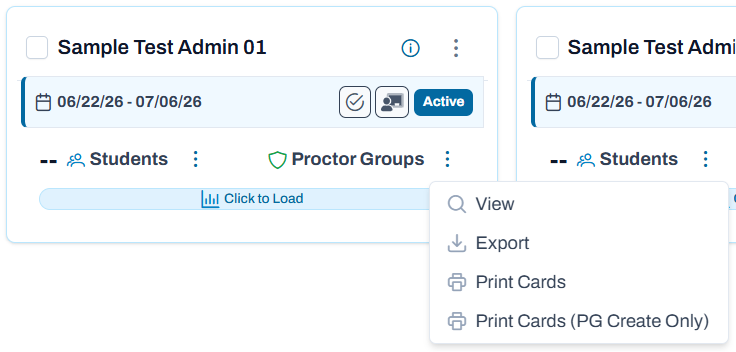
Users with rights to Administration Cards can access the Proctor Dashboard for any proctor group created for the administration, facilitating the ability to monitor all the test sessions in the school (or district depending on access). The Proctor Dashboard may be viewed concurrently with other users. Log1. Log in to ADAM. 2. Select Test Management > Administrations. 3. Find the administration you want to monitor, then selectselect View in the PROCTOR GROUPS section of the administration card. Classic User Interface:
Updated User Interface:
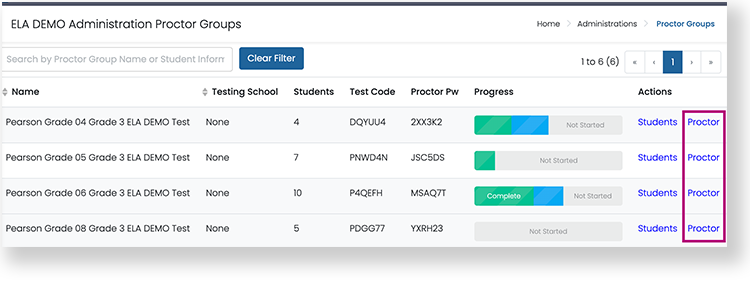
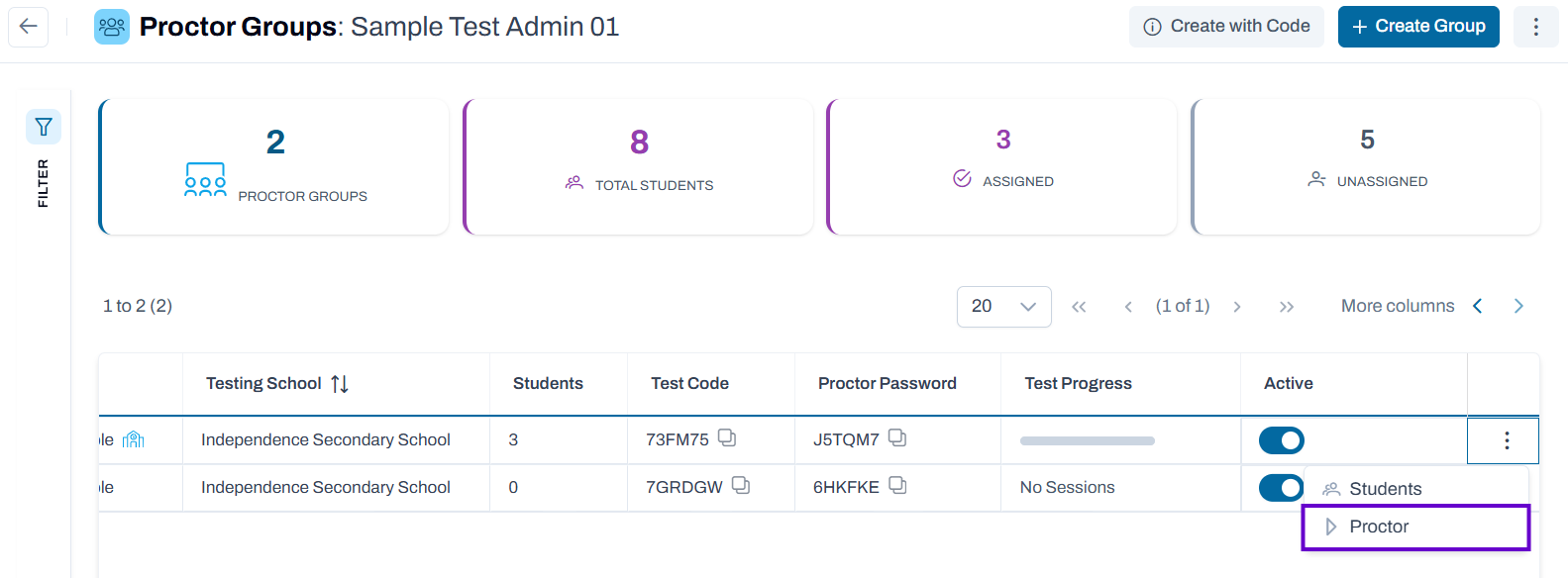
5. Find the proctor group you want to open and click thethe Proctor link. Classic User Interface:
Updated User Interface:
6. If you are looking for a specific student's proctor group, use the search to find that proctor group. Select Proctor and the proctoring page opens in a new browser tab. You can have multiple Proctor Dashboards open at the same time, just find your open ADAM tab to open another proctor dashboard. |
...