Page tree

Versions Compared

Key

  • This line was added.
  • This line was removed.
  • Formatting was changed.
AnchorTOPTOP

AnchorRIRIYou can create a user to add an account holder by entering personal and system-related information. For example, you can enter a user ID and email address, and assign this user to an organization. When you assign the user to an organization, you define the data he or she can access.

You can also specify a date range for account access. Doing so ensures that the user can log in only during the specified date range.

To learn about user account data fields, see User Account Data Fields.

AnchorInstructions

Instructions


Step-by-Step

UI Text Box
sizemedium

Image Removed

(Click Image Removedto view image)
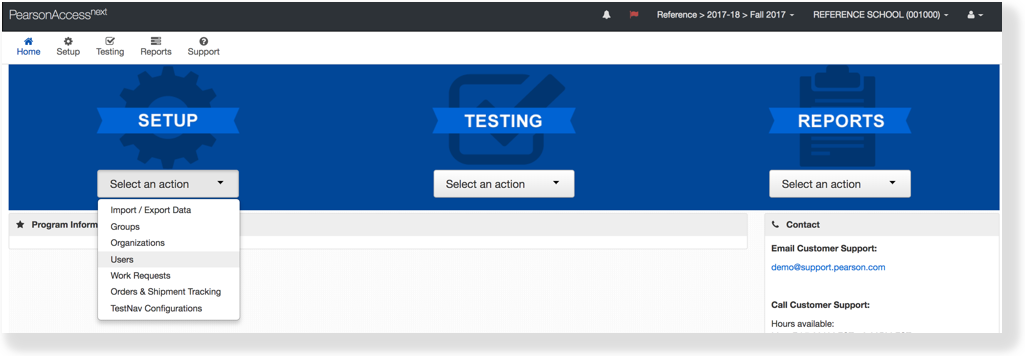
  1. From Setup, select Users.
Image Removed

  1. Image Added

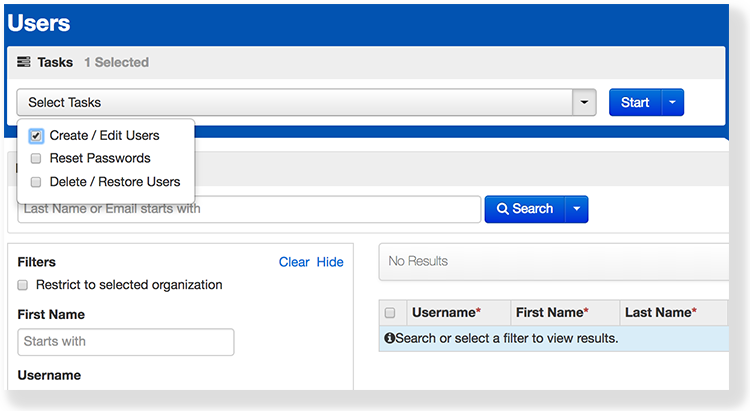
  2. Click Select Tasks, select Create / Edit Users, and click Start.

Image Removed
  1. Image Added


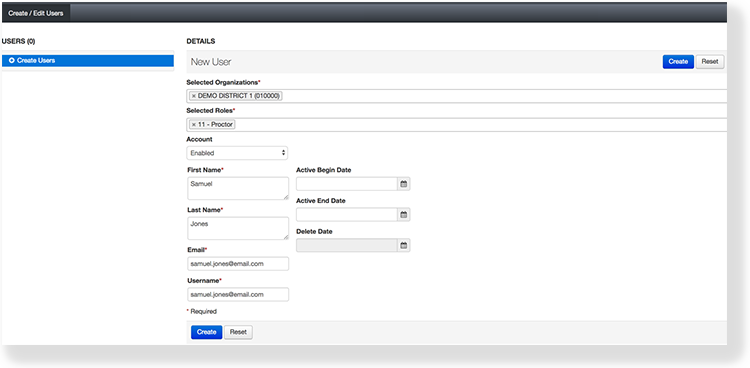
  2. Type/Select the user information.

Image Removed
  1. Image Added


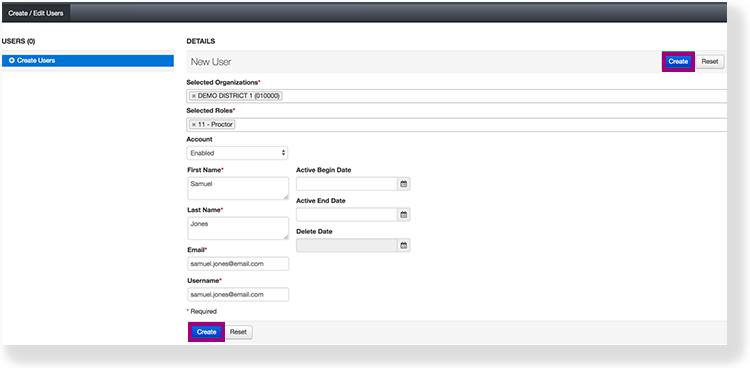
  2. Click Create.

Image Removed
UI Text Box
typeinfo
  1. Image Added


AnchorEffects

Effects

Effects

After you create a user, you can view user account information.

Expand
titleTo view user details...
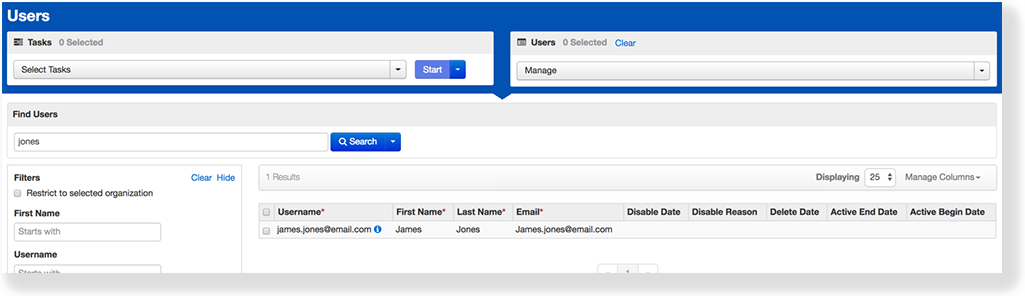
  1. From Setup, select Users.
Image Removed

  1. Type a user name into the search field, and click Search.
Image Removed

  1. Image Added
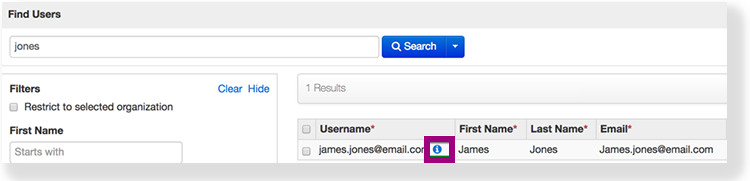
  2. Click the information icon in the Username column.
Image Removed 

  1. Image Added
    If this column does not display, click Manage Columns, select Username, and click Apply
UI Text Boxtype
tip Anchor


What's Next?

What's Next?What's Next?
Expand
titleWhen you enter an email address for a new user...

It serves as the username. This is true even if you previously entered a different username.

You can change the username after you enter the email address, but you must do so before you click Create.

After you create an account, the system sends an email to the new user. If the email is returned, undelivered, the system displays an email delivery failure.

Back to the top