
To move a student to your organization/school, you must send a request to the student's current organization/school.
Step-by-Step
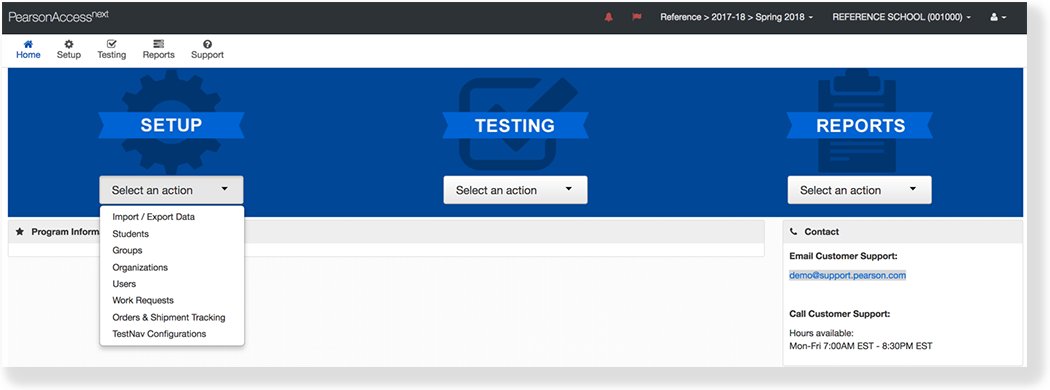
From Setup, select Work Requests.

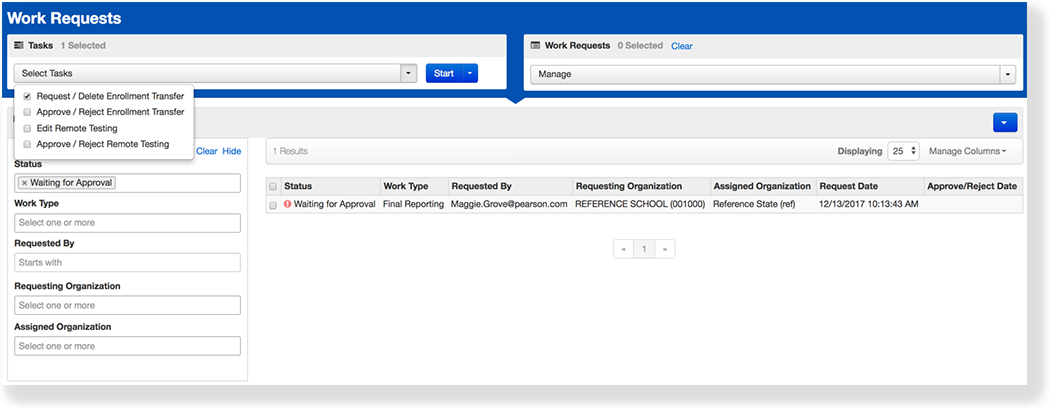
Click Select Tasks, select Request / Delete Enrollment Transfer, and click Start.
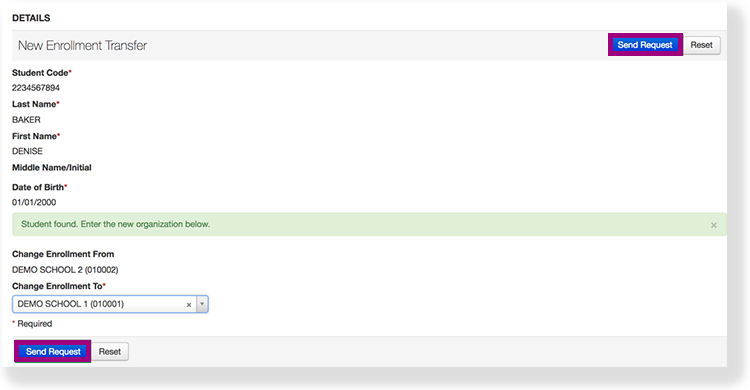
Type and select the student details to search for a student to transfer, and click Search.
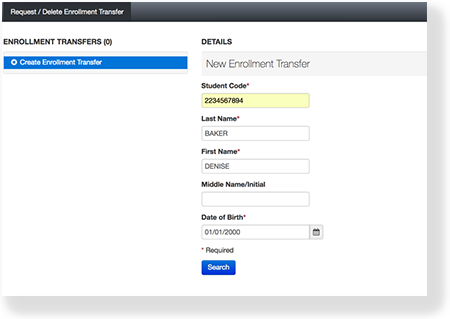
Fill in the required fields with the exact information that the student file contains.
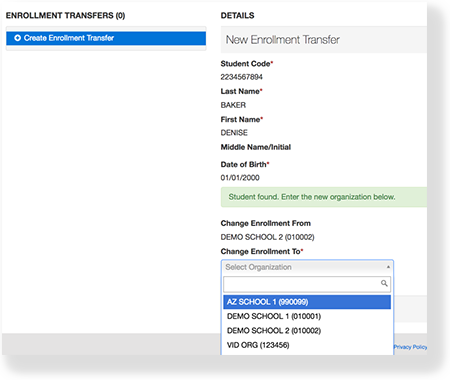
Under Change Enrollment To, select the organization to which you want to transfer the student.
Video
| Expand | ||||||||
|---|---|---|---|---|---|---|---|---|
| ||||||||
|
Effects
| Expand | ||
|---|---|---|
| ||
If your program is configured to do so, the system sends an email notification to the organization from which you requested the student transfer. |
| Expand | ||
|---|---|---|
| ||
All student test information and demographics are visible to your school and not to the original school. |
What's Next?
| Expand | ||
|---|---|---|
| ||
The student's current organization/school must authorize your request. After the organization/school authorizes your request, you receive an email with the transfer status, and PearsonAccessnext transfers the student to the requested organization. |
| Expand | ||
|---|---|---|
| ||
If you no longer need to transfer a student:
|