
...
Double-click the .msi or .exe file that you downloaded.
UI Text Box size medium type info .msi (Microsoft installer) file - contains explicit instructions about installing and removing an application.
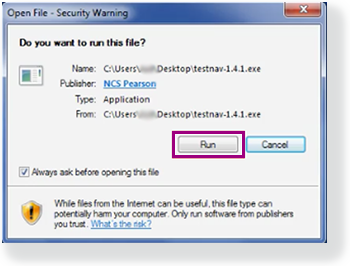
.exe (executable) file - provides a built-in installation wizard. You can choose program file locations using this type of installation.The Open File - Security Warning appears and asks if you want to run the TestNav file. Click Run.
The Setup - TestNav window appears and asks if you want to continue installing TestNav. Click Yes.
The TestNav Setup Wizard appears. Click Next.
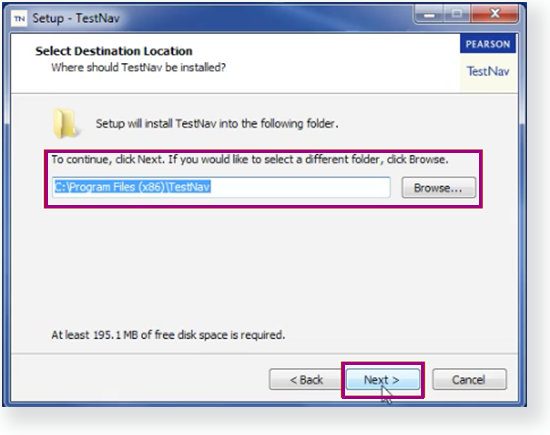
The Select Destination Location window appears. By default, TestNav program files save in C:\Program Files (x86)\TestNav. You can keep the default setting, or click Browse to choose another location. Then, click Next.
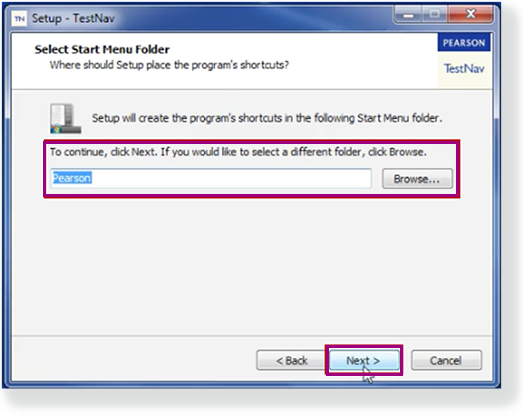
The Select Start Menu Folder window appears. By default, the setup wizard also stores program shortcuts in a Pearson folder in the Start menu folder. You can keep the default setting, or click Browse to choose another location. Then, click Next.
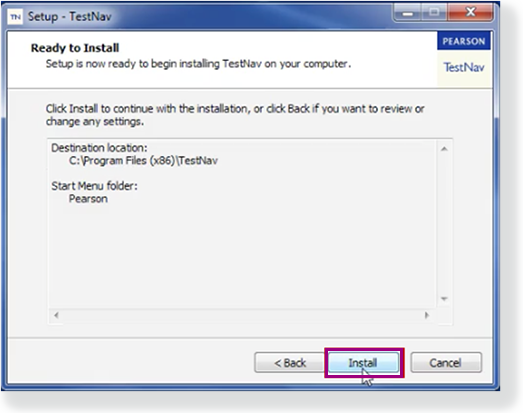
Click Install.
By default, the Launch TestNav check box is selected. If you do not want to immediately launch TestNav, deselect the check box, and then click Finish.
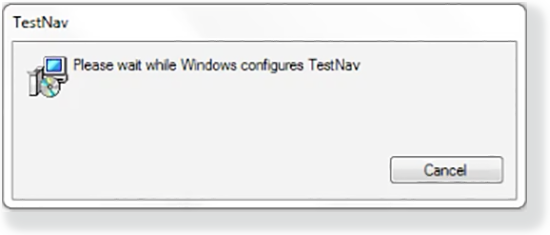
If you downloaded the .msi installer, the installer window appears and automatically installs TestNav.
If you downloaded the .exe installer:
| UI Text Box | ||||||
|---|---|---|---|---|---|---|
| ||||||
Because TestNav installation does not add entries to the Windows registry, you can copy the TestNav application and push it to student computers for mass installation. |
| UI Text Box | ||||
|---|---|---|---|---|
| ||||
|
...