
| Excerpt |
|---|
ADAM (Assessment Delivery and Management) users can manage organization and assessment administration data conveniently and deliver assessments online. The articles in this ADAM Basics section provide instructions on some common getting started tasks. ADAM is the generic name Pearson's Assessment Delivery and Management platform; you may refer to it by a custom local name. Using a Screen Reader for ADAM Online Help
|

| Excerpt |
|---|
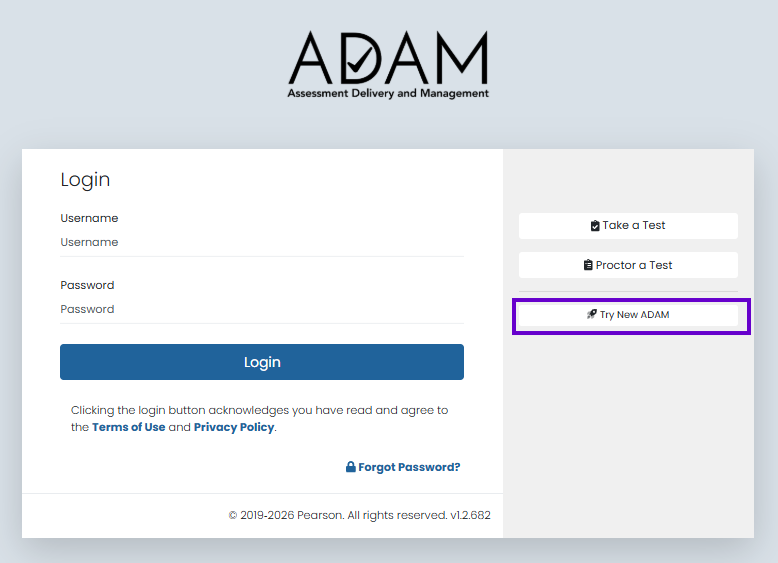
ADAM 2.0 UPDATES - NEW User InterfaceDesigned to provide a more modern and streamlined experience, ADAM 2.0 makes it easier to navigate the platform, find key features, and complete tasks efficiently. Improvements include a cleaner layout, enhanced organization of settings and tools, and a more consistent user experience across the application. As new ADAM 2.0 features are released, this support site will be updated with the latest screenshots, documentation, and guidance to help users take full advantage of new functionality as it becomes available. Try It Out!Prior to logging into ADAM, simply click on the 'Try New ADAM' link.
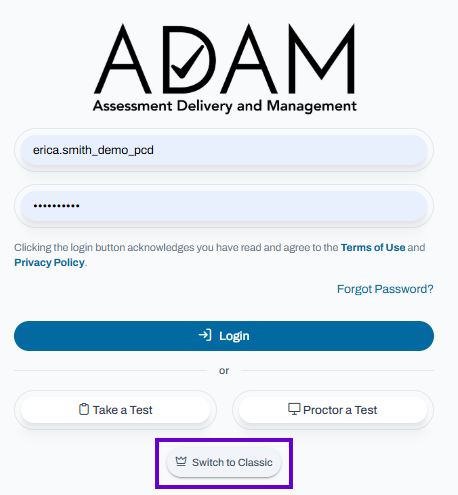
To return to the Classic View, you must first log out then click 'Switch to Classic' prior to logging in again.
|
...
Tiny Link: https://support.assessment.pearson.com/x/LwD5BQ
3. Organize your pages
Here are some tips for organizing your content.
Change the page order
The sidebar on the left displays your pages in a hierarchy. If you have Space Administrator permissions you can click "Space Tools" > "Reorder Pages" to move pages around.
Add labels
Labels help keep pages organized and make it easier for you to find the information you need. Click "Labels" at the bottom of a page to add or edit. The "Related pages" section on this page uses labels too!
Make templates
Standardise and speed up the page creation process with templates. You can create and format a template with page layouts, standard headings and instructional text for hints and guidelines. Check out our sample page on "Making a template"
Related pages
...