
| Excerpt | ||
|---|---|---|
|
...
|
...
- ADAM users using web extensions (Co:Writer or Read&Write) must install and set up the TN app as described on this page.
- ADAM users testing without web extensions can install the TN app or the TestNav PWA for testing.
After you download the TN app, complete the setup using the sections below.
| Tip | ||
|---|---|---|
| ||
Note which specific device each student uses during each test. TestNav saves SRFs to only one designated place on the testing device. If an error occurs, you can locate files only on that specific device. |
...
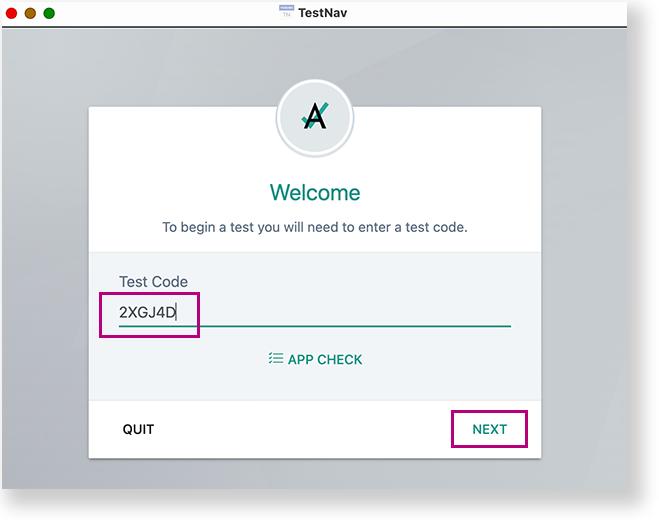
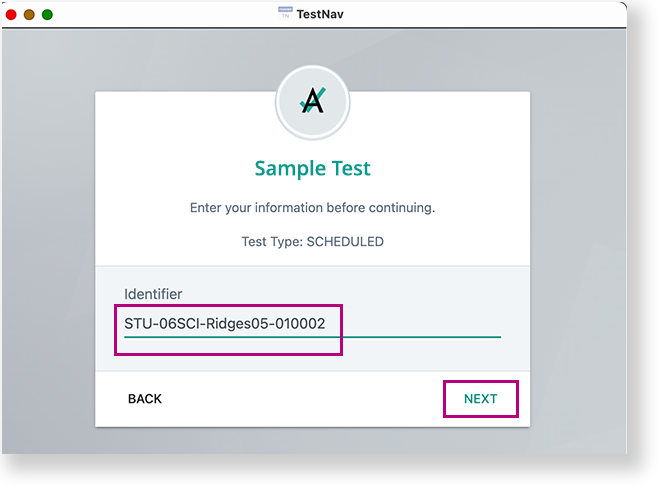
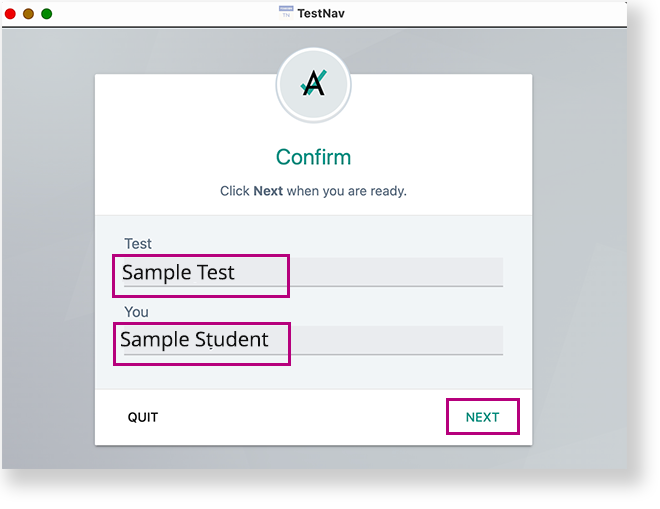
To access an assigned test via the TestNav app, students need to:
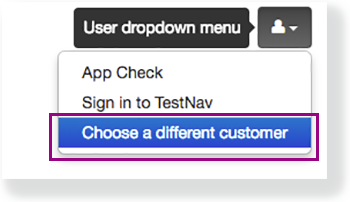
If the student credentials entered match what is on the test card and were entered correctly but the students can't log in, the most likely cause is that the student clicked another tile on the TestNav selection page. In order to switch to the Student Portal, select the menu in the upper-right, and select Choose a different customer.
|

...
| title | Click for instructions on verifying managed status... |
|---|
...
Install TN App
To install TN app, first ensure each device's settings are set to keep local data to avoid accidentally deleting the SRF and log files. Then, add the TN app as a kiosk app.
| Info | ||
|---|---|---|
| ||
If your content filters are activated when a student signs in to the Chrome device, contact Pearson Support for additional URLs to add to your kiosk settings for URL blocking. TestNav does not require that the student sign in to the Chrome device. As a result, these content filters do not filter as intended during a TestNav test. |
Step-by-Step
...
| Info | ||
|---|---|---|
| ||
Students with accommodations or accessibility features enabled through their PNP or test form access those features within TestNav. ChromeOS has native accessibility features that might appear within a kiosk floating accessibility menu during testing. Technology personnel can disable this menu before testing to avoid it interfering with the student’s test. |
...
If you have not already done so, choose the appropriate icon for your test on the home page. If your test was selected before the test session, you see the Sign In page, rather than the home page.
If you need to select a different test, click the user drop-down menu at the upper-right of the page, and click Choose a different customer.
...
Click the appropriate icon for your test.
...
On ChromeOS, the SRF default primary save location is not customizable.
To find files on Chrome OS:
- Launch the
 TN app.
 - Focus your cursor in the username or password field.
- Press <ctrl><shft>z, and the File Viewer box appears.
If the File Viewer does not display, click on the window and then press <ctrl><shft>z again. - Plug in a USB memory stick.
- Click the download button next to the srf and log file(s) you want to download.
- When the window opens, select the USB memory stick, and click Save.
...
Tiny Link:
https://support.assessment.pearson.com/x/
...