
There are three ways to view the number of scores you've applied as a rater in OSCAR. Each will provide some different information regarding your score count and can be found on different pages. Some of these score tracking tools may not be available for every project, depending on the configuration of your scoring project.
Live Scoring Count
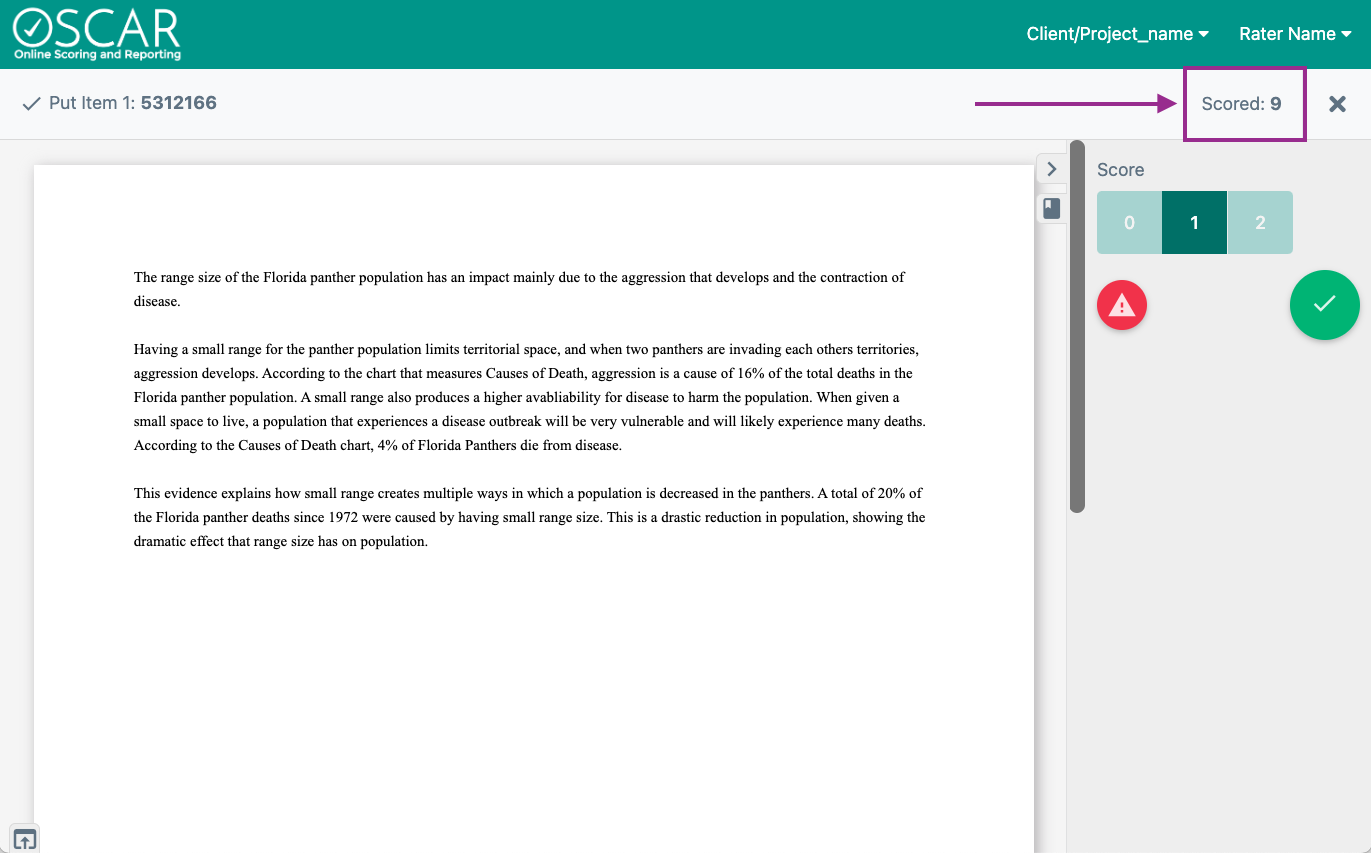
When a scorer is actively scoring they will see a total on the top right header bar labeled "Scored." This is the total of all calibration, validity
...
and operational scores applied to the item that is currently being scored. This count will go up by
...
one after a score for the current response has been submitted.
In the example below, the rater has applied
...
nine scores, which is the total of validity responses + calibration responses + operational responses. After they select the Score button, their "Scored" count will be 10.
Operational Scores Count
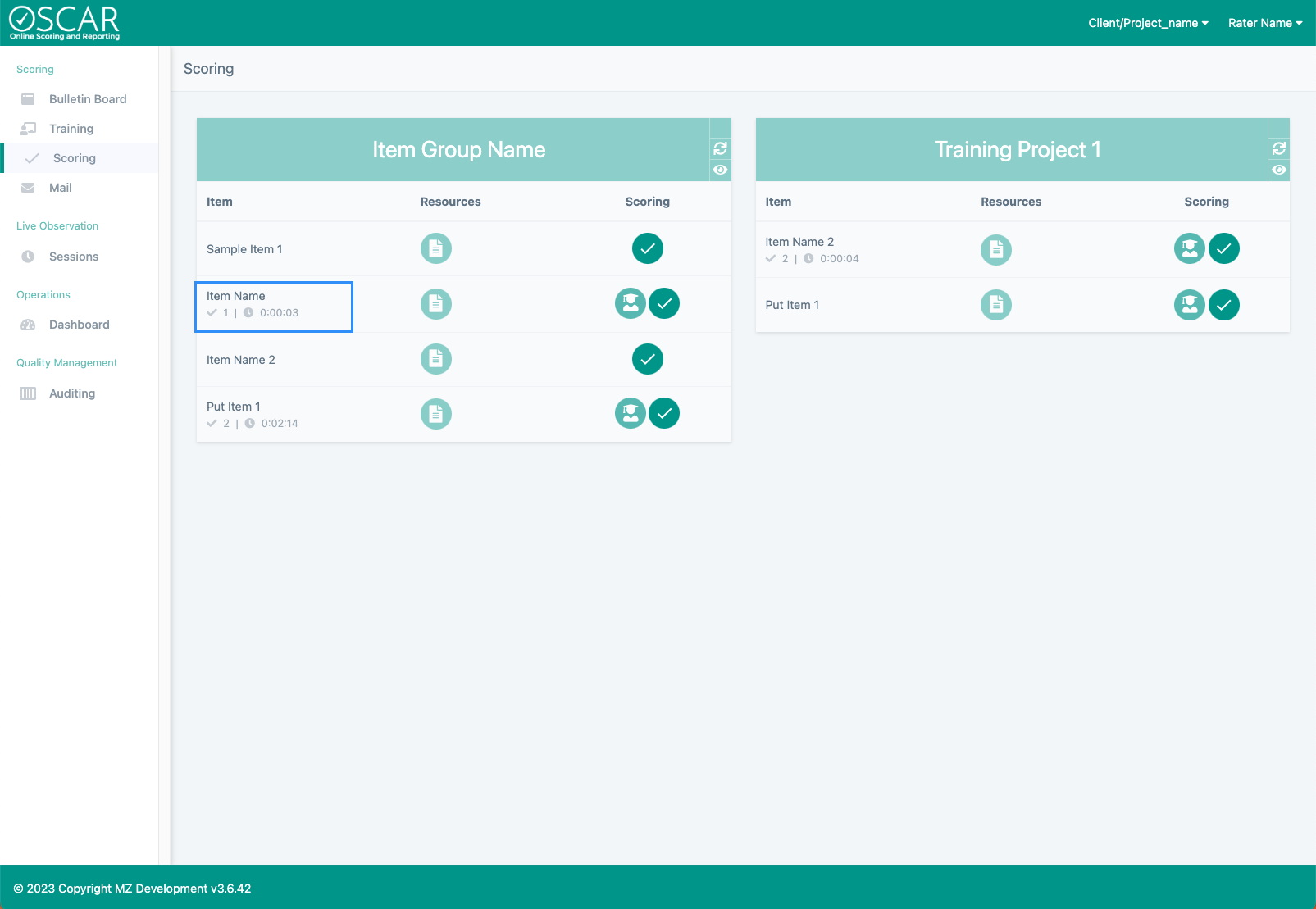
On the Scoring page, scorers can view the total number of operational scores they've submitted as well as the total time spent scoring for the item. This count only considers live responses and does not count QC responses like Validity, Calibration, Practice , or Qualification responses. The Score Count is next to a check mark ( ) and the total score time is to the right, next to a clock symbol (
 ). Both values can be found underneath the item name.
Dashboard Score Counts
...
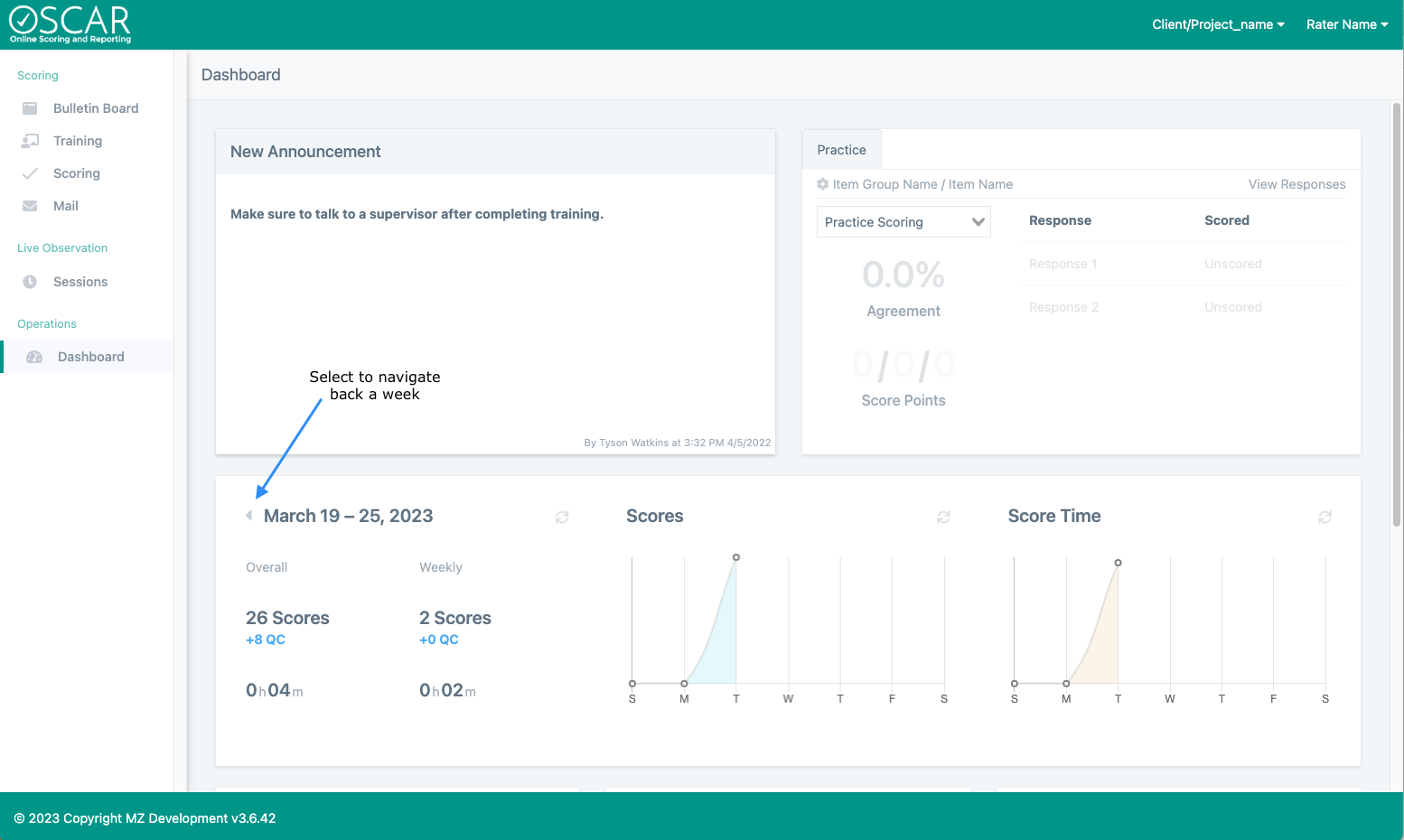
To the right of the score counts are two graphs that show the scores given on each day and the time spent scoring each day of the selected week. By default, the week selected will be the current week. Navigate to previous weeks by using the left arrow  . After navigating to a different week, use the refresh Refresh icon
  to load the current values for the weekly totals or graphs if these values do not update right away.
...