

 Technical Bulletin
Published: April 811, 2022
What is happening?
Pearson recently learned that in a rare and specific scenario, the Grammerly application (not web version) can run in the background during secure testing.
In such a case, the Grammerly application is running before the student signs in, and the device has notifications turned off.
Pearson has scheduled (with affected programs) a TestNav update to block the Grammerly application during the weekend of April 8; however, Pearson advises that all programs disable the Grammerly application prior to all testing sessions. To avoid any interruptions during sign in, Pearson advises customers to disable all applications, and then run App Check, before students attempt to sign in.
What does this mean?
Pearson will directly communicate with each affected program regarding the scheduled update. Programs not immediately affected by this scenario will receive the Grammerly block in the next regular patch update, and no action is necessary at that time.
Disable all applications on testing devices prior to testing and run App Check to ensure that all apps have been disabled.
After affected programs receive the update, TestNav will display an error if a device is running the an application when a student attempts to sign in.
What do I need to do (and how do I do it)?
Before a test session begins:
- Disable applications on each testing device.
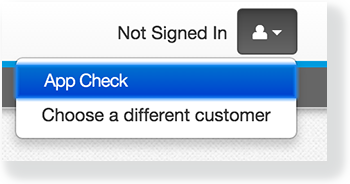
- Go to the user dropdown and select App Check.
- TestNav displays green checkboxes for Kiosk Mode readiness and connectivity to TestNav, if the system passes.
If an application is running in the background, TestNav displays a fail message and advises you to disable the specific application before running App Check again.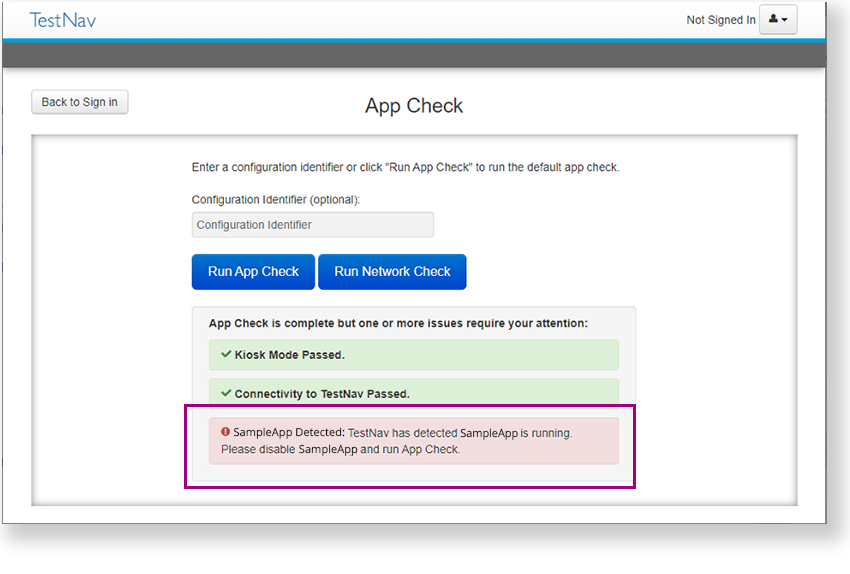
- Disable the application and run App Check again.
If a student attempts to sign in while an application is running, and TestNav displays an error:
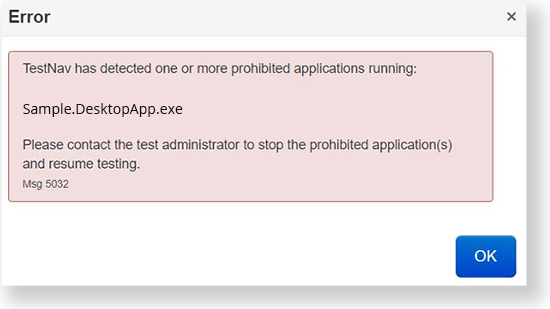
- Disable the application on that device.
- Run App Check.
- Resume the student's test session.
- Ask the student to sign in again.
, ensure that the Grammerly application is disabled on all Windows testing devices. Contact your Pearson Technology Engagement Manager (TEM) with any questions regarding the update.