Depending on your role permissions, In the Users section you may have access to: Filter the User List Image Removed Image Removed Image Added Image Added
In the users list you can use the following filters: Filter on users who have not yet logged in by toggling on LP Auth Not Set and set a password by toggling on Show Users Who Have Never Logged In (this is useful when sending Welcome emails if some users have already authenticated). Choose students, non-students or all. Use the 'Type-ahead' lookup to search a user by name, ID or username. - Click Select All Filters to find a additional filter options.
- Filter by one or more grades.
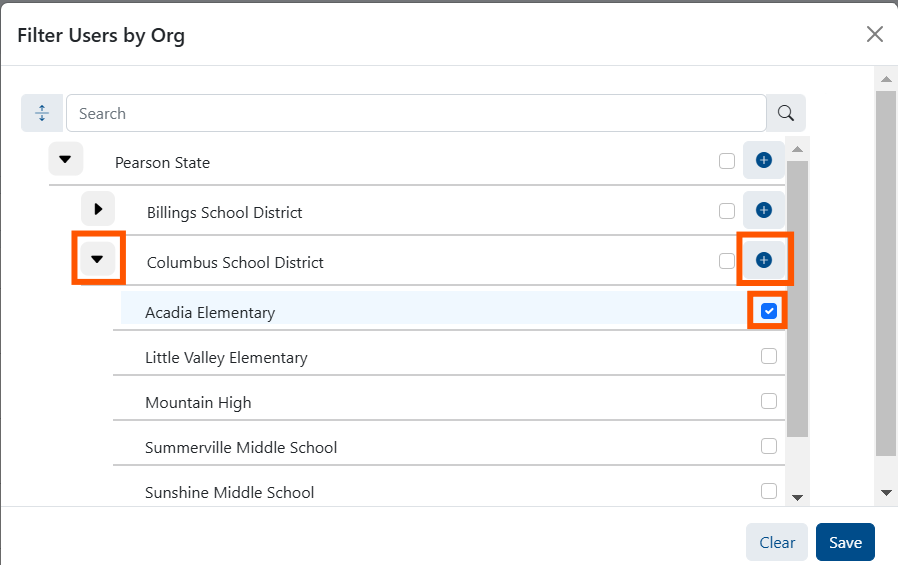
- Filter by any organization you have permission to view:
Expand any branch of the organization to select one or multiple organizations. - Next to the Search field, use the Collapse All/Expand All toggle toggle.
- Type an organization name or ID in the Search field.
A dynamic org tree based on the viewing user's scope - district users will not see other districts, school users will not see orgs above their own, etc. Select a district or other org type to include all child institutions. - Use the plus icon to to select only that org level and not users assigned to child institutions.
- An “Expand Use the Expand All / Collapse All " button, that will expand or collapse all nodes of the hierarchy .
Actions Available for Filtered UsersOnce you have filtered on the desired users, use the options in the Actions menu to export the list or send welcome emails. See also: Send Welcome Email to New Users, Export Users 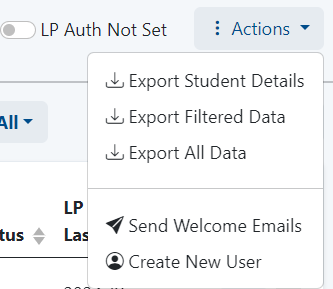
| 