
This article provides page provides a high-level step-by-step process to start scoring. Setup is completed within OSCAR.
Typically starting start in the User Management section to create and manage Usersusers, Teams teams and Rolesroles. Then moving into move to the Setup/Configuration section to define and manage the Tenanttenant, Projectproject, Sectionsection, Items items and Rubricsrubrics.
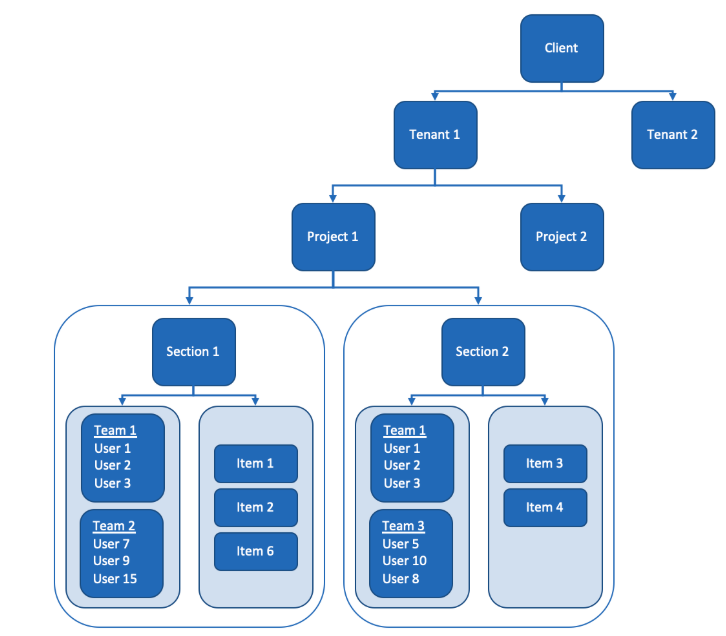
Use Review the below definitions and the overview flowchart below to help you determine the best set up for you. As you review the information below chart, please feel free to contact us the Pearson OSCAR team to discuss how best to create your Projects projects and Sections sections to handle the immediate scoring and reporting requirements while looking ahead to the next round of scoring.
Useful Definitions
Tenant: - A complete separation of data. Used for clients customer that have multiple projects serving different clients.
Project - : A grouping of sections. Projects can be used to quickly turn off scoring for an entire grouping of sections.
Section - : A grouping of items that you assign Teamsteams. This allows specific scorers to have access to specific items.
Teams - : A grouping of scorers that you assign to Sectionssections.
Items - : A unique prompt in an assessment (question). Items can be reused across sections but responses are tied to an item + section combination. All scoring settings are created at the item level.
...
Order of Setup Tasks
- Create a Projectproject(s): Items can be used in multiple projects.
- Create a Teamteam(s): Users can have access to 1 one or more tenants with different roles in each tenant.
- Create Scorersscorers(user): Users not added to a section will not have access to score items.
- Create a Rubricrubric(s).
- Create an Itemitem(s): Projects and items can be deactivated/activated preventing scorer access.
- Create a Sectionsection(s):
- Assign Items items to a Sectionsection(s).
- Assign Teams teams to a Sectionsection(s)
- Upload responses to item (from auditing).
If you are stuck on any of the steps above, please navigate to the supporting content.