
Include Page
| Info |
|---|
|
...
Rejected Student Tests
To correct a rejected test, view the status and fix errors, follow these steps:
Step-by-Step
From Testing, select Rejected Student Tests.
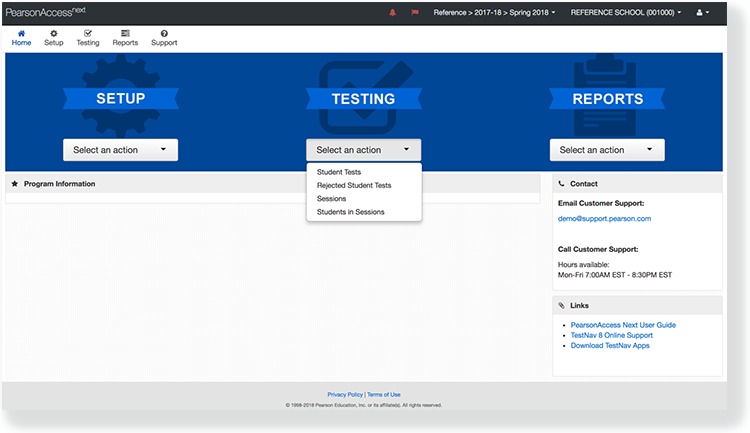
Search From Testing > Rejected Student Tests, search to find the rejected test(s) you want to view and fix.
Expand title Click here to view screenshots... 
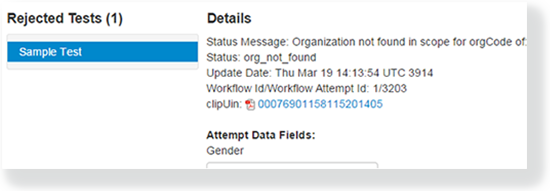
The Status Message
columncolumn in the list
of rejectedtests tells you why the system rejected each test
was rejected.Click Select Tasks, Open the task list and select Edit Rejected Student Tests, and click Start.
Expand title Click here to view a screenshot... 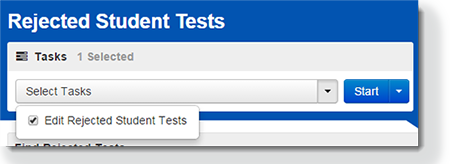
Find the rejected test you want to view and fix under Rejected Tests , view and edit the listed invalid information, as appropriate. Click Save to finish.
Expand title Click here to view a screenshot...
Deferred Rejected Student Tests
If for some reason the correction of the rejected tests needs to be deferred, then you can opt for the deferred option as describe below.
From Testing > Rejected Student Tests, under filters, select Show Deferred Rejected student Tests. For further specification criteria select an option from the Rejected Status and or Organization. Select the rejected test(s) you want to view and fix.
Expand title Click here to view screenshots... The Deferred Resolution column in the list of rejected tests tells you whether the rejected test was deferred (value true) or not (value false).
Open the task list and select Edit Rejected Student Tests and click Start.
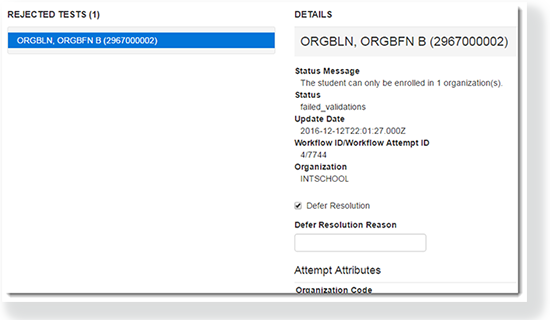
Expand title Click here to view a screenshot... Find the rejected test you want to view and fix under Rejected Tests. View and edit the listed information, as appropriate. To defer a test select the Defer Resolution option and under Defer Resolution Reason specify the reason. Click Save.
Expand title Click here to view a screenshot...
To defer a test, select Defer Resolution, and under Defer Resolution Reason, specify the reason.
Click Save.
...
Effects
When you fix the rejected student test, the system automatically validates it again. If there still is an error, the test status continues to display invalid information in the test status. When the entire record completes all validations, the system aggregates the information for reporting.