
...
While administering a TestNav session, you should understand the TestNav user interface to better direct students and answer allowable questions regarding the interface and functionality. When students launch a test, the interface includes common elements, regardless of accessibility settings.
This page contains the following sections:
| Table of Contents | ||||
|---|---|---|---|---|
|
Navigating Common User Interface Elements
The video below Student Readiness Tool (SRT) shows elements of the header bar at the top of a TestNav page.Include Page
| Multimedia | ||||||
|---|---|---|---|---|---|---|
|
| UI Text Box | ||||
|---|---|---|---|---|
| ||||
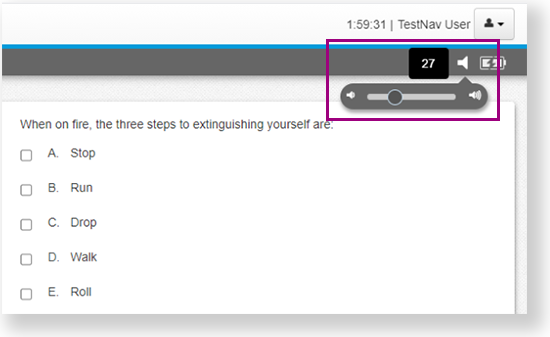
Practice tests can include volume controls within the TestNav UI when run on macOS, Windows and Linux. Chrome OS also supports UI volume control when the practice test is running in kiosk mode.
|
Complete and Submit a Test
Students navigate the test using primarily the header bar; however, they also encounter different pages between sections and at the end of the test. The The screenshots below show examples and important information about each page. You can also see live demonstrations of testing and submitting a test in the Demonstration Videos section SRT video below.
End Section Page
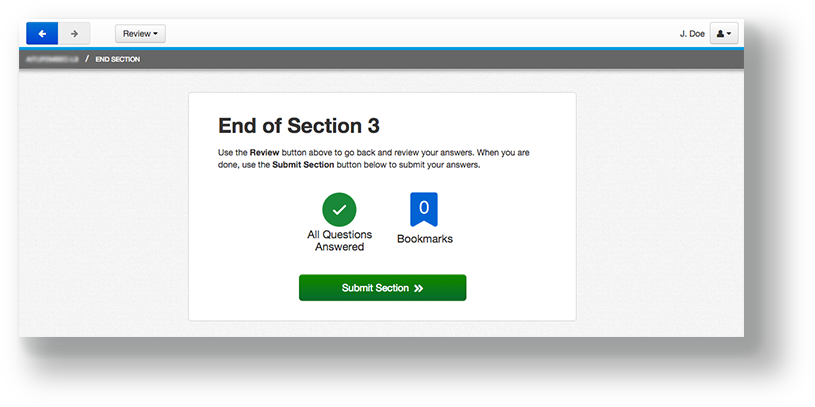
The student sees the page below at the end of a section. This page shows which section the student has completed, as well as the number of unanswered questions, questions answered, and bookmarked questions. The student can click Review to review questions only in that section. After students leave a section, they cannot go back to that section.
Section Exit Warning
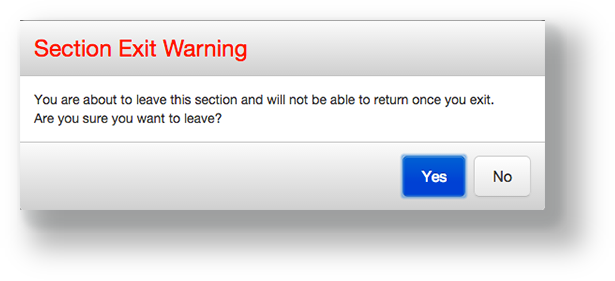
The student sees the Section Exit Warning after clicking Submit Section. This warning reminds the student that he or she cannot return to this section after exiting it. The student can click Yes to go to the next section, or No to close the warning message and review questions in that section.
Mini Menus
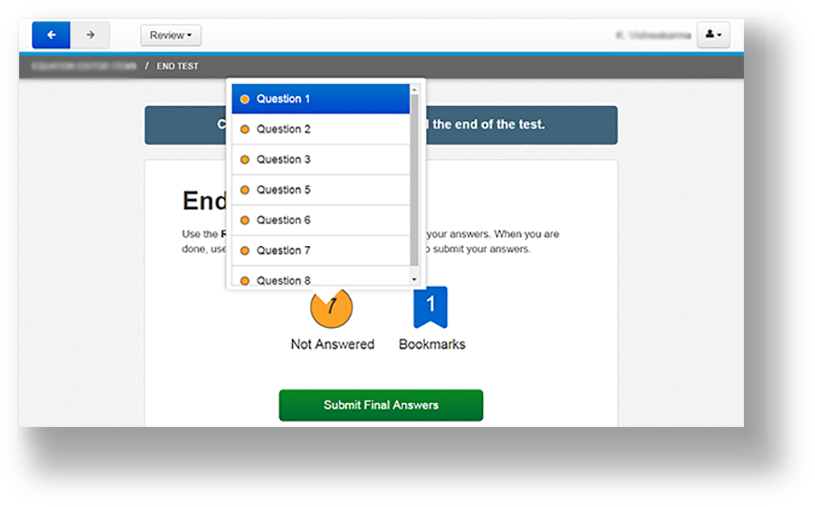
At the end of a section or test, the student can click on either the Not Answered icon or Bookmarks icon to see a mini menu. These show unanswered questions or bookmarked questions within that section. The student can click on any question within each mini menu to revisit that question. See an example in the screenshot below:
End of Test Page
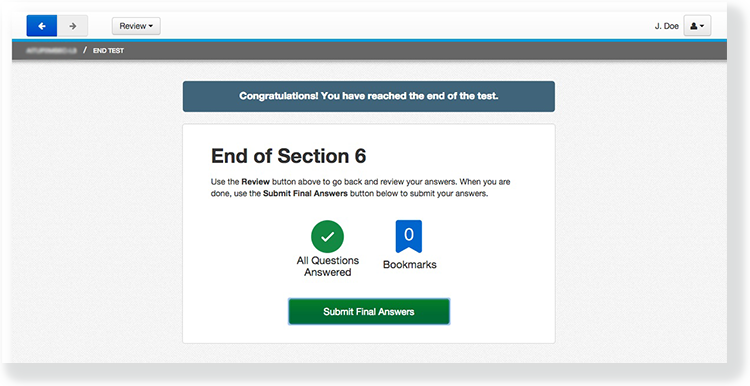
The student sees this page at the end of the last section of the test. This page shows the section number, the number of unanswered questions, questions answered, and bookmarked questions. The student can click Review to review questions only in that section, or click Submit Final Answers to submit and log out of TestNav. The student cannot go back into the test after clicking Submit Final Answers.
Test Submit Warning
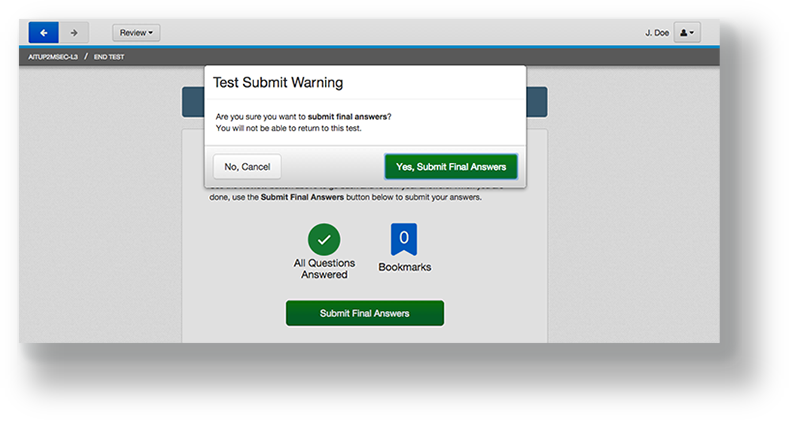
After the student clicks Submit Final Answers, TestNav displays the Test Submit Warning. This warning confirms that the student is ready to exit the test. The warning tells the student that he or she cannot return to the test after clicking Yes, Submit Final Answers.
Log Out Complete Page
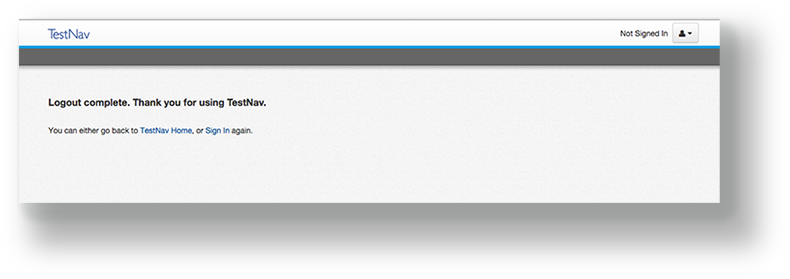
When the student clicks Yes, Submit Final Answers, TestNav logs the student out and displays the Log Out Complete page.
Demonstration Videos
The videos below provide demonstrations of specific TestNav pages and features.
Review Drop-down and Bookmark Button
...
Timer Toggle, Messages, and Options
...
Depending on the test configuration, students may be able to submit sections and final answers out of order.
Multimedia name srt_submit-answers_se.mp4 width 600 height 338
...
Tiny Link: https://support.assessment.pearson.com/x/IAACAQ
...