Page tree

Versions Compared

Key

  • This line was added.
  • This line was removed.
  • Formatting was changed.

...

Expand
titleThere are two methods of entering enrollment counts:
  • You can import either an organization participation file or a student file with enrollment counts, as described in Import / Export Data.
  • You can enter enrollment counts directly from within the system.

...

Step-by-Step

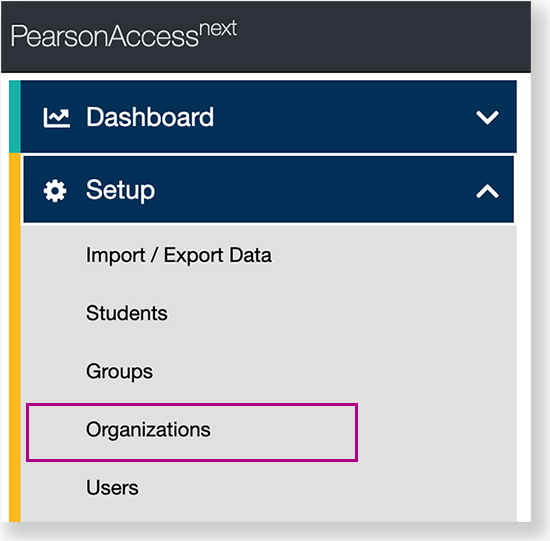
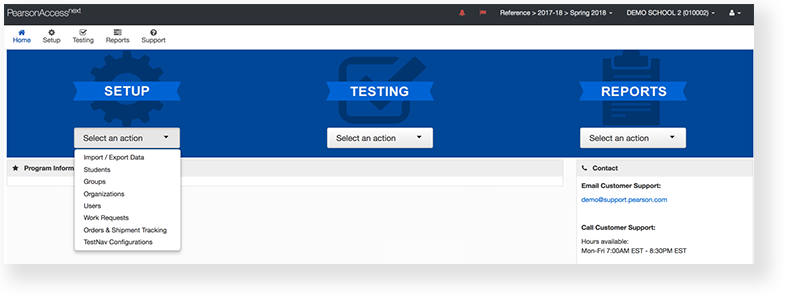
  1. From Setup,

     go to 

    click Organizations.

    Image Removed

    Image Added

    Expand
    titleView center navigation...

    Image Added

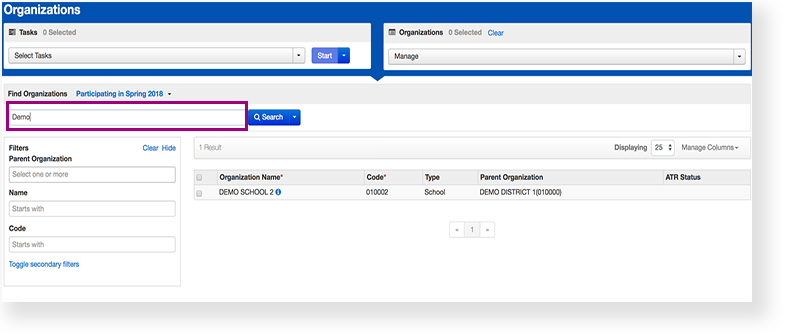
  2. Type an organization into the search field, and click Search.Image Removed
    Image Added
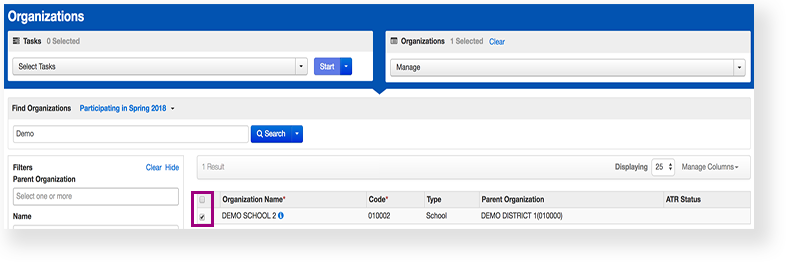
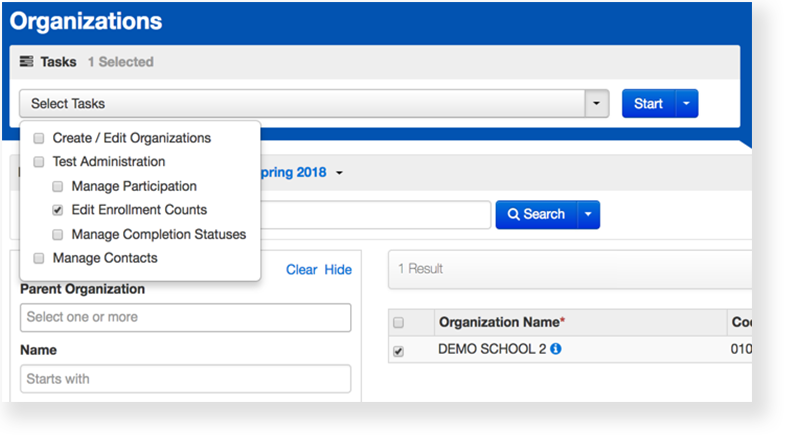
  3. Click the checkbox next to an organization.Image Removed
    Image Added
  4. Click Select Tasks, click Edit Enrollment Counts, and click Start.Image Removed
    Image Added
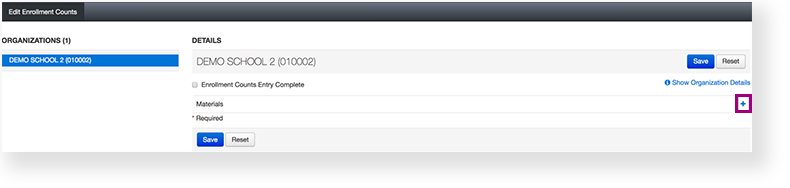
  5. Click the + to expand the available materials.Image Removed
    Image Added
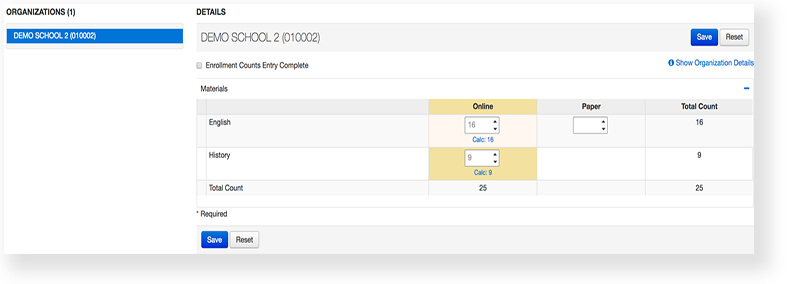
  6. Click the arrows to adjust the amount of materials in each box.Image Removed
    Image Added
  7. Click Save.

...

Effects

Expand
titleReview and Update Enrollment Counts

You or authorized users can review and update enrollment counts until a specified closing date. On the closing date, an order for test materials is automatically submitted and materials are shipped to schools before the scheduled testing windows. (info) Consult your testing program to learn more about closing dates.

...

What's Next?

Expand
titleIf you are done editing enrollment counts...

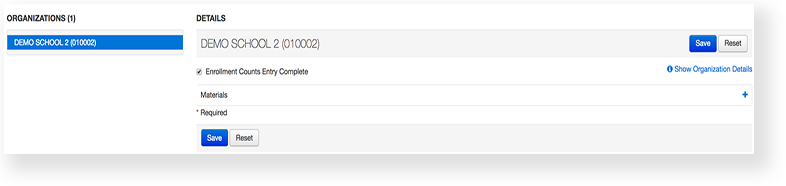
If you are done editing enrollment counts and your organization has entered final figures, click the check box to select Enrollment Counts Entry Complete.Image Removed

Image Added

(info) This status is used mainly as a reminder to other users. Even if marked Completed, the counts can be changed until the customer-specified window for enrollment counts closes. Enrollment counts are not considered final until the closing day of that window.

Expand
titleTo view multiple organizations at the same time:
  1. From Setup, go to Organizations.
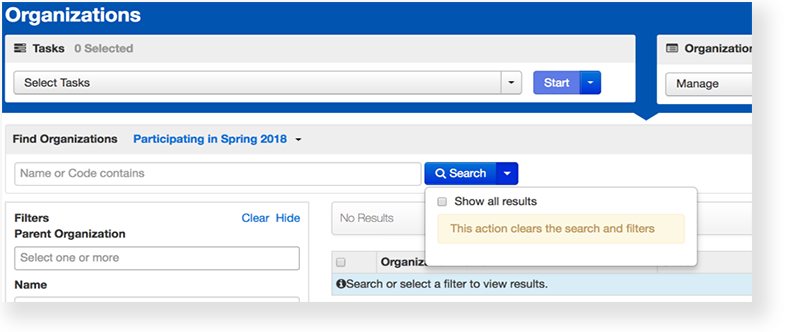
  2. Type into the search field the organizations' names and click Search, or select Show all results from the Search dropdown.Image Removed
    Image Added
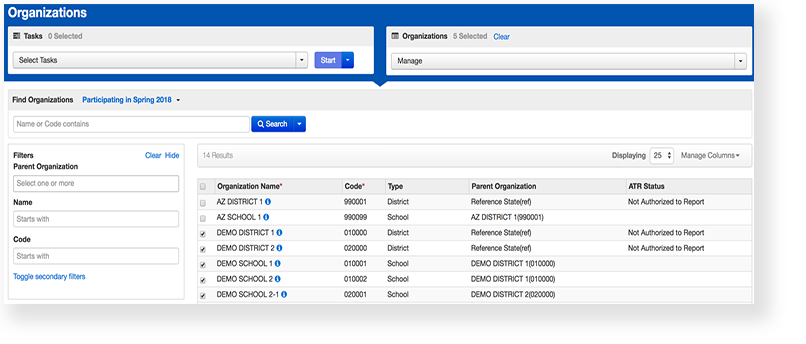
  3. Click the checkbox next to the organizations.Image Removed
    Image Added
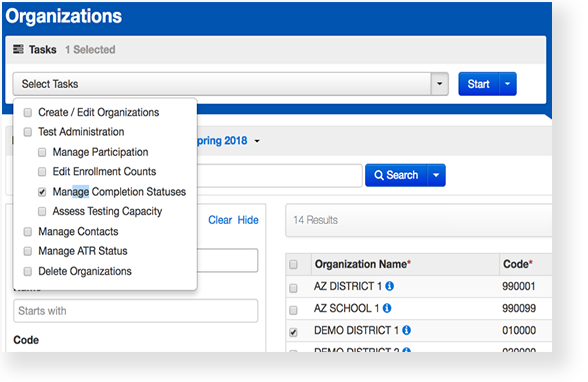
  4. Click the task Manage Completion Statuses, and click Start.Image Removed
    Image Added
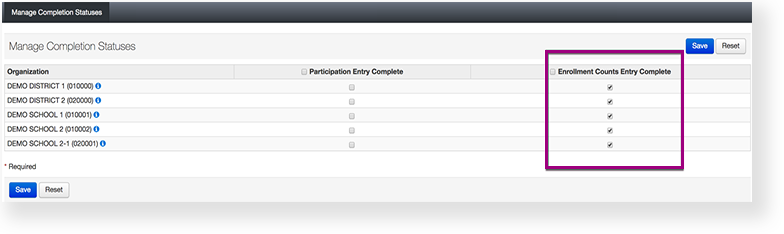
  5. Click the Enrollment Counts Entry Complete checkboxes next to the organizations.Image Removed
    Image Added
  6. Click Save. Image Removed

The only difference between Enrollment Counts Entry Complete and Manage Completion Statuses, is the latter lists multiple organizations on the same page. This makes it useful for districts and state level users to view the status of many organizations at the same time.