
...
Published: May 16, 2025
Revised: July 8, 2025
What is happening?
Google is discontinuing support for native, legacy Chrome Apps. They announced their intention to do so several years ago and have been working with developers to facilitate the shift to web solutions, including Progressive Web Apps (PWAs) and Chrome extensions. PWAs are particularly advantageous as they are platform-agnostic, simplifying app support across various devices.
In response to this change, TestNav will release the TestNav Web App for ChromeOS in late June 2025 and retire the legacy TestNav Chrome App.
What does this mean?
Spring testing will not be affected by this transition. However, starting in early July 2025, with the adoption of the new TestNav release (v8.25), schools will be required to use the new TestNav Web App for ChromeOS. The legacy TestNav Chrome App will continue to function until organizations upgrade to the TestNav v8.25 release or until the device is upgraded to ChromeOS 139 or higher. *
*This is an update since the original release of this bulletin. See a new technical bulletin titled: TestNav – Legacy Chrome app incompatible with Chrome 139 and higher.
What do I do (and how do I do it)?
This summer you will need to:
...
- Sign in to the Google Admin Console.
- On the left side, navigate to: Devices > Chrome > Apps & extensions
- Select the Kiosks tab at the top of the page.
- Select the organizational unit for which you want the TestNav app & extension to be added. If you want to add for all users, select the top-level organizational unit.
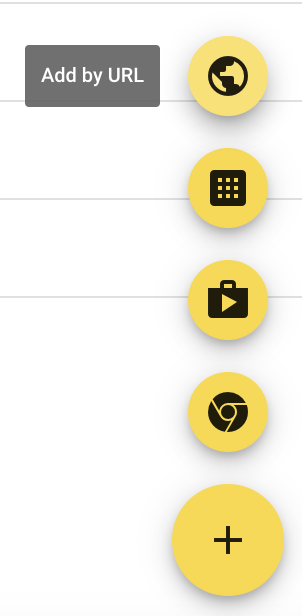
- Select the yellow + (plus) button at the bottom right corner to expand to see additional yellow buttons. Select the Add by url button and enter https://home.testnav.com/.
- Select Save. Google will then prompt you to allow permissions to this app. Select Agree.
-
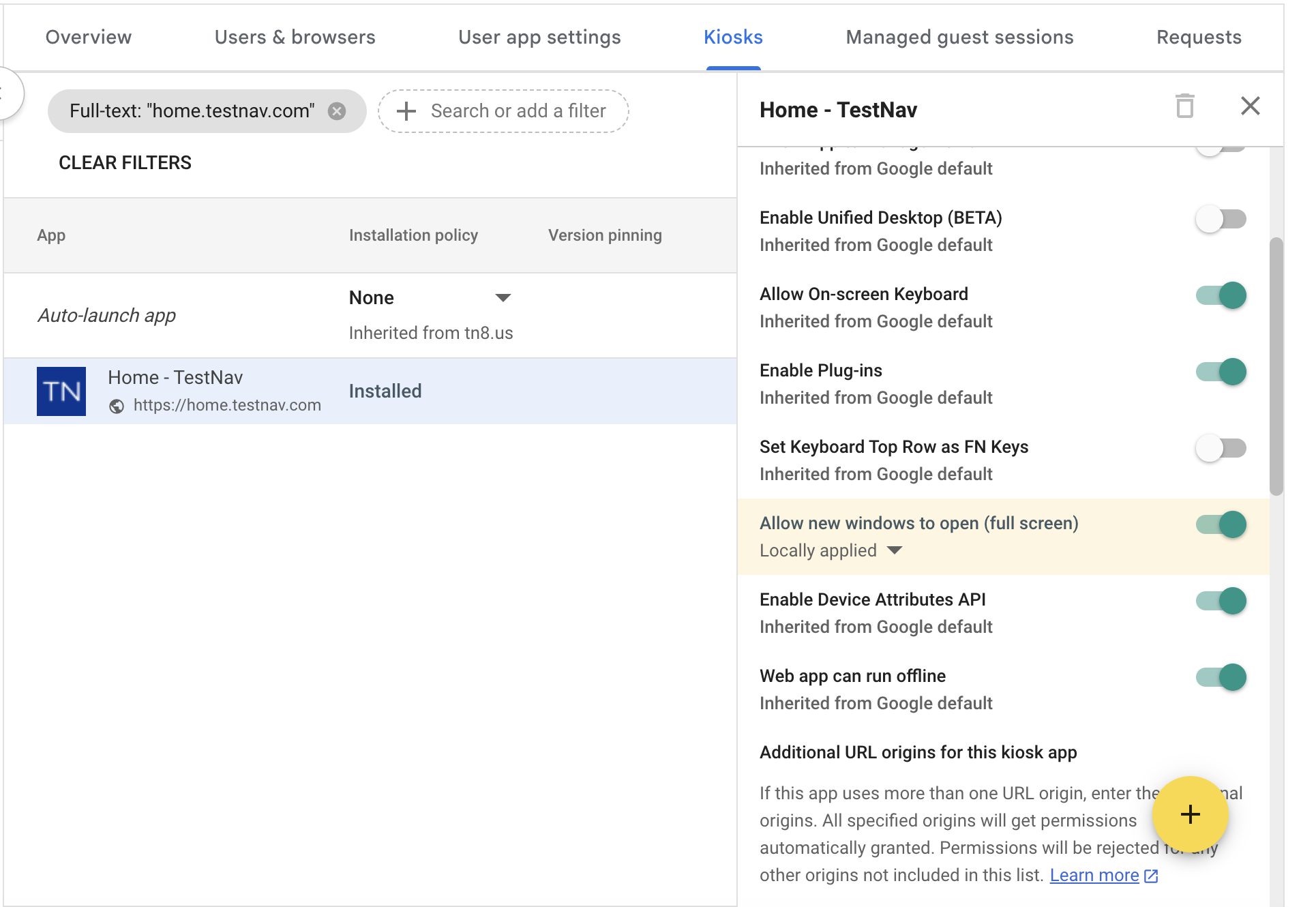
- The new TestNav Web App for ChromeOS appears in the app list.
-

- Select the TestNav app and scroll down the right-side bar to enable Allow a Unique Fullscreen Window on Each Screen.
- new windows to open (full screen).
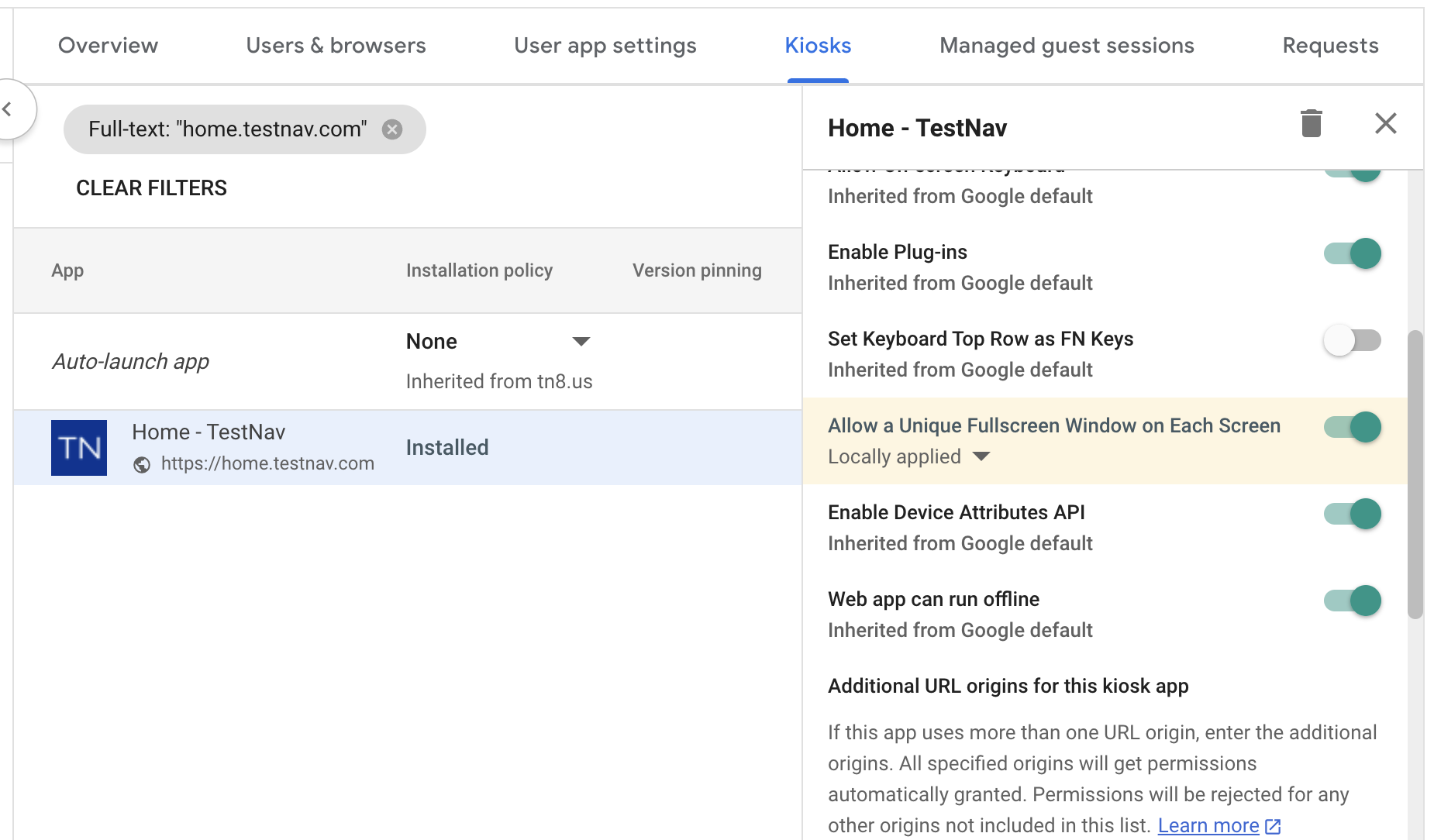
- Scroll down further on the right-side bar to Additional URL origins field to add the following URLs. Note: Additional URLs must be added to allow the TestNav Web App for ChromeOS access to functions outside of the scope of the app URL.
...