
...
- Sign in to the Google Admin Console.
- On the left side, navigate to: Devices > Chrome > Apps & extensions
- Select the Kiosks tab at the top of the page.
- Select the organizational unit for which you want the TestNav app & extension to be added. If you want to add for all users, select the top-level organizational unit.
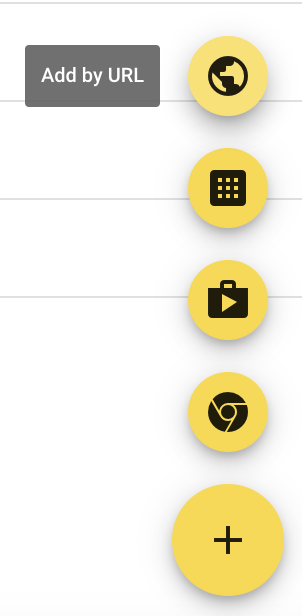
- Select the yellow + (plus) button at the bottom right corner to expand to see additional yellow buttons. Select the Add by url button and enter https://home.testnav.com/.
- Select Save. Google will then prompt you to allow permissions to this app. Select Agree.
-
- The new TestNav Web App for ChromeOS appears in the app list.
-

- Select the TestNav app and scroll down the right-side bar to enable Allow new windows to open (full screen).
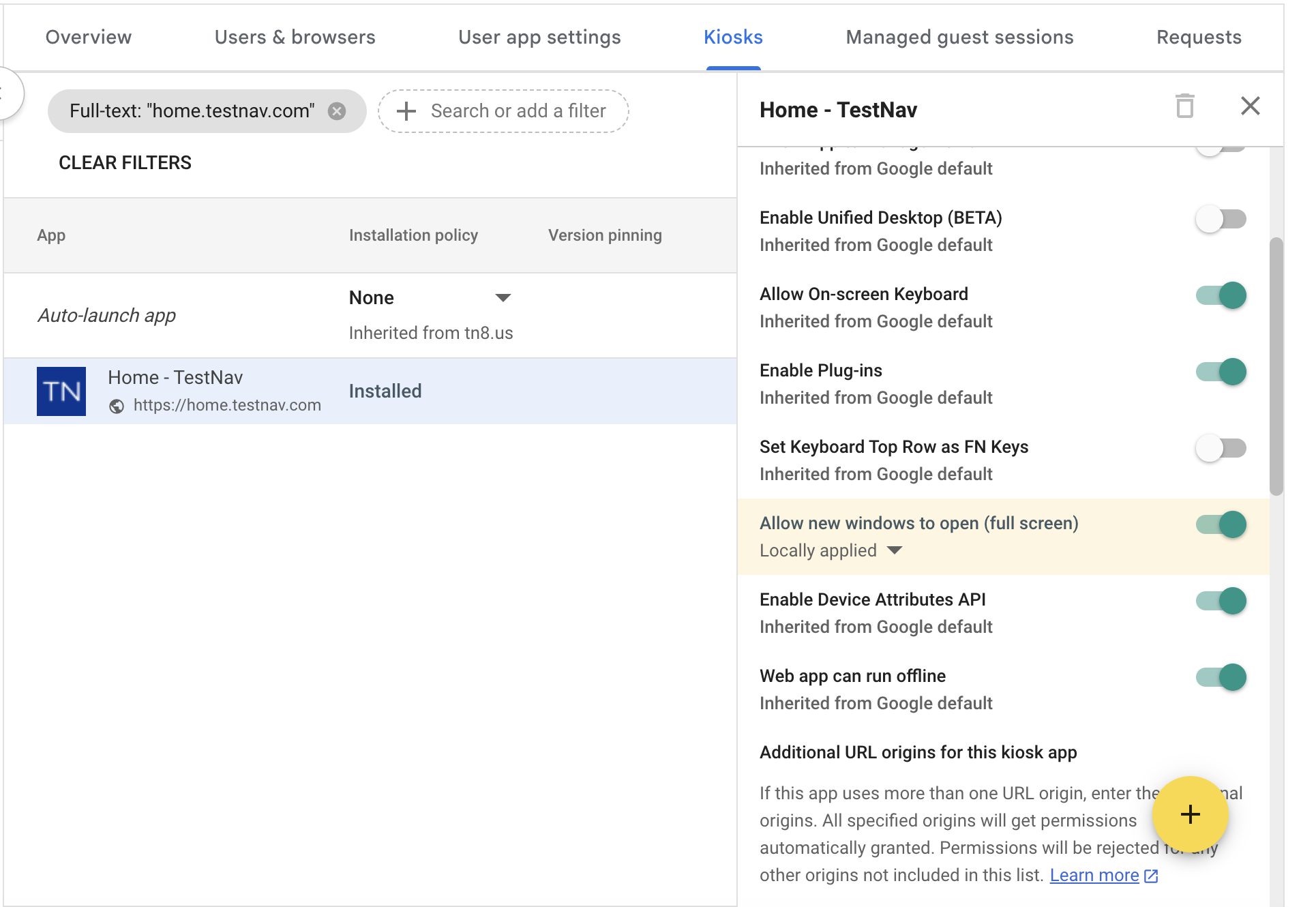
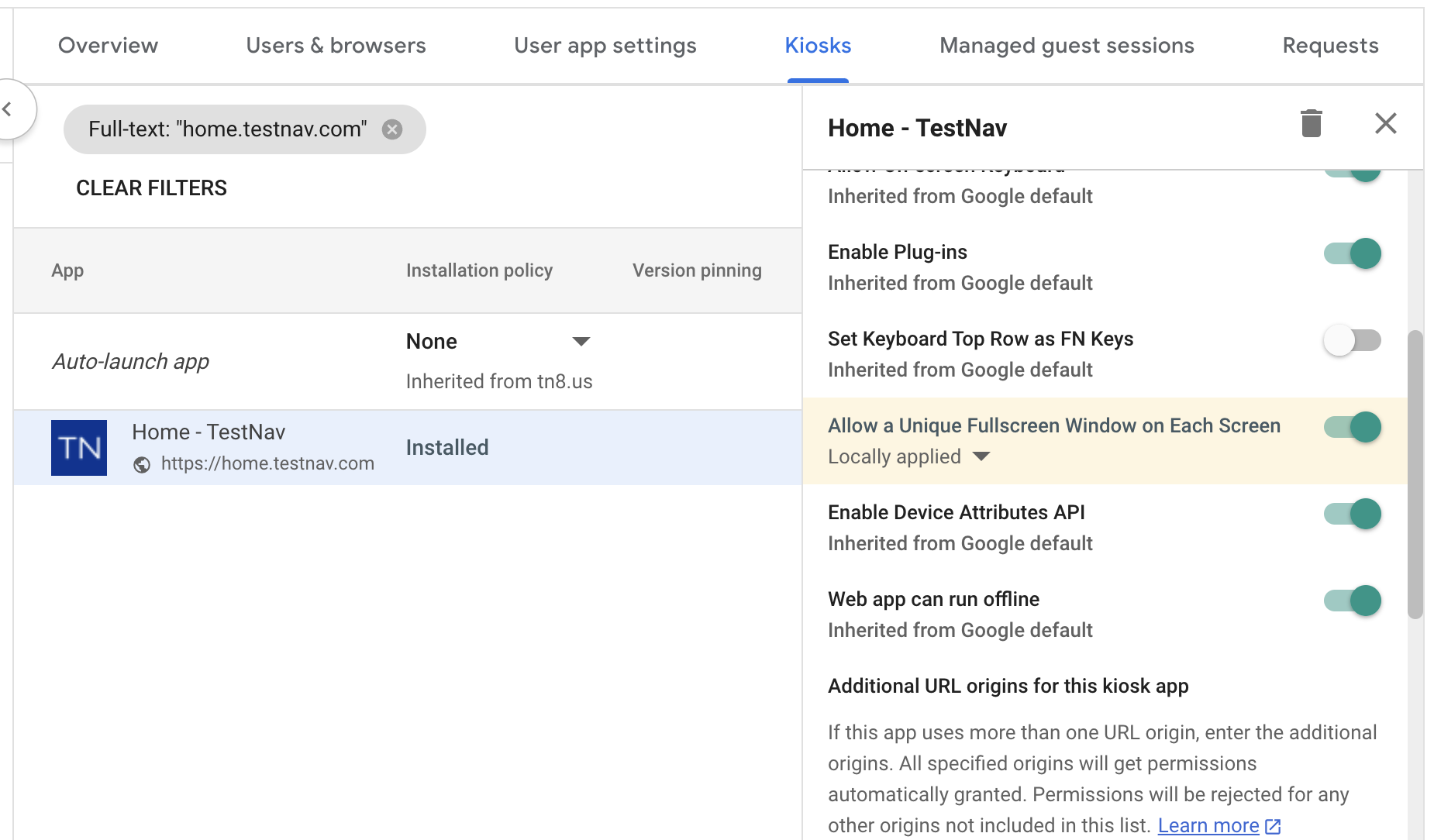
- Scroll down further on the right-side bar to Additional URL origins field to add the following URLs. Note: Additional URLs must be added to allow the TestNav Web App for ChromeOS access to functions outside of the scope of the app URL.
...