LaunchPad

Page tree

Versions Compared

Key

  • This line was added.
  • This line was removed.
  • Formatting was changed.
Excerpt

In order for students to use QR codes for authentication some setup is required by a user with the ability to edit authentication providers in Launchpad.

  1. Log in to Launchpad.
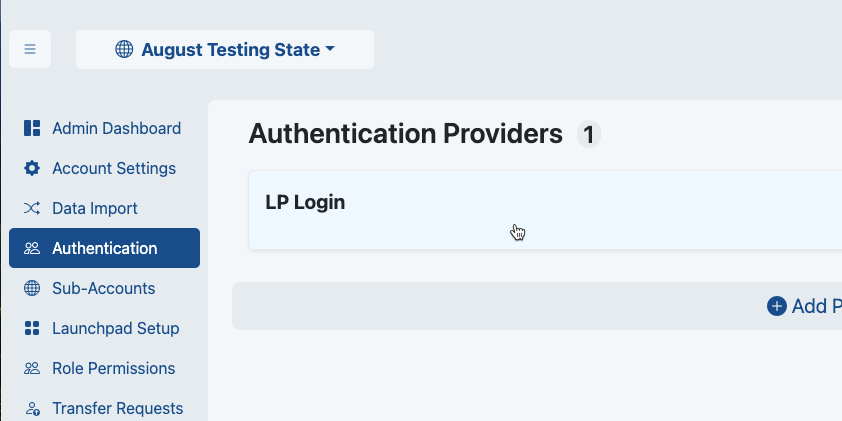
  2. Select Authentication.
  3. Open the LaunchPad-related authentication provider entry (this named field is configurable so it may not always have the same namename will vary).
    Image RemovedAuthentication setting highlightedImage Added

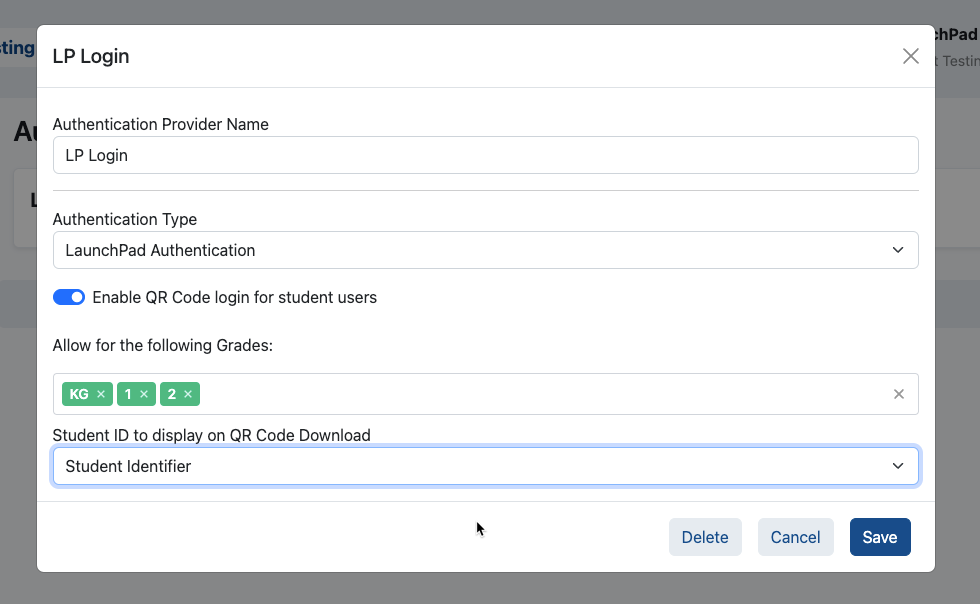
  4. Enable QR Code login, selecting the grade levels that this will apply to, and the student ID to display on what gets printed. (This will almost always be the Student Identifier).
    Enable QR Code login enabledImage Modified

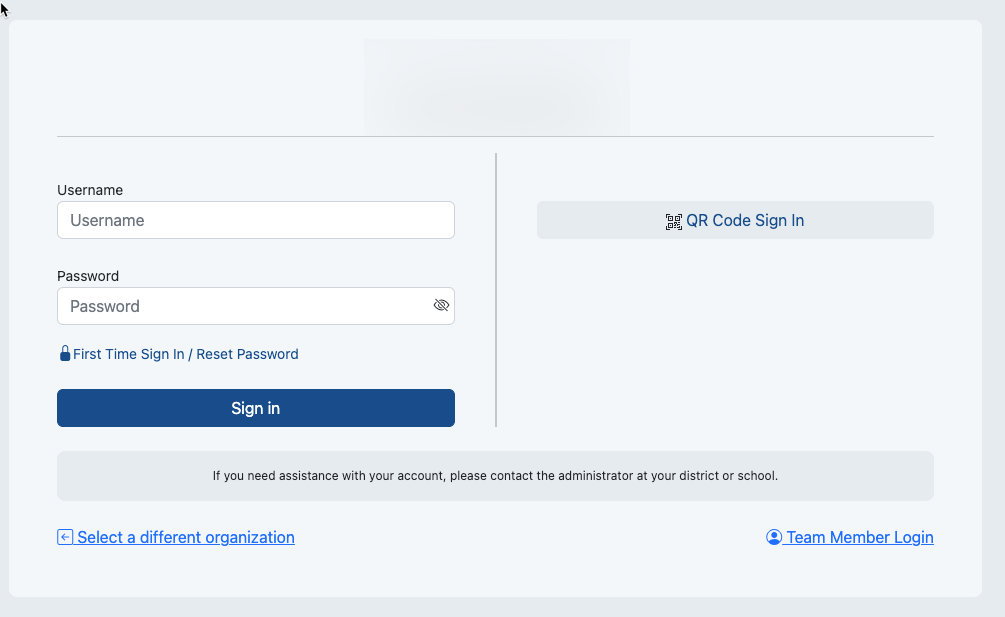
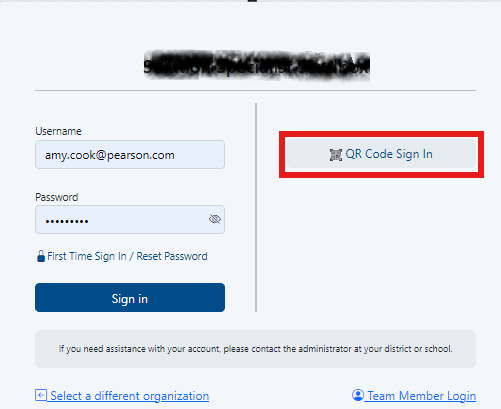
  5. Once you do this, on the respective LaunchPad client login page, there will now be a new “Student QR Code” login option.

Image RemovedSample Login window with QR code visibleImage Added

...

Tiny Link: https://support.assessment.pearson.com/x/dYCbCQ