| Excerpt |
|---|
Depending on your role permissions, In the Users section you may have access to: Filter the User List Image Removed Image Removed
 Image Added Image Added
In the users list you can use the following filters: Filter on users who have not yet logged in and set a password by toggling on Show Users Who Have Never Logged In (this is useful when sending Welcome emails if some users have already authenticated). Choose students, non-students or all. Use the 'Type-ahead' lookup to search a user by name, ID or username. - Select All Filters to find additional filter options.
- Filter by one or more grades.
- Filter by any organization you have permission to view:
type-ahead lookup of all orgs in the org tree - A visual representation of the orgs in their hierarchal structureThe ability to select “only” the state org, or “only” , without having select orgs, using the new “+” action
The ability to select specific orgs only by clicking the respective row institutions. - Use the Plus icon to select only that org level and not users assigned to child institutions.
- Use the Expand
An “Expand " - button, that will expand or collapse all nodes of the hierarchy.
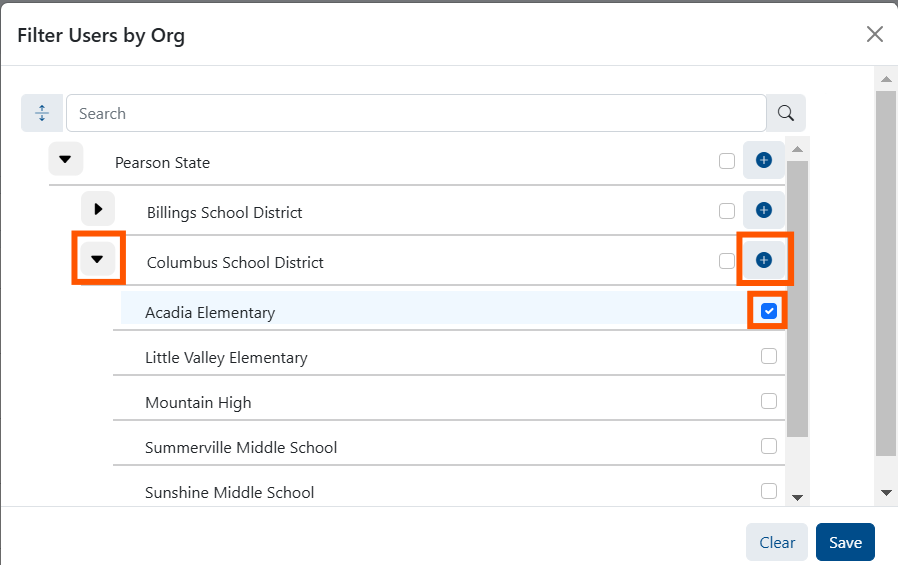 Image Added Image Added
Actions Available for Filtered UsersOnce you have filtered on the desired users, use the options in the Actions menu to export the list or send welcome emails. See also:  Image Removed Image Removed
Send Welcome Email to New Users, Export Users 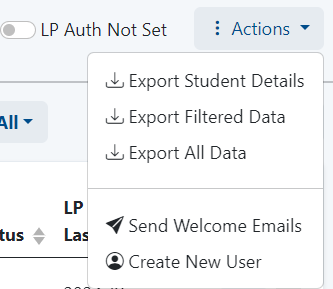 Image Added Image Added
|
...
Tiny Link: https://support.assessment.pearson.com/x/wICwCQTiny Line:
