You can create and post messages related to your programs ...
...
homepage. You can indicate message priority and duration for
...
...
There are three categories of messages available:
...
| Expand |
|---|
| title | Message categories... |
|---|
|
- Urgent - Critical. Requires immediate attention.
- Important - Significant information. Should be read, but
|
...
- not critical.
- Informational
|
...
Create and Post a Message
To create and post a message on your home page, follow these steps:
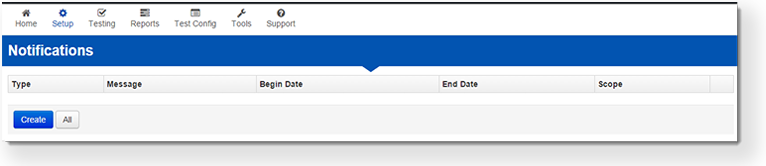
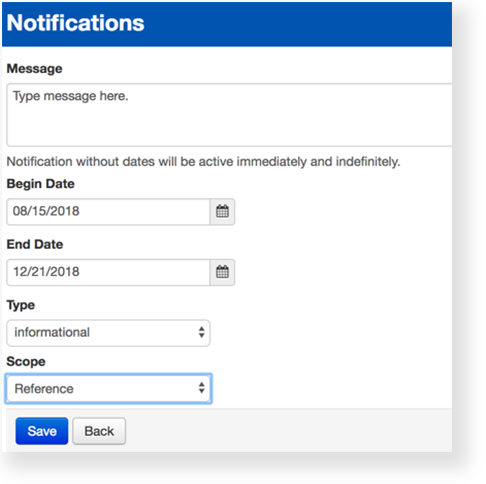
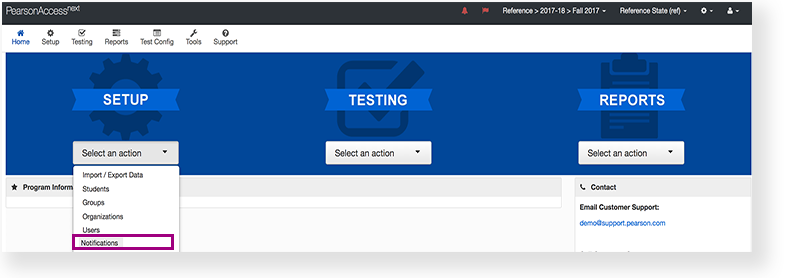
From Setup > Notifications, click Create.
...
| title | Click here to view screenshots... |
|---|
...
- - General communication related to your program.
|
| UI Text Box |
|---|
|
Effects| Expand |
|---|
| title | Message displays immediately, or by designated start/end dates... |
|---|
| If you do not specify a start and end date, the message immediately displays and remains until someone deletes it. However, you can specify these dates. |
|
| UI Text Box |
|---|
|
| What's Next? (Optional) |
...
Image Removed
...
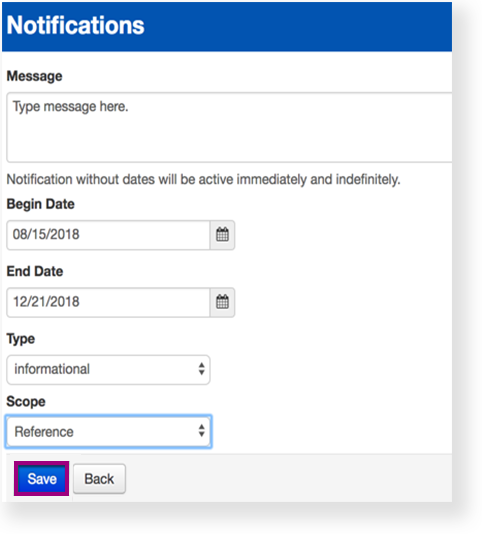
Enter the details, and click Save.
| Info |
|---|
Specify the start and end dates to set when the message will be displayed. If start and end dates are not specified, the message will be displayed immediately and will remain posted until it is deleted. |
Delete a Message
...
| delete an existing message before the specified end date |
|
|
...
...
,select Notifications. View
|
|
...
the list of posted messages.
|
|
...
| title | Click here to view a screenshot... |
|---|
...
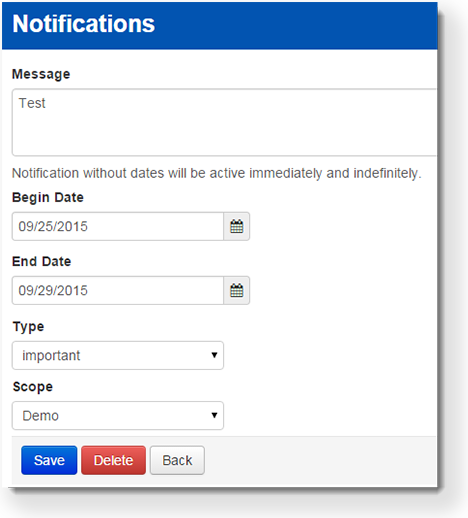
Click Edit next to the message to be deleted, and then click Delete.
| Expand |
|---|
| title | Click here to view a screenshot... |
|---|
|
Image Removed
Image Removed
|
...