...
| Include Page |
|---|
| IR:_TN_Expand |
|---|
| IR:_TN_Expand |
|---|
|
These ordered steps correspond to sections below or a related setup page. You can click each link to go directly to the corresponding processes.
- Install Java.
- For each browser below, configure Java and enable pop-up windows for TestNav:
- Firefox
- Safari
- Close apps and stop processes.
- Set up ProctorCache on proctor caching computer(s).
- Run SystemCheck to verify system readiness and capacity.
- Set up response file backups, and set up a secondary save location.
- Run an infrastructure trial using a practice test.
| Include Page |
|---|
| IR:_TN_BBChecklistDeepFreeze |
|---|
| IR:_TN_BBChecklistDeepFreeze |
|---|
|
| Include Page |
|---|
| IR:_TN_SetUpJava_TN_SetUpJava_Java_SetUp |
|---|
| IR:_TN_Java_SetUp |
|---|
|
| Include Page |
|---|
| IR:_TN_Java_Firefox |
|---|
| IR:_TN_Java_Firefox |
|---|
|
| Include Page |
|---|
| IR:_TN_EnablePopups_Firefox |
|---|
| IR:_TN_EnablePopups_Firefox |
|---|
|
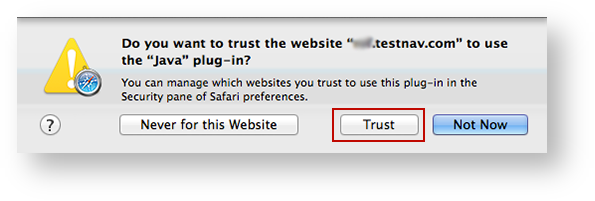
SafariIf a notification appears asking you whether to trust your secure test website to use Java, click Trust.
| Expand |
|---|
| title | Click here to view a screenshot... |
|---|
|
|
You may also see one of the following notifications depending on which Safari version you use.
If you see the Security Warning notification:
- Select the Do not show this again for this app and web site check box.
This ensures that the warning screen will not appear again. Click Allow to continue to TestNav and TestNav SystemCheck.
| Expand |
|---|
| title | Click here to view a screenshot... |
|---|
|
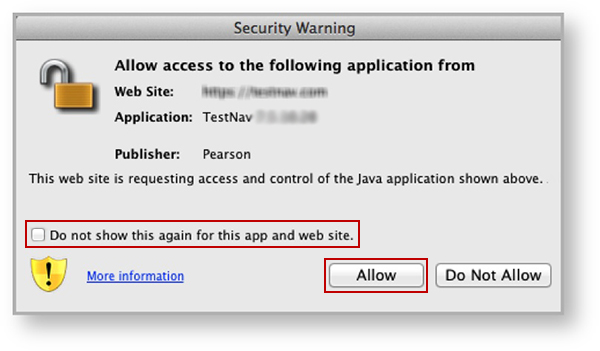 Image Removed Image Removed
|
If you see the Do you want to run this application? notification:
To enable pop-up windows for TestNav:
- Click Safari > Preferences...
Click Security, and deselect the Block pop-up windows check box.
- Select the Do not show this again for apps from the publisher and location above check box.
This ensures that the warning screen will not appear again. Click Run to continue to TestNav and TestNav SystemCheck.
| Expand |
|---|
| title | Click here to view a screenshot... |
|---|
|
 Image Removed Image Removed Image Added Image Added
|
| Note |
|---|
| title | Use Java to run TestNav in unsafe mode in Unsafe Mode for Safari |
|---|
|
TestNav must run in unsafe mode in Safari. To run TestNav in unsafe mode: If you have not already done so, go to After you trust your secure test website and enter a username and password. Trust your secure test website to use Java and enable pop-ups for TestNav: - , as shown above.Click Safari >
Also under Safari > Preferences... Click the Security tab, click , > Security, click Manage Website Settings... (If the button is disabled, select Allow Plug-ins to enable it.) | Expand |
|---|
| title | Click here to view a screenshot... |
|---|
| 
|
- Scroll through the plug-ins on the left side of the window, and click Java Java.
Your secure test website should appear in the Configured Websites field. Click the drop-down on the right of your website, and select Run Run in Unsafe Mode. Then, click Done Done.
| Expand |
|---|
| title | Click here to view a screenshot... |
|---|
| 
|
|
When you start TestNav, you may also see one of the following Java notifications depending on which Safari version you use.
If you see the Security Warning notification:
- Select the Do not show this again for this app and web site check box.
This ensures that the warning screen will not appear again. Click Allow to continue to TestNav and TestNav SystemCheck.
| Expand |
|---|
| title | Click here to view a screenshot... |
|---|
|
Image Added |
If you see the Do you want to run this application? notification:
- Select the Do not show this again for apps from the publisher and location above check box.
This ensures that the warning screen will not appear again. Click Run to continue to TestNav and TestNav SystemCheck.
| Expand |
|---|
| title | Click here to view a screenshot... |
|---|
|
Image Added |
...
Eliminate the Java Prompt When Testing
Complete the following steps for Mac OS X, regardless of which browser you choose:
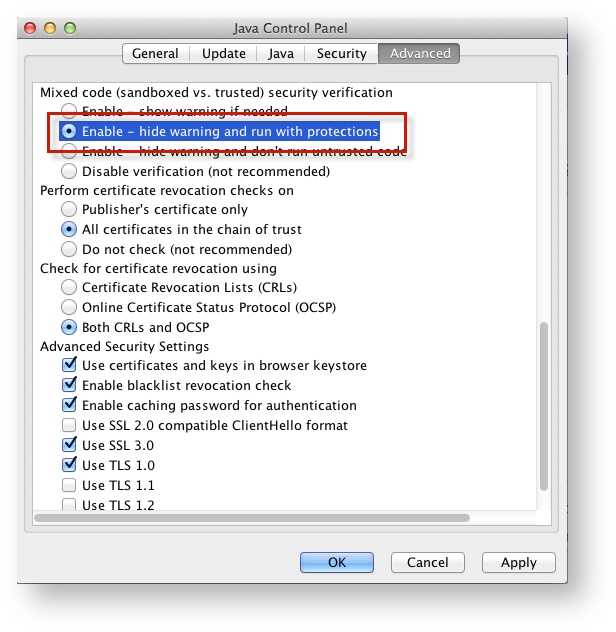
- Click the Apple icon > System Preferences > Java.
Click Advanced.
Select Enable - hide warning and run with protections:
| Expand |
|---|
| title | Click here to view a screenshot... |
|---|
|
|
...
Safari - IN PROGRESS. NEED CONSULT ON DESELECTING POP-UP BLOCKER. Notes for reviewers - I have used Safari for a secure test without disabling pop-up blocker, and it works. The only error I've gotten is when I use it without running TestNav in unsafe mode. With running in unsafe mode, the test launches fine.
I know pop-ups are not related to unsafe mode, BUT because you cannot selectively block pop-ups in Safari, I am concerned about having admins unblock completely when it works for me. I've researched and asked around, but cannot get a clear answer from anyone. Any experts, please chime in.
The instructions for enabling pop-ups are below for now.
To enable pop-up windows for TestNav:
...
| Java_DisablePrompt_CloseApps | | IR:_TN_Java_DisablePrompt_CloseApps |
|---|
|
Click Security, and deselect the Block pop-up windows check box.
...
| title | Click here to view a screenshot... |
|---|
...
| Anchor |
|---|
| systemcheckbb |
|---|
| systemcheckbb |
|---|
|
Run SystemCheck
| Include Page |
|---|
| IR:_TN_systemcheckSystemCheck_browser-basedBB |
|---|
| IR:_TN_systemcheckSystemCheck_browser-basedBB |
|---|
|
Set Up Response File Backups
| Include Page |
|---|
| IR:_TN_DefaultSFTPrecommendBB |
|---|
| IR:_TN_DefaultSFTPrecommendBB |
|---|
|
| Include Page |
|---|
| IR:_TN_SRFandLogs_MacWinLin |
|---|
| IR:_TN_SRFandLogs_MacWinLin |
|---|
|
Default Primary Save Location
| Operating System | SRF Location | Log File Location |
|---|
| Mac OS X | Users/username/Pearson/Users/username/Pearson/ ... first name-last name-identifier/srf | / Users/<username>/Pearson/first name-last name-identifier/logs For example: /Users/UserA/Pearson/User-A-1234/logs |
|---|
| Include Page |
|---|
| IR:_TN_SRFLogsSRFandLogs_SecSave |
|---|
| IR:_TN_SRFLogsSRFandLogs_SecSave |
|---|
|
| Include Page |
|---|
| IR:_TN_Trial_InfrastructureTrial |
|---|
| IR:_TN_InfrastructureTrial |
|---|
|
| Include Page |
|---|
| IR:_TN_SRFandLogs_RelatedInfoBB |
|---|
| IR:_TN_TrialSRFandLogs_RelatedInfoBB |
|---|
|
...
