| Excerpt |
|---|
Teachers who have access to My Classes can score |
...
extended text items if the assessment is set up for this. |
...
...
- Select My Classes in the left navigation
|
...
...
...
- Select the Administration view.
- Select the assessment you want to score
|
...
- . Note that any assessments you
|
...
- created will be under the Classroom Tests tab instead of the
|
...
...
...
- .
- Select the Apply Scores icon on the top right; the number above the icon indicates how many students are ready to score.
 Image Modified Image Modified
- Select the Score By toggle to score by item or by student.
To score by item: - Select a student if one not already selected.
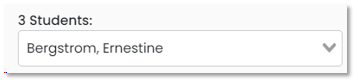 Image Modified Image Modified
- The left column indicates the item(s) that need to be hand scored; you can select which one to score first or start with the one highlighted.
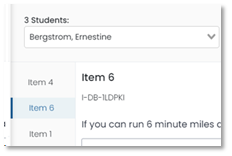 Image Modified Image Modified
- If available,
|
...
- open and read the scoring rubric.
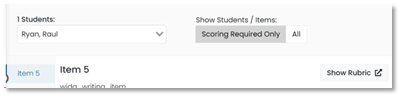 Image Modified Image Modified
- For the first student, apply a score for each trait (which may be just one generically labeled score option).
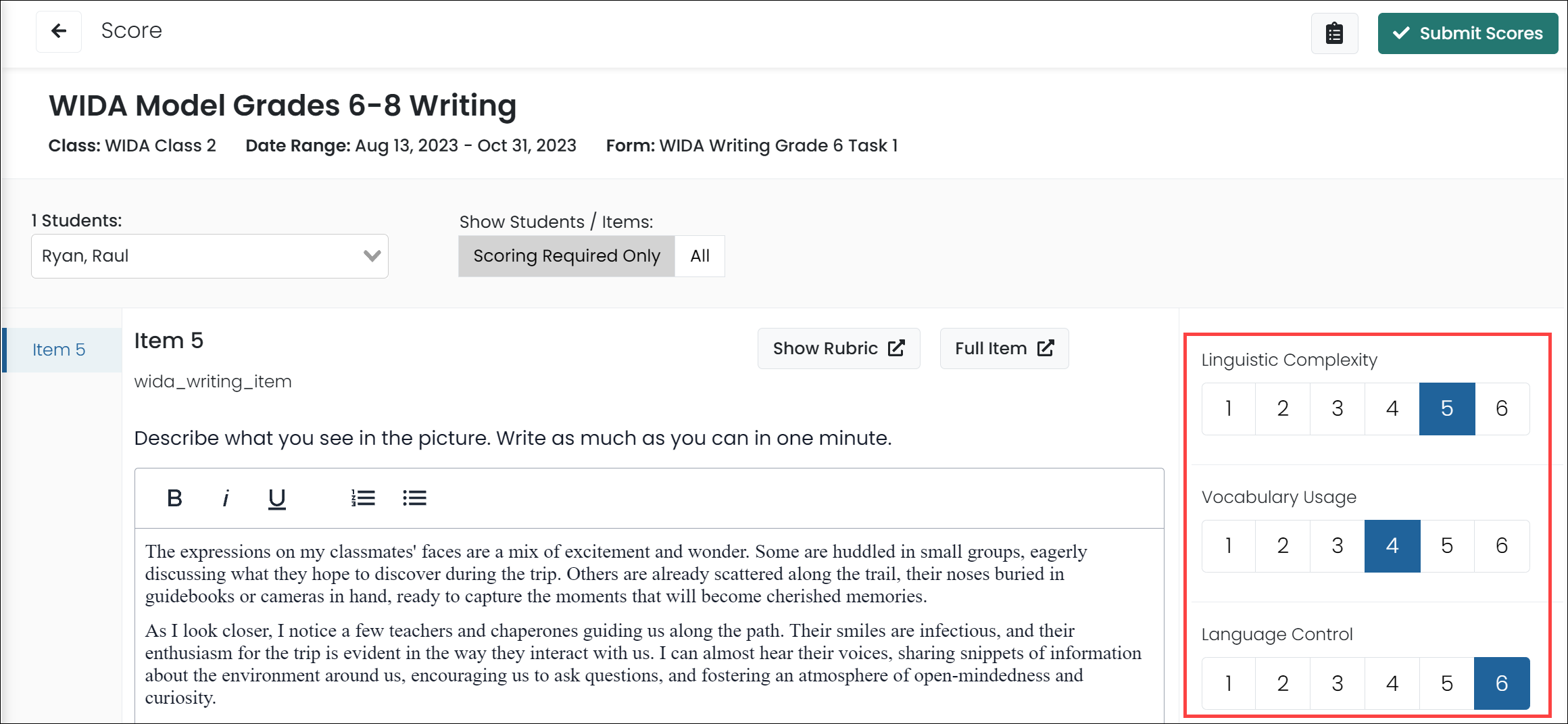 Image Added Image Added
|
...
- Select Submit Scores at the top of the page.
- Repeat for additional items and students
|
...
...
Tiny link: https://support.assessment.pearson.com/x/QAAnC
- how other users score
- xref on how to set up scoring
Tiny link:
