
...
- Sign in to the Google Admin console for your domain, using your administrator account (does not end in @gmail.com).
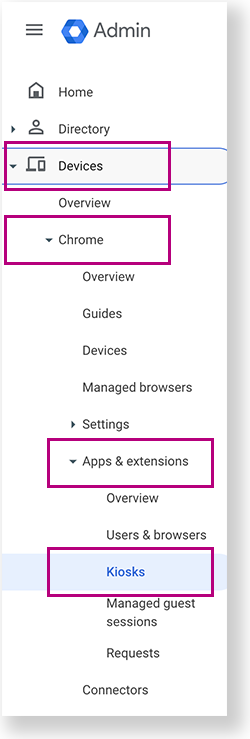
From the Google Admin console home page, go to Devices > Chrome >Apps & extensions >Kiosks.
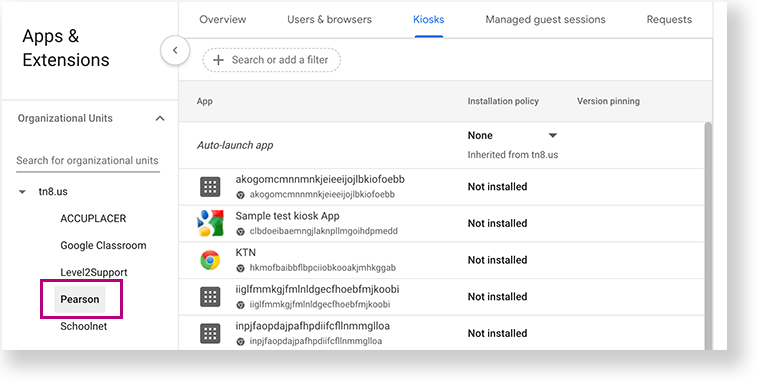
- Under Organizational Units, select the top-level organization that you want to apply these settings to. Then, select a child organization, if necessary. In the example below, Pearson is selected to give all Chromebooks within the Pearson organization access to TestNav.
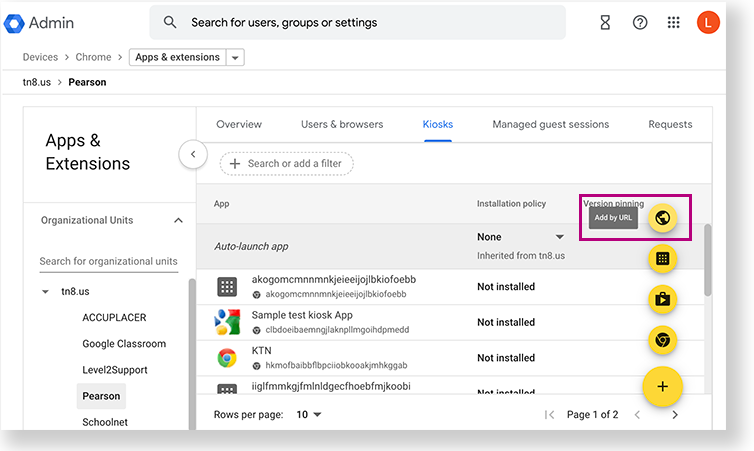
- Click the Add by URL icon.
- Add the following URL:home.testnav.com#:standalone:
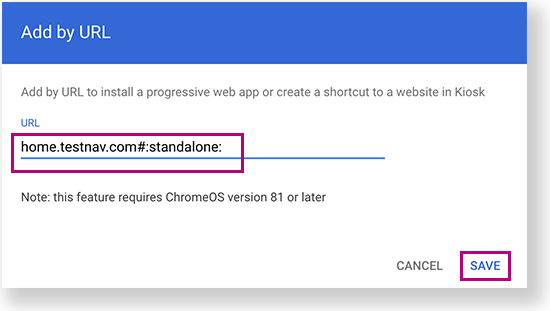
- Click Save.
Chrome displays the message, Note: Adding Web Apps in Kiosk. Select Agree.
- Click Save again.
| Info | ||
|---|---|---|
| ||
Students with accommodations or accessibility features enabled through their PNP or test form access those features within TestNav. ChromeOS has native accessibility features that might appear within a kiosk floating accessibility menu during testing. Technology personnel can disable this menu before testing to avoid it interfering with the student’s test. |
Anchor launch launch
Sign in to TestNav
| launch | |
| launch |
...