| Excerpt |
|---|
| Info |
|---|
This page pertains to |
|
...
ADAM tests being delivered |
|
...
via the TestNav Secure Browser. - If your test is delivered through ADAM
|
|
...
|
| Excerpt |
|---|
- If students are testing in TestNav, see Sign in to TestNav.
- If you are not sure which applies, ask a test coordinator.
|
To access an assigned test via the TestNav app, students need to: - Close out of any open applications on their testing device.
Listen to directions from the test proctor on which option to choose on the TestNav selector page, if applicable (Step 4). - Launch the TestNav app.
 Image Added Image Added Select the selects appropriate tile as directed in Step 1 (for example, Student Portal or their state
See also: Sign In to TestNav through Student Portal Prior to testing, a proctor, test coordinator, or technology personnel should install TestNav on each testing device (installation varies by operating system). Then, run App Check on each device prior to testing to ensure that they pass requirement and system checks. Note which specific device each student uses during each test. TestNav saves the student response files (SRFs) to only one designated place on the testing device. If an error occurs, you can locate files only on that specific device. Each installation page contains information on SRF storage locations. Open TestNav on the testing device.Select your program on the TestNav home page (for example, ADAM is selected in the screenshot below, but this will vary). If previously selected, the screen in step 3 appears without displaying the TestNav home page.
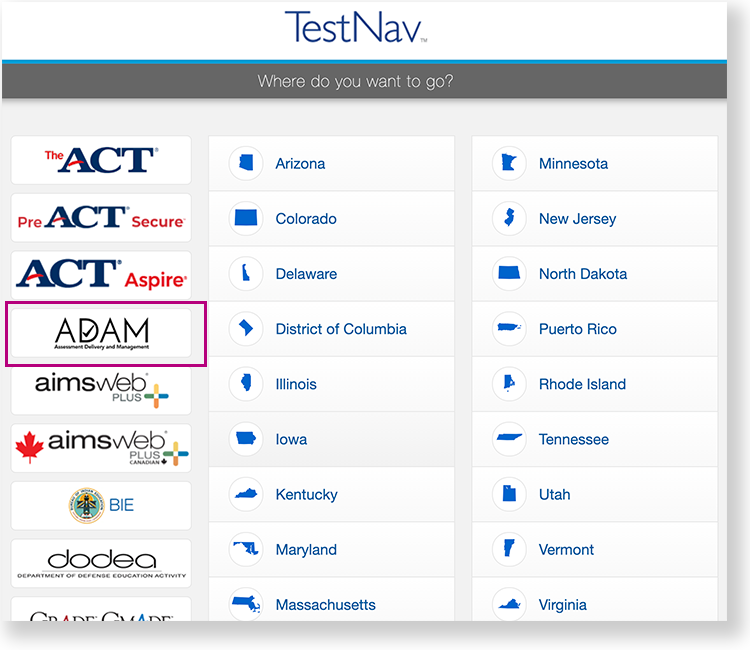 Image RemovedBelow the Test Code field, select App Check. Image RemovedBelow the Test Code field, select App Check.
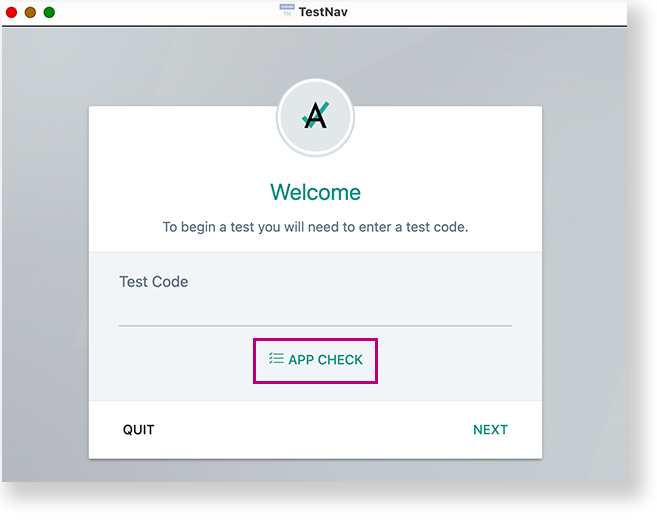 Image RemovedIf the device passes all checks, green messaging appears, as shown in the example below.You can select the Test Audio button to ensure you can hear audio from the device.Then, you can select Back to Login to log in. Image RemovedIf the device passes all checks, green messaging appears, as shown in the example below.You can select the Test Audio button to ensure you can hear audio from the device.Then, you can select Back to Login to log in.
 Image Removed Image Removed
If a device does not pass App Check, follow instructions App Check provides to fix the issue or use a different device.
How Student Signs InA test proctor should give each student a test card with details to enter into TestNav and direct them which option to choose for Step 3. Student launches TestNav. Student selects appropriate program - for example, North Dakota)on the TestNav home page. If ADAM or your program was selected before the test session (Note: If the tile was selected previously on the device (highly recommended), the student will skip to the Welcome pagenext step.
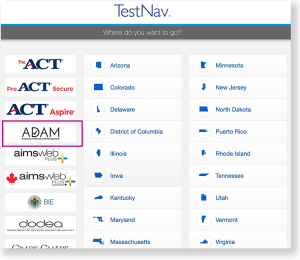 Image Removed) Image Removed)
Note: If the student selects a different link, see What to Do if the Student Picks the Wrong Tile.
- Enter the Test Code, and then select Next.
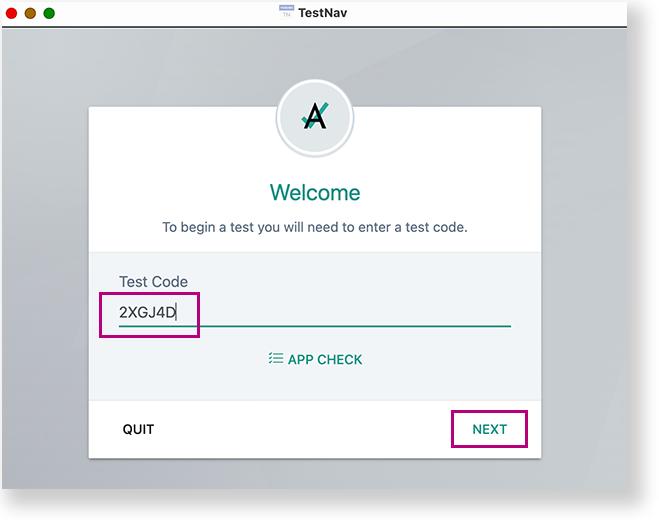 Image Modified Image Modified
- Enter the student ID in the Identifier* field , and select Nextselect Next. (*The fields required for authentication may vary.).
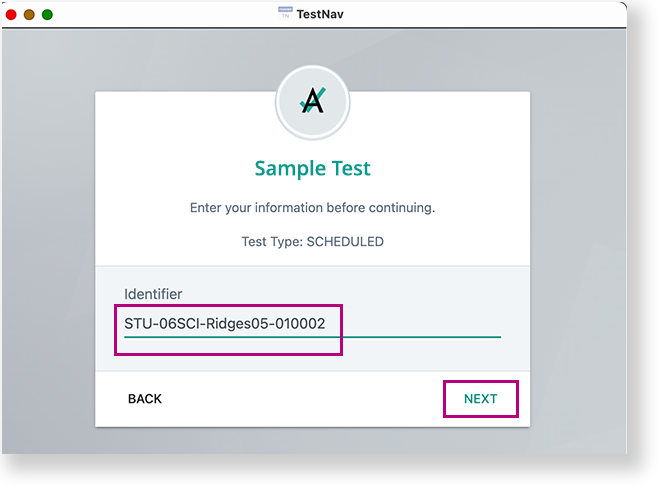 Image Modified Image Modified
- Confirm the Test and your name , and select Next.
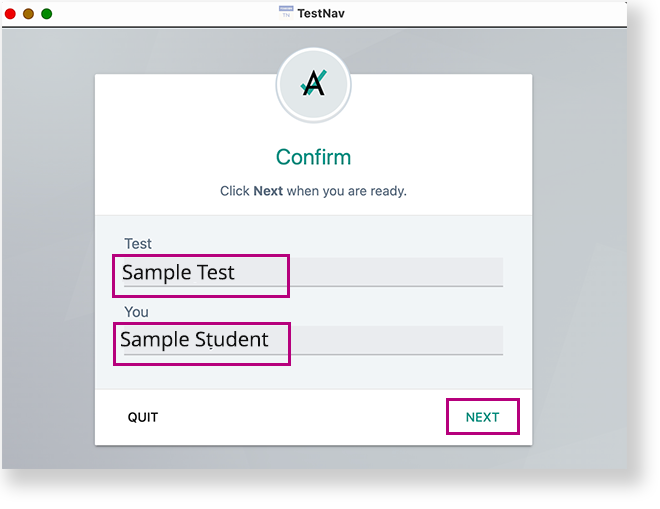 Image Modified Image Modified
TestNav opens and the student can begin testing.
| Anchor |
|---|
| What to Do if the Student Picks the Wrong Tile |
|---|
| What to Do if the Student Picks the Wrong Tile |
|---|
|
What to Do if the Student Selects the Wrong Organization TileIf the student credentials entered match what is on the test card and were entered correctly but the students can't log in, the most likely cause is that the student clicked another tile on the TestNav selection page. In order to switch to the Student Portal, select the menu in the upper-right, and select Choose a different customer. 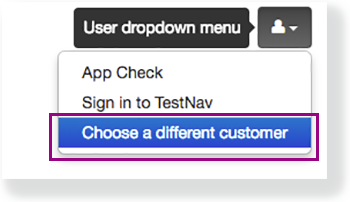 Image Added Image Added
|
...
Tiny Link: https://support.assessment.pearson.com/x/UAKiBg
