...
| Include Page |
|---|
| IR:_TN_Expand |
|---|
| IR:_TN_Expand |
|---|
|
These ordered steps correspond to sections below or a related setup page. You can click each link to go directly to the corresponding processes.
- Install Java.
- For each browser below, configure Java and enable pop-up windows for TestNav:
- Firefox
- Safari
- Close apps and stop processes.
- Set up ProctorCache on proctor caching computer(s).
- Run SystemCheck to verify system readiness and capacity.
- Set up response file backups, and set up a secondary save location.
- Run an infrastructure trial using a practice test.
| Include Page |
|---|
| IR:_TN_BBChecklistDeepFreeze |
|---|
| IR:_TN_BBChecklistDeepFreeze |
|---|
|
| Include Page |
|---|
| IR:_TN_Java_SetUpJavaSetUp |
|---|
| IR:_TN_SetUpJavaJava_SetUp |
|---|
|
| Include Page |
|---|
| IR:_TN_Java_JavaFFFirefox |
|---|
| IR:_TN_Java_JavaFFFirefox |
|---|
|
| Include Page |
|---|
| IR:_TN_FFEnablePopupsEnablePopups_Firefox |
|---|
| IR:_TN_FFEnablePopups |
|---|
|
Safari
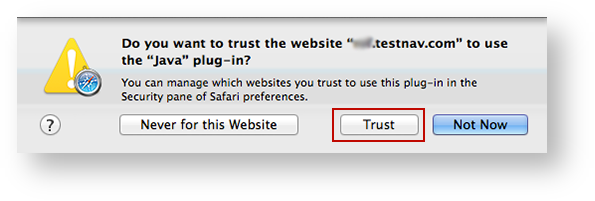
If a notification appears asking you whether to trust your secure test website to use Java, click Trust.
| Expand |
|---|
| title | Click here to view a screenshot... |
|---|
|
|
...
To enable pop-up windows for TestNav:
- Click Safari > Preferences...
Click Security, and deselect the Block pop-up windows check box.
| Expand |
|---|
| title | Click here to view a screenshot... |
|---|
|

|
| Note |
|---|
| title | Use Java to run TestNav in Unsafe Mode for Safari |
|---|
|
TestNav must run in unsafe mode in Safari. |
...
After you trust your secure test website to use Java |
...
and enable pop-ups for TestNav: Also under Safari
|
...
> Preferences..., > Security,
|
...
click Manage Website Settings... (If the button is disabled, select Allow Plug-ins to enable it.) | Expand |
|---|
| title | Click here to view a screenshot... |
|---|
|  Image Modified Image Modified
|
- Scroll through the plug-ins on the left side of the window, and click
|
...
- Java. Your secure test website should appear in the Configured Websites field.
Click the drop-down on the right of your website, and select
|
...
Run in Unsafe Mode. Then, click
|
...
Done.
| Expand |
|---|
| title | Click here to view a screenshot... |
|---|
|  Image Modified Image Modified
|
|
When you launch start TestNav, you may also see one of the following Java notifications depending on which Safari version you use.
...
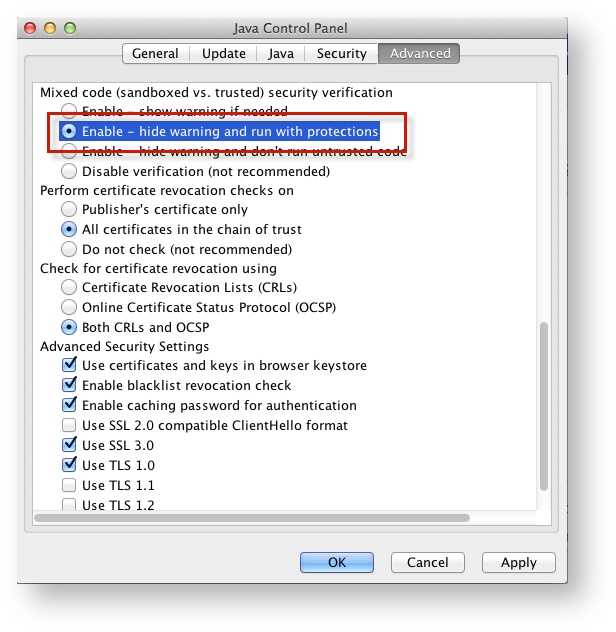
- Click the Apple icon > System Preferences > Java.
Click Advanced.
Select Enable - hide warning and run with protections:
| Expand |
|---|
| title | Click here to view a screenshot... |
|---|
|
|
...
| Java_DisablePrompt_CloseApps | | IR:_TN_Java_ |
|---|
|
...
| Anchor |
|---|
| systemcheckbb |
|---|
| systemcheckbb |
|---|
|
Run SystemCheck
| Include Page |
|---|
| IR:_TN_systemcheckSystemCheck_browser-basedBB |
|---|
| IR:_TN_systemcheckSystemCheck_browser-basedBB |
|---|
|
Set Up Response File Backups
| Include Page |
|---|
| IR:_TN_DefaultSFTPrecommendBB |
|---|
| IR:_TN_DefaultSFTPrecommendBB |
|---|
|
| Include Page |
|---|
| IR:_TN_SRFandLogs_MacWinLin |
|---|
| IR:_TN_SRFandLogs_MacWinLin |
|---|
|
Default Primary Save Location
| Operating System | SRF Location | Log File Location |
|---|
| Mac OS X | Users/username/Pearson/Users/username/Pearson /... /first name-last name-identifier/srf | / Users/<username>/Pearson/first name-last name-identifier/logs For example: /Users/UserA/Pearson/User-A-1234/logs |
|---|
| Include Page |
|---|
| IR:_TN_SRFLogsSRFandLogs_SecSave |
|---|
| IR:_TN_SRFLogsSRFandLogs_SecSave |
|---|
|
| Include Page |
|---|
| IR:_TN_Trial_TN_TrialInfrastructureTrial |
|---|
| IR:_TN_InfrastructureTrial |
|---|
|
| Include Page |
|---|
| IR:_TN_SRFandLogs_RelatedInfoBB |
|---|
| IR:_TN_SRFandLogs_RelatedInfoBB |
|---|
|
...
