
Navigation:
Reporting > Payroll > Incentives
The Incentives tab allows authorized users to create, view, and manage daily scoring incentives for a project. Incentives define scoring targets and validity requirements that drive the Incentive Score Bar displayed to scorers during scoring.
Incentives Incentives are configured at the the Section and Item level, allowing different incentive configurations for the same item when it appears in multiple sections.
Please Note: Access to this tab is controlled by theQuality Management > Reporting> Payroll > Can Set Incentives role permission.
Incentives Overview
...
Each incentive defines daily scoring goals and validity thresholds that are evaluated against scoring activity for the current day. Incentives reset daily based on the project’s reporting day. 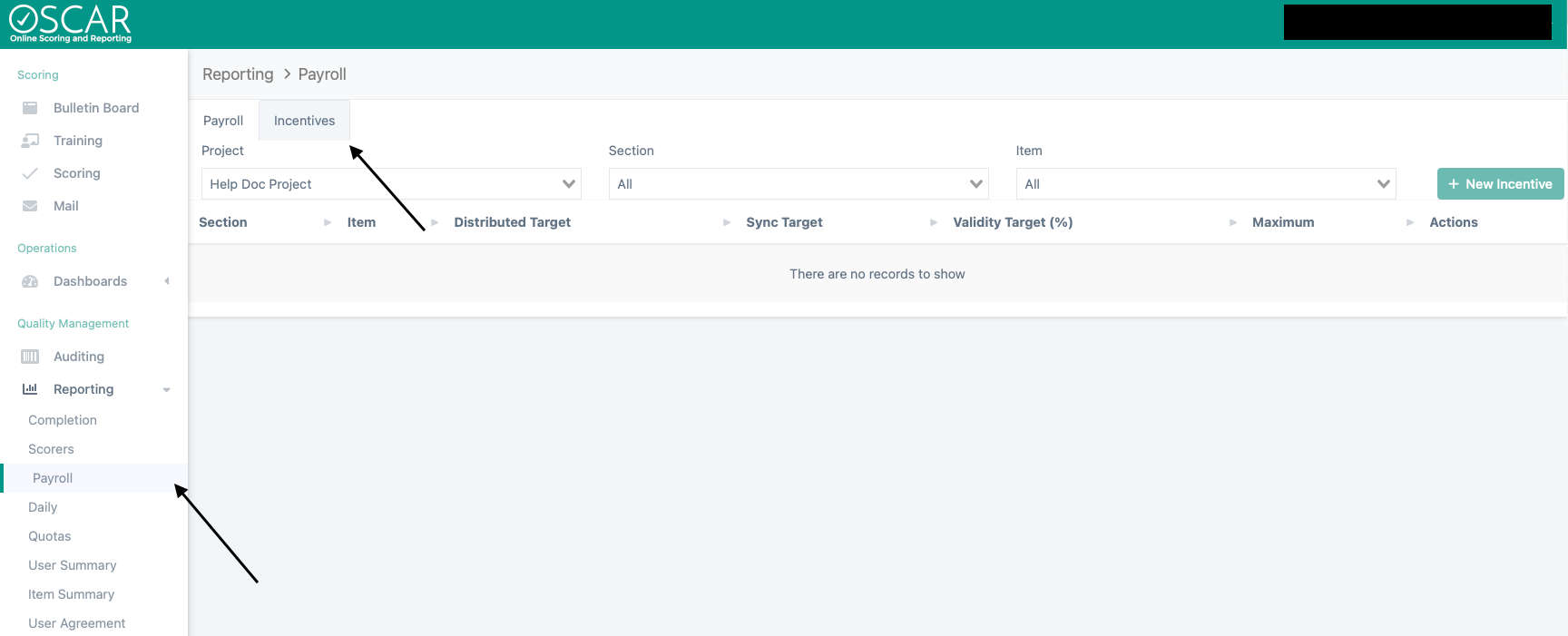
Incentives tab showing filters
Creating a New Incentive
To create a new incentive:
- Navigate toReporting > Payroll > Incentives.
- Select values for:
- Project
- Section
- Item
- Once all filters are selected, select Create New Incentive.
- Enter the required incentive configuration values.
- Save the incentive.
After saving, the incentive becomes active and is added to the Incentives list. 
Incentive Configuration Fields
Each incentive includes the following configuration options:
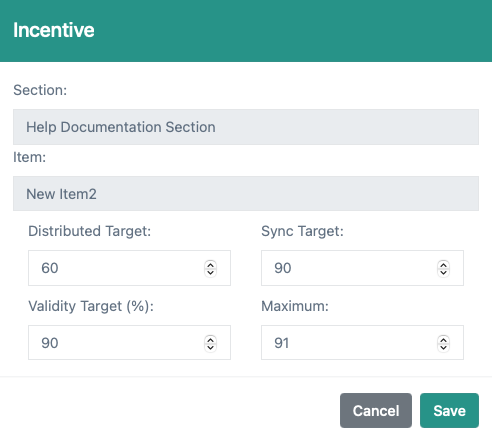
- Validity Target: The minimum validity percentage required to meet the incentive.
- Distributed Scoring Target: The first scoring threshold used to measure daily progress.
- Distributed & Synchronous Scoring Target: The second scoring threshold representing a higher level of progress.
- Daily Max Target : The maximum number of scores that can count toward the incentive in a single day.
These settings determine how progress is calculated and displayed to scorersscorers.
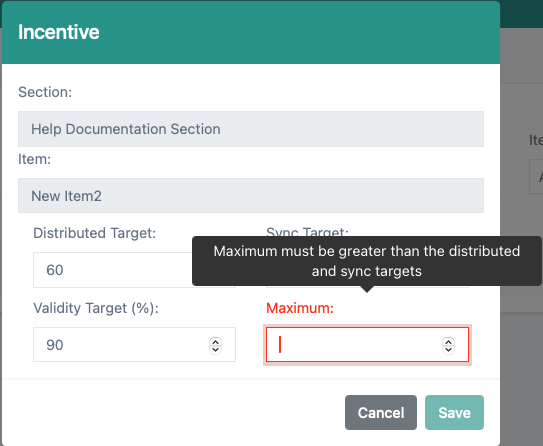
Please note: Maximum must be 1 more than the greater value of the Distributed Target or Sync Target
Viewing Incentives
All configured incentives appear in a list within the Incentives tab.
The list displays:
- Section
- Item
- Validity Target
- Distributed Scoring Target
- Distributed & Synchronous Scoring Target
- Daily Max Target
Selecting a Project and All Sections allows users to view all active incentives for that project.
How Incentives Are Used
When an incentive is active:
...
If no incentive is configured for the scorer’s current section and item, the Incentive Score Bar will not be displayed.
...