...
You can view published reports that detail student assessment results, as well as summary results
...
for student groups within
...
View Published Reports
To view published reports, follow these steps:
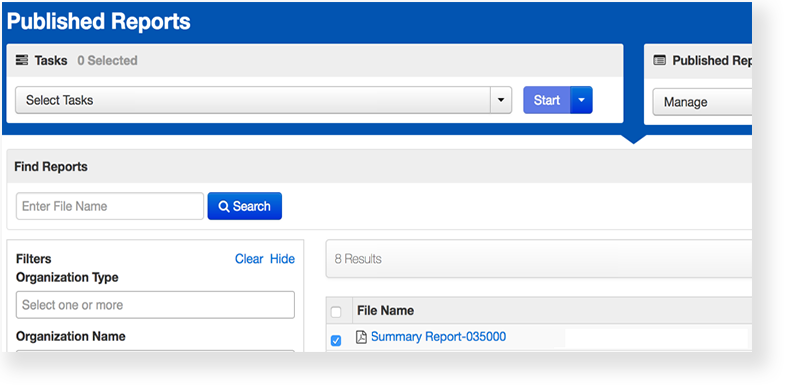
From Reports > Published Reports search to find your report.
Expand title Click here to view a screenshot... - To download reports you can:
- Double-click a single report, or
Select multiple reports and then go to Published Report task menu and re-select the reports and click Download.
Expand title Click here to view a screenshot...
Restrict View of Published Reports
To hide published reports or to show previously hidden reports, follow these steps:
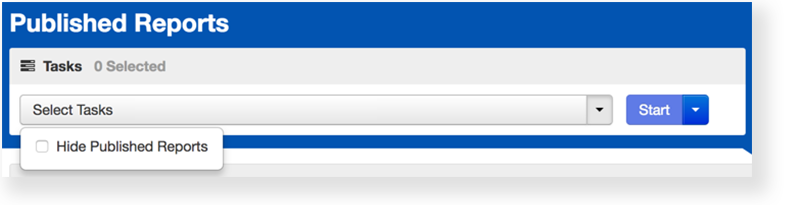
Select the report, open the task list and select Hide Published Reports.
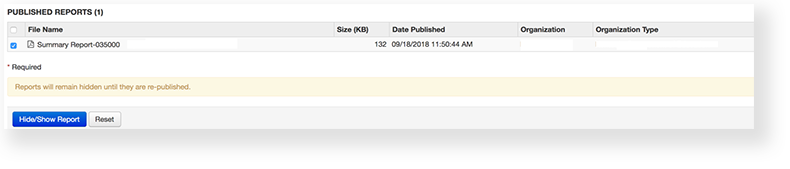
Expand title Click here to view a screenshot... On the Hide Published Report screen, select the report and click Hide/Show Report.
...
an organization.
Step-by-Step
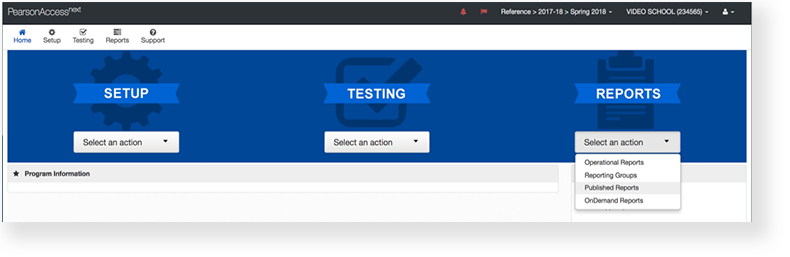
From Reports, select Published Reports.
Type the file name into the search field, and click Search (or apply filters).
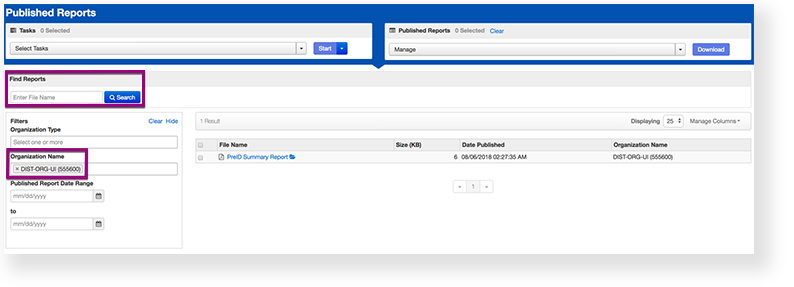
- Double-click on a report to download.
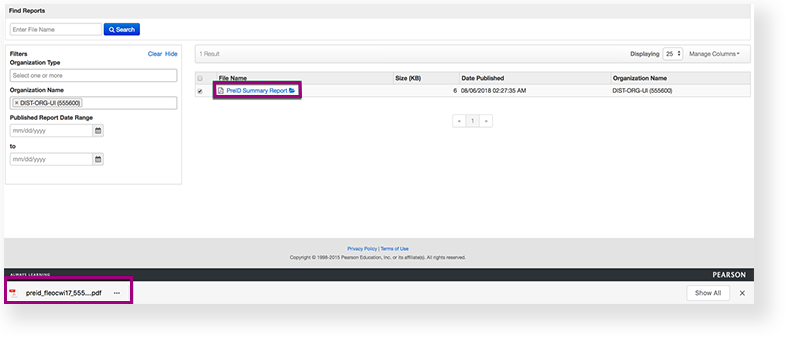
You can also select multiple reports:- Click Select Tasks, click Published Report, and click Start.
- Re-select the reports.
- Click Download.
Effects
| Expand | ||
|---|---|---|
| ||
To review them prior to releasing them to other users in the system:
|