
...
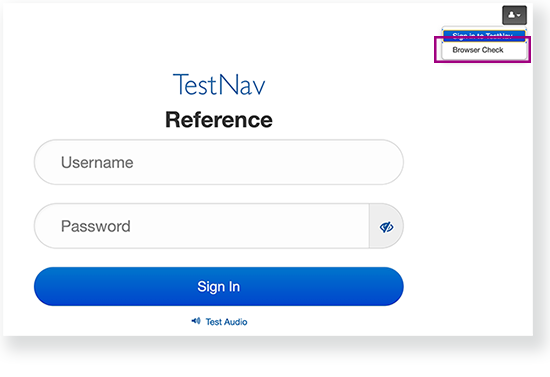
Most students testing remotely are being directed to use browser-based TestNav to allow them to also access video and chat for communication with their teachers.
Run Browser Check using the instructions on the Access TestNav on your Home Computer or Device page.
Contact Pearson support if following these instructions this does not resolve any issues.
Content Filtering and Firewalls
Whether your students are accessing TestNav on devices that are managed at the school or district level through VPNdistrict proxy, or on personal devices through a home network, students may experience slowness connectivity issues or TestNav error codes due to content filtering and firewalls.
Prior to student testing, see:
Hardware and Software Requirements on the TestNav System Requirements page
Firewall/Proxy Servers/Content Filtering Requirements on the Network Requirements and Guidelines page
Device-Specific Settings
Depending on the student's device, he or she may encounter issues using TestNav and a video/chat application simultaneously. To allow for this simultaneous use, students may access TestNav through a browser, as noted in the Browser Check section above.
If students are using iOS 14 on iPadiPadOS, see the following Apple instructions to:
| UI Text Box | ||
|---|---|---|
| ||
| Note that you can select iOS iPadOS 13 at the top of these pages for instructions specific to that version. |
If students using a Chromebook experience issues using TestNav and video/chat application simultaneously, direct those students to access TestNav through a browser, regardless of whether the device has the TestNav app installed, to allow for the simultaneous use of TestNav and video/chat applications.
...