| Excerpt |
|---|
Audience: School Test Coordinators For districts For customers not providing course and class data via a data sync, this data can be manually loaded into LaunchPad by those with administrator access. At this time courses and classes must be created individually; bulk upload will be available soon. A Course record cannot be deleted if it contains linked Class records with an Active status. Active classes must first be inactivated before the respective Course can be deleted. Prerequisites: Academic Sessions must be set up before creating courses (contact your Pearson delivery team if these are missing). To create a new course:Teachers account must be created before setting up classes (see Bulk Import Educator Accounts). Create a New Course- From the LaunchPad Pearson administrator login page, log in with your LaunchPad user account credentials. For account access inquiries, please contact your Pearson delivery team.
- Under the Roster Data header, click select Courses.
- In the Actions menu (top right), select Create New Course.
- Fill in fields.
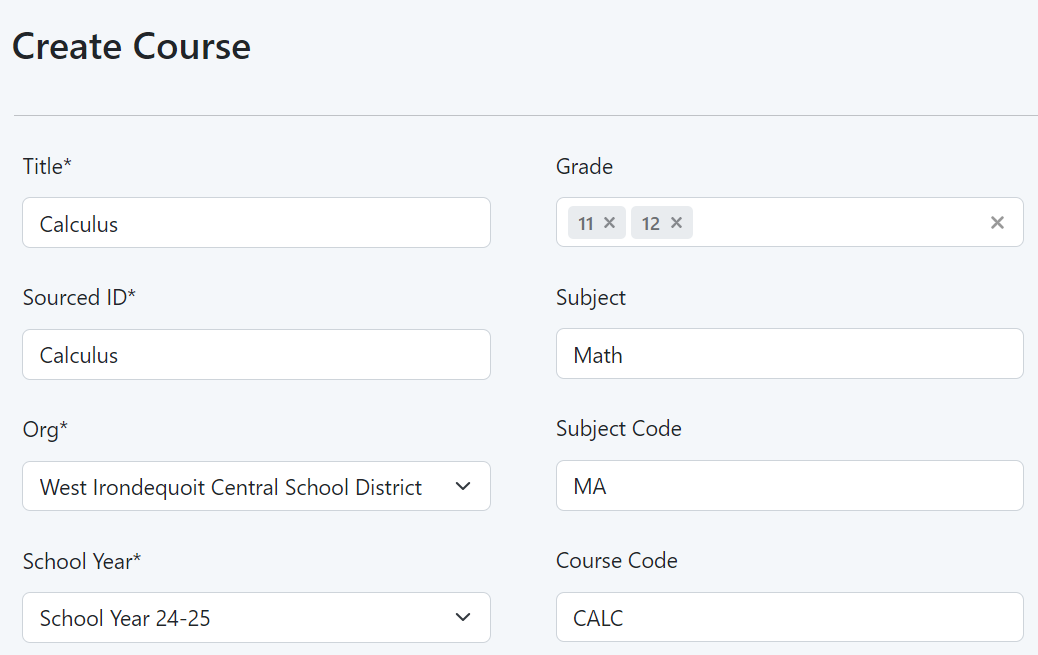 Image Added Image Added - Click Select Save Course.
- Optionally, create classes for this course before creating additional courses. (As an alternative, complete adding courses .
Image Removed Sample Create Course page - first, and then return to the Courses list and click each course to add associated classes.)
Add a Class to a Course- Open a course and then select Add a class.
- Fill in all required fields and additional ones as desired to facilitate searching and sorting.
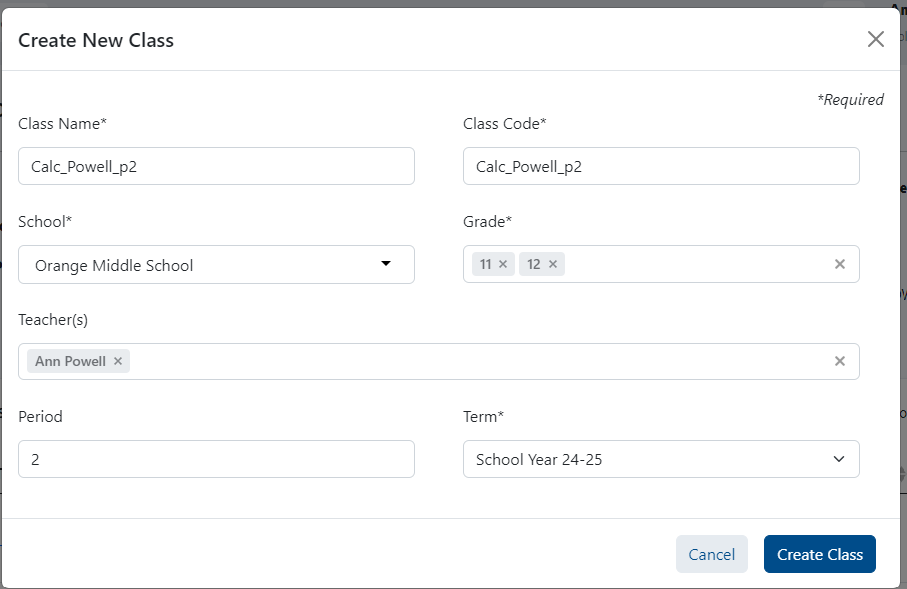 Image Added Image Added - Select Create Class.
- Repeat for additional classes for this course.
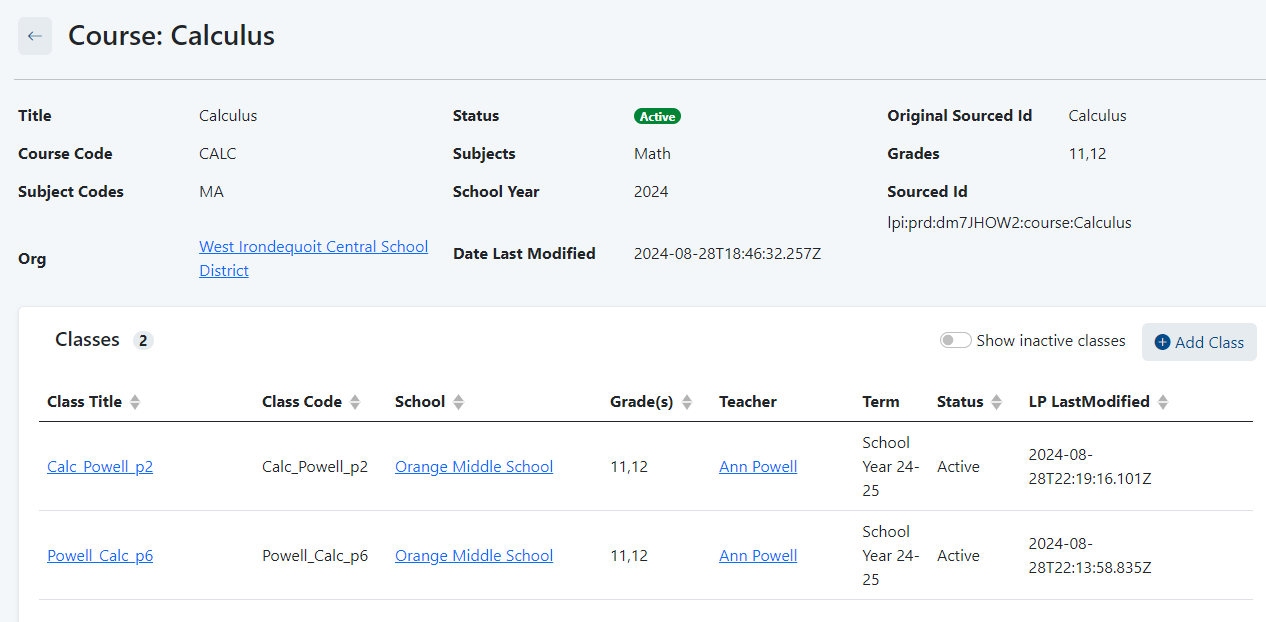 Image AddedSample Course page with two classes added. Image AddedSample Course page with two classes added.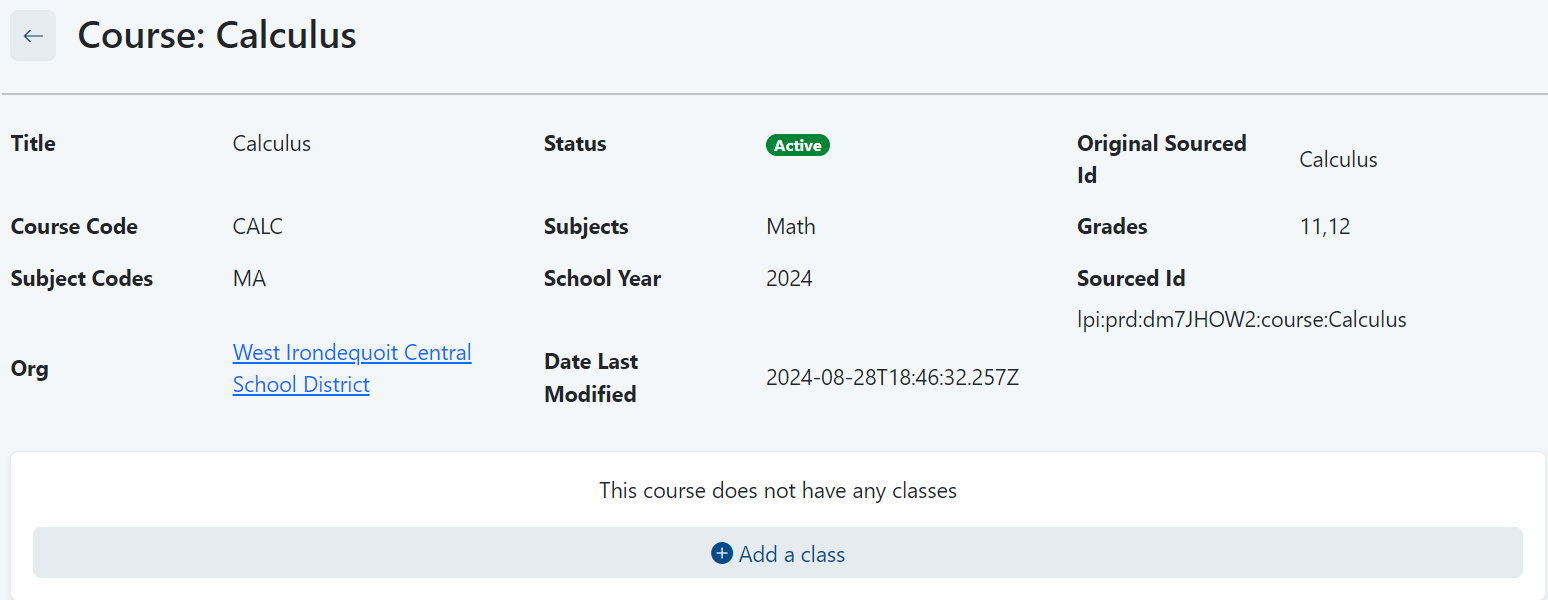 Image Removed Image Removed
|
...
Tiny Link: https://support.assessment.pearson.com/x/2QE-CQ
