| Excerpt |
|---|
Prior to testing, Pearson recommends confirming that each student testing device is configured properly. This page does not pertain to tests managed in ADAM. Ask your Assessment Coordinator or Pearson Delivery Team if you are unsure what content on this page applies to your setup. App Check (without optional Configuration Identifier)On the App Check page: Launch TestNav. Select App Check.
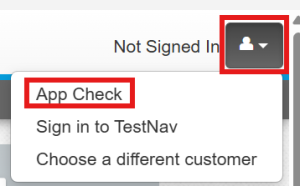 Image Removed Image Removed
Click Run App Check. 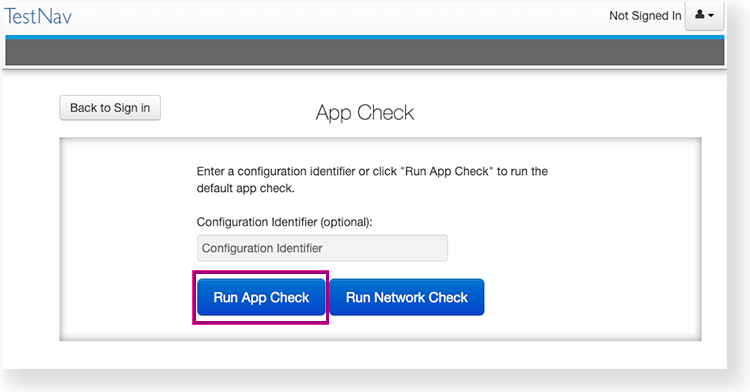 Image Removed Image Removed
Green checkboxes for Kiosk Mode readiness and connectivity to TestNav display if the system passes. If one of these fails, a Fail message indicates you must check your connection and settings before running App Check again.
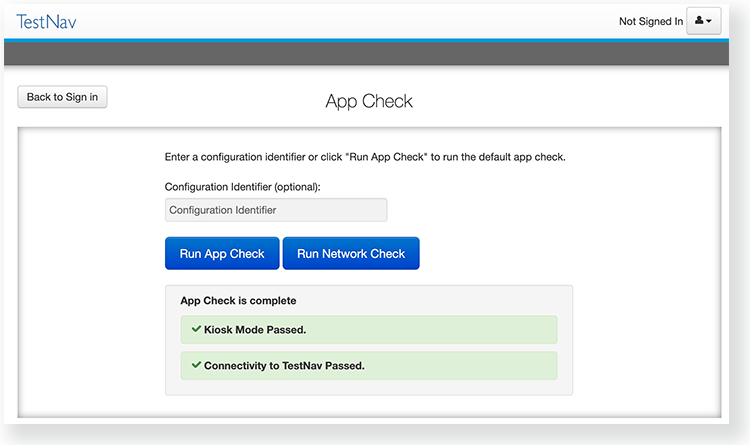 Image Removed Image Removed
App Check (with optional Configuration Identifier)The App Check is essential to run on each student testing device. | Info |
|---|
| App Check does not check screen size or resolution. If a student attempts to sign in to a test on a device that does not meet support minimums, TestNav may display an error. See TestNav System Requirements for support minimums. |
Launch TestNav on the student device. Select App Check.
Image Added
- Additional step for PearsonAccessNext installations only (not ADAM): If you have obtained a Configuration Identifier from your assessment management system
:Enter Click Run App Check. Run Network CheckOn the App Check page: - Select Run App Check.
Image Added
When the app check completes, review the results. Green checkboxes for Kiosk Mode readiness and connectivity to TestNav display if the system passes. If one of these fails, a message indicates you must check your connection and settings before running App Check again.
.Image Added
Run Network CheckThe best way to ensure network capacity is to follow the guidelines in the Network Requirements and Guidelines page. The Network Check described here is essentially an internet speed test that divides the results by the number of testers entered. It will not take into account the distribution of students to hotspots, etc. It may be useful for PearsonAccessNext users who are trying to determine if Proctor Caching is needed. Launch TestNav on the student device. Select App Check.
Image Added
Click Run Network Check.
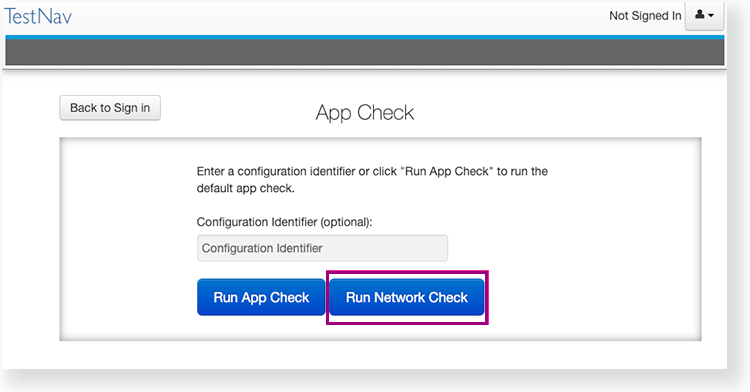 Image Modified Image Modified
Estimate the number of devices that will connect to your network during testing, and enter it into the Number of devices field.
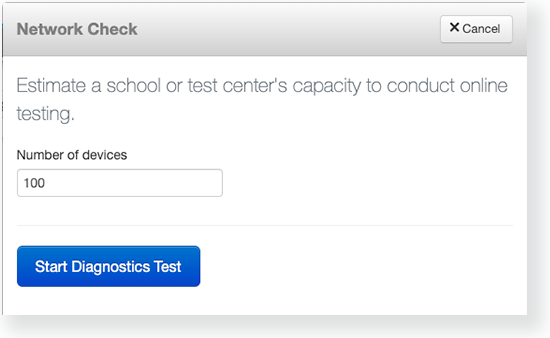 Image Modified Image Modified
Click Start Diagnostics Test. View Test Results under Network Diagnostics to determine whether your network has sufficient bandwidth to test . Note: Any reference to 'ProctorCache' applies only to installations using PAN rather than ADAM.
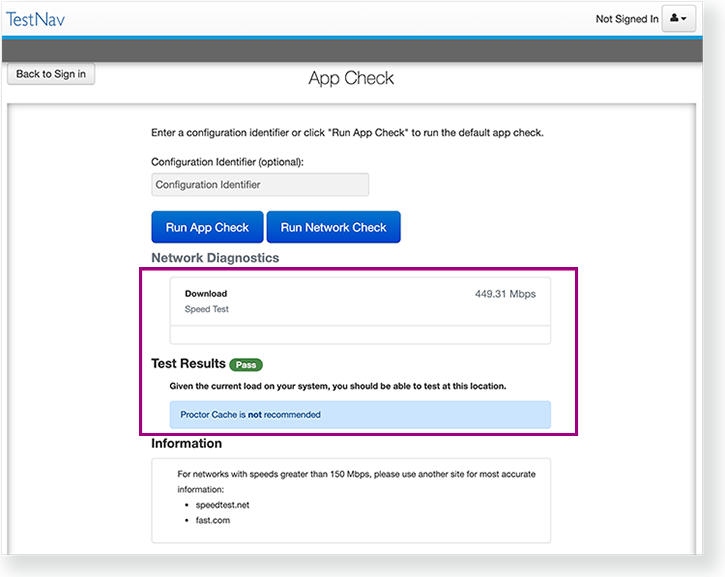 Image Modified Image Modified
|
...
Tiny Link: https://support.assessment.pearson.com/x/AgFMDQ
